 Android app
ExperimentApps Installer
All our apps and games in one list. Pick one, and the installer downloads it from this website, checks that the file is genuine and untouched, and hands it to Android to install or update — with no ads, no accounts and no tracking.
What the app does
Our apps aren't on the Google Play Store, so installing and updating them normally means downloading an APK, checking its SHA-256 by hand and opening the file. ExperimentApps Installer does all of that for you. It reads the list of Android apps and games from www.experimentapps.com, shows which ones are installed and which have an update, and installs the one you choose.
Before anything is installed, the file has to pass a series of checks. If one of them fails, the download is deleted and nothing is installed.
Everything in one place
📋 One list
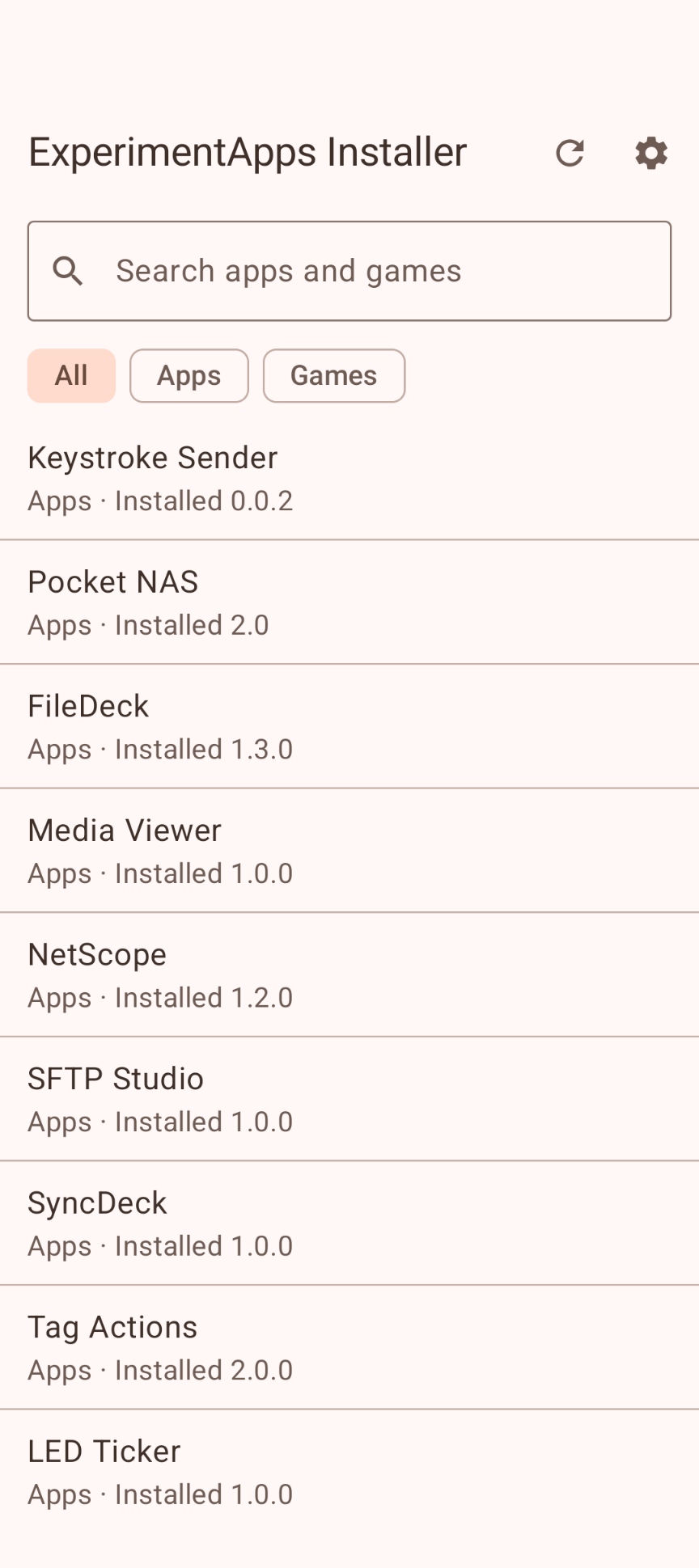
Every Android app and game on this site, with a search field and All, Apps and Games filters. Each entry shows whether it is installed, which version, and when an update is available.
✅ Verified before install
HTTPS from experimentapps.com only, the SHA-256 published on the app page, a valid Android signature, our own signing certificate, and the same signer as last time. No downgrades.
🔄 Install, update, uninstall
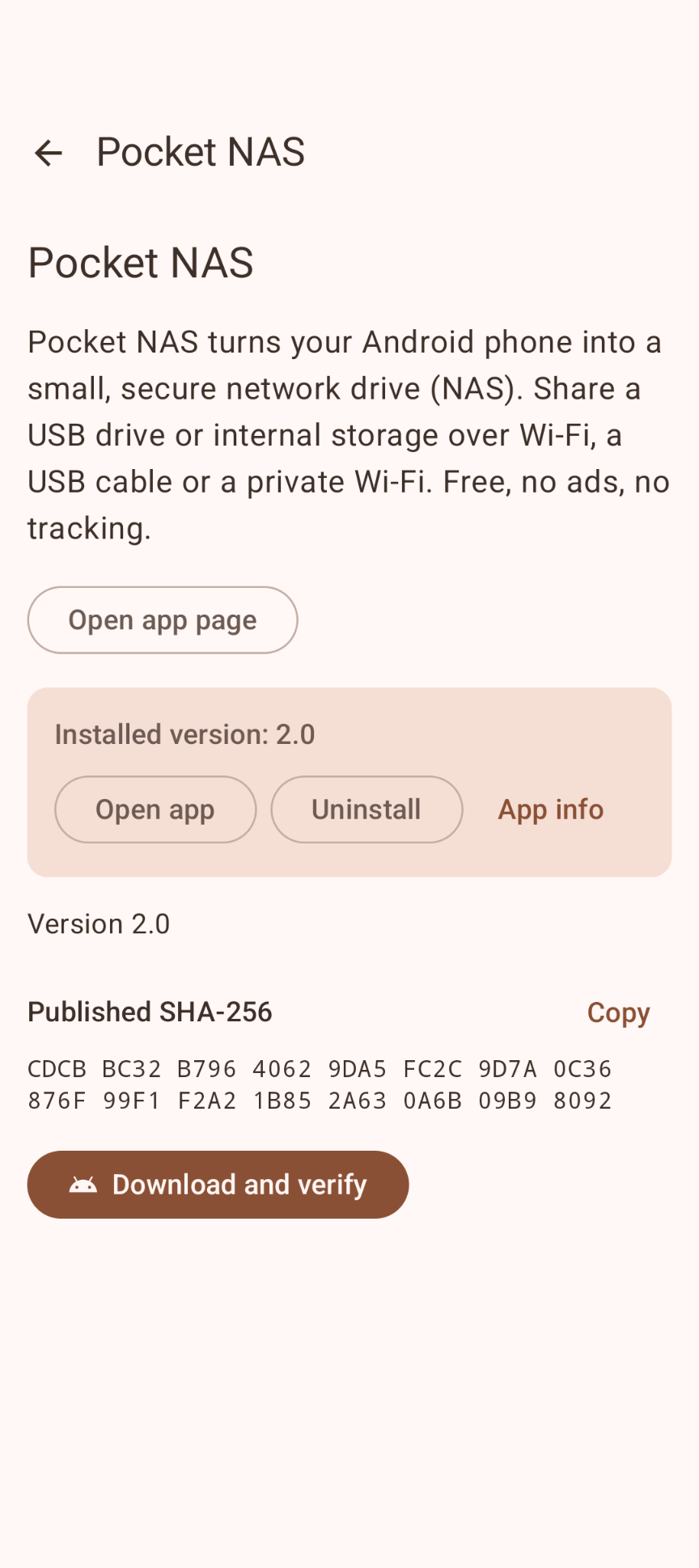
Each app has Download and verify, Open app, Uninstall and App info buttons, plus a link to its page on this site. Android always asks you to confirm an install or uninstall.
🔒 Talks only to this website
Every request, including every redirect, must go over HTTPS to experimentapps.com. Anything else is refused before a connection is made. No analytics and no third-party code.
Highlights
- The file Android installs is hashed again while it is handed over, so the bytes that are installed are exactly the bytes that were verified
- Each of our apps has its own signing key; the installer checks the certificate fingerprint published for each app and rejects an APK signed with another key
- Shows the published SHA-256, package name, version, size and signer of every app
- Adaptive layout: list and details side by side on tablets, foldables and Chromebooks
- Downloaded APKs live in the app's private cache and are deleted after the install, on failure and at start-up
- Material 3 design with light and dark themes
Download
Why ExperimentApps Installer isn't on the Google Play Store
Google currently enforces highly demanding and complex requirements to publish new apps (such as mandatory closed testing phases with at least 20 people for 14 days, rigorous identity verification, and heavy administrative overhead). Because we build apps purely for our own enjoyment and want to keep it simple, we prefer to share the app with you directly.
How to Install the App
- Directly on your phone: Open the downloaded file. If prompted, allow your browser or file manager to "Install unknown apps" from outside the Google Play Store. Google started blocking this way of installing APK files.
- Via your computer: Connect your phone to your computer with a USB cable and install the app using Android Debug Bridge (ADB).
By downloading you agree to the Privacy Statement & Disclaimer. Use is entirely at your own risk.
How to install an APK directly on your phone
- Tap the download button above and wait for experimentappsinstaller.apk to finish downloading.
- Open the file (via your notification shade or the Files app).
- Android will ask permission to install unknown apps. Tap Settings and enable "Allow from this source" for your browser or file manager.
- Go back and tap Install.
- Open ExperimentApps Installer when installation completes.
Installing apps from outside the Play Store is a normal Android feature. You can turn the "unknown sources" permission back off afterwards if you prefer.
How to install an APK via your computer
The cleanest, safest, and most secure way to install an APK file—without modifying your phone's mobile security settings or enabling "Unknown Sources"—is via ADB (Android Debug Bridge) from your computer. This is an official command-line utility supplied by Google for Android developers.
Step 1: Download ADB on your computer (The fastest way)
You do not need to install the massive Android Studio suite. Google provides a lightweight, standalone package called Platform-Tools.
- Windows: Download the official Android SDK Platform-Tools for Windows.
- Mac / Linux: Download the zip package above or install it instantly via your terminal line:
- Mac (via Homebrew): Run
brew install android-platform-tools - Linux (Ubuntu/Debian): Run
sudo apt install adb
- Mac (via Homebrew): Run
Note: If you downloaded the ZIP file (Windows/Mac), extract it into an easy-to-reach directory, such as C:\platform-tools or your Desktop.
Step 2: Prepare your Android phone
- Open the Settings app on your phone.
- Go to About phone (or System > About).
- Tap Build number 7 times rapidly until a notification pop-up says: "You are now a developer!".
- Return to the main Settings menu, open the new Developer options panel, and turn on USB debugging.
Step 3: Install the APK file
- Connect your phone to your computer using a USB cable.
- Look at your phone's screen: a prompt will ask "Allow USB debugging?". Check the option for “Always allow from this computer” and tap Allow.
- Move your downloaded APK file directly into the folder where you extracted the platform-tools files.
- Open Command Prompt (CMD) on Windows or Terminal on Mac/Linux, and change directories to that folder (e.g., on Windows, type:
cd C:\platform-tools). - Run this command to verify your computer properly detects your device:
(If you see a serial number followed by the word 'device', you are connected successfully!)adb devices - Run the installation script command:
adb install experimentappsinstaller.apk
When the terminal returns a Success message, the app is fully installed on your device and ready to launch!
User manual
The app is in U.S. English.
1. Find an app
The list loads from experimentapps.com when you open the installer; tap ↻ to refresh it. Type in Search apps and games, or tap Apps or Games to narrow the list. Apps you already have show Installed with their version, and Update available when this site has a newer one.
2. Download and verify
Tap an app to see its details and tap Download and verify. The screen stays on while the file downloads. When all checks have passed you see All required checks passed; tap Install.
3. Allow app installs (first time only)
Android asks for your approval before any app can install other apps. Tap Open settings, turn on Allow from this source and come back; the installer continues by itself. You can switch it off again at any time.
4. Confirm the install
Android then shows its own install or update confirmation — always, also for updates. Tap Install or Update. Afterwards, Open app starts the app.
5. Uninstall and app info
On the details page of an installed app, Uninstall asks Android to remove it (Android asks you to confirm) and App info opens its page in Android's Settings.
6. Settings
The ⚙ button opens Settings. Two checks are meant for development only and are on by default: Require a signature Android accepts and Block older versions. Turning one off asks for confirmation, and a red banner is shown while it is off. The SHA-256 check and the check of our signing certificate can never be turned off. Settings also has Delete downloaded files and Forget remembered signers.
Good to know
- Windows applications such as AI OS Controller and Disk Toolkit are not in the list: they are downloaded on a PC from their own page.
- Downloads stop when you leave the app. The installer never runs in the background, so a download in progress stops when the app leaves the screen. Just start it again.
- Already installed with adb or from an APK? The installer still recognizes those apps, and can update them as long as they were signed with the same key.
- Going back to an older version: Android doesn't let one app downgrade another. With Block older versions off, the installer asks you to uninstall the newer version first, which deletes that app's data.
Permissions this app requests
We believe in being transparent about every permission. ExperimentApps Installer requests only these three:
| Permission | Why |
|---|---|
| Internet | To read the list of apps from experimentapps.com and download the APK you choose. The app refuses every other address, and only goes online while you use it. |
| Install unknown apps | To hand a verified APK to Android's installer. Android asks you to allow this once in Settings; the app can't grant it to itself. |
| Request uninstall | For the Uninstall button. Android shows a confirmation for every uninstall. |
Privacy & cost — in plain terms
- Only experimentapps.com. The app connects to this website and nowhere else, only while you use it.
- No usage data collected. No analytics, crash reports, telemetry or advertising.
- No personal data requested. There are no accounts, no sign-up, no login.
- No cookies, no tracking. This website sets none either.
- Nothing runs in the background. No services, scheduled jobs or notifications.
- No payment, ever. The app is completely free, with no ads and no in-app purchases.
The only data the app stores are its two settings and the signer fingerprints of the apps it installed, in its private storage on your device. Downloaded APKs are deleted after installation. Cloud backup and device transfer are disabled. For the full statement, see Privacy & Disclaimer.
Responsible use & your responsibility
ExperimentApps Installer is a hobby and educational project. Leave the two development checks in Settings switched on unless you know why you are turning them off: they protect you against tampered or fake APKs.
The app is provided "as is", for learning and experimentation, without any warranty. Please read the full Privacy Statement & Disclaimer before use — by installing or using the app you accept those terms.
Images