 Android app
FileDeck
A file explorer for your phone, tablet or Chromebook that also opens your NAS, SFTP, FTP, WebDAV and Windows shares. Copy files between any two places — with no ads, no accounts and no tracking.
What the app does
FileDeck is a complete file manager that works the way a file manager on a computer does. Browse internal storage, SD cards and USB drives, and add your network locations next to them: a NAS, a Windows share, a web host or another phone. Then copy, move, zip, search and share files between any two places — for example straight from your phone to your NAS.
It works hand in hand with our other apps: open a Pocket NAS over WebDAV, or an SFTP Studio server over SFTP.
Everything in one place
📱 On this device
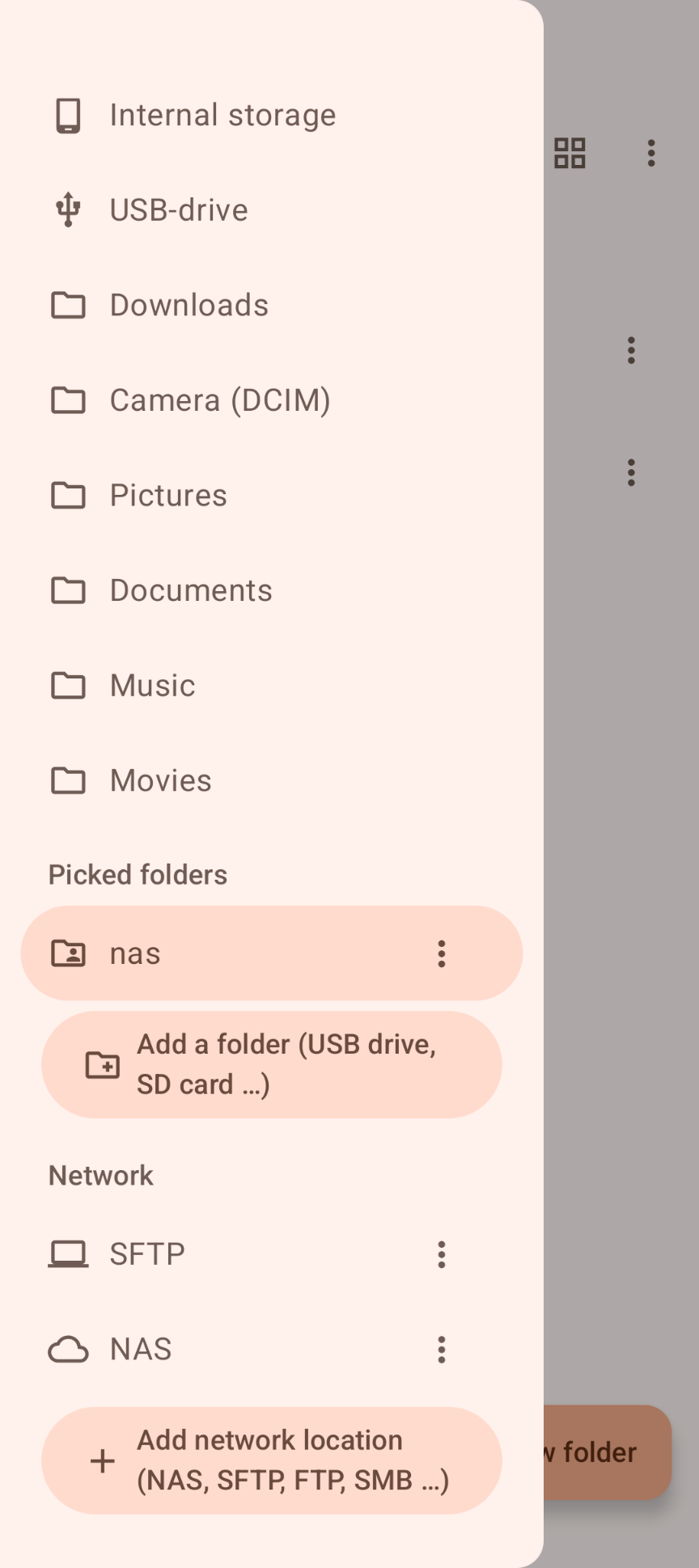
Internal storage, SD cards and USB drives, plus shortcuts to Downloads, Camera, Pictures, Documents, Music and Movies. Any folder can also be added with Android's folder picker, without any storage permission.
🌐 On your network
WebDAV (Pocket NAS, Nextcloud, Synology, QNAP…), SFTP (SFTP Studio, Linux, macOS, web hosts), FTP / FTPS and SMB (Windows shares, Samba, NAS). Large files are streamed, never loaded into memory.
📋 Copy between anything
Copy, cut and paste across any two locations, with Replace, Skip or Keep both when names clash. Long operations show progress and can be canceled; half-copied files are cleaned up.
🔎 Find it fast
Search the current folder and everything below it by name or wildcards (*.pdf, IMG_2024*), filter by type, size and date, and even search inside text files.
Highlights
- List or grid view with thumbnails for photos, videos, music covers, PDFs and APKs
- Sort by name (natural order: "File 2" before "File 10"), date, size or type; folders first; show or hide hidden files
- Quick multi-select: double-tap or long-press to start, long-press another item to select a whole range
- Zip and Extract (zip, jar, apk, epub), protected against "zip slip" path tricks
- Properties with photo, video and music details, APK version, zip contents and MD5 / SHA-1 / SHA-256 checksums — handy to verify the downloads on this site
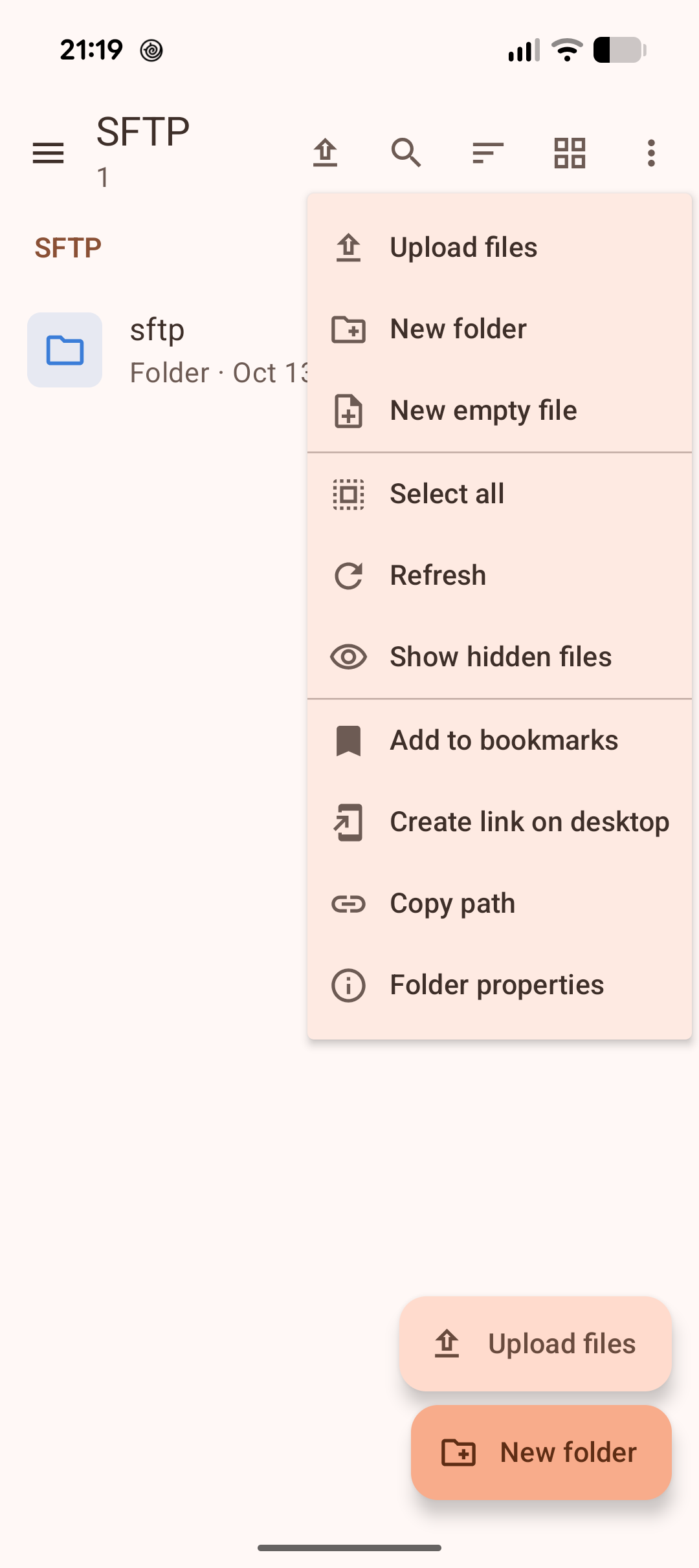
- Bookmarks for any folder in any location, and home-screen shortcuts with Create link on desktop
- Server identities are checked on every connection, with a clear warning if one changes
- Material 3 design with light and dark themes; on tablets, foldables and Chromebooks the Places panel and a details pane stay visible
Download
Why FileDeck isn't on the Google Play Store
Google currently enforces highly demanding and complex requirements to publish new apps (such as mandatory closed testing phases with at least 20 people for 14 days, rigorous identity verification, and heavy administrative overhead). Because we build apps purely for our own enjoyment and want to keep it simple, we prefer to share the app with you directly.
How to Install the App
- Directly on your phone: Open the downloaded file. If prompted, allow your browser or file manager to "Install unknown apps" from outside the Google Play Store. Google started blocking this way of installing APK files.
- Via your computer: Connect your phone to your computer with a USB cable and install the app using Android Debug Bridge (ADB).
By downloading you agree to the Privacy Statement & Disclaimer. Use is entirely at your own risk.
How to install an APK directly on your phone
- Tap the download button above and wait for filedeck.apk to finish downloading.
- Open the file (via your notification shade or the Files app).
- Android will ask permission to install unknown apps. Tap Settings and enable "Allow from this source" for your browser or file manager.
- Go back and tap Install.
- Open FileDeck when installation completes.
Installing apps from outside the Play Store is a normal Android feature. You can turn the "unknown sources" permission back off afterwards if you prefer.
How to install an APK via your computer
The cleanest, safest, and most secure way to install an APK file—without modifying your phone's mobile security settings or enabling "Unknown Sources"—is via ADB (Android Debug Bridge) from your computer. This is an official command-line utility supplied by Google for Android developers.
Step 1: Download ADB on your computer (The fastest way)
You do not need to install the massive Android Studio suite. Google provides a lightweight, standalone package called Platform-Tools.
- Windows: Download the official Android SDK Platform-Tools for Windows.
- Mac / Linux: Download the zip package above or install it instantly via your terminal line:
- Mac (via Homebrew): Run
brew install android-platform-tools - Linux (Ubuntu/Debian): Run
sudo apt install adb
- Mac (via Homebrew): Run
Note: If you downloaded the ZIP file (Windows/Mac), extract it into an easy-to-reach directory, such as C:\platform-tools or your Desktop.
Step 2: Prepare your Android phone
- Open the Settings app on your phone.
- Go to About phone (or System > About).
- Tap Build number 7 times rapidly until a notification pop-up says: "You are now a developer!".
- Return to the main Settings menu, open the new Developer options panel, and turn on USB debugging.
Step 3: Install the APK file
- Connect your phone to your computer using a USB cable.
- Look at your phone's screen: a prompt will ask "Allow USB debugging?". Check the option for “Always allow from this computer” and tap Allow.
- Move your downloaded APK file directly into the folder where you extracted the platform-tools files.
- Open Command Prompt (CMD) on Windows or Terminal on Mac/Linux, and change directories to that folder (e.g., on Windows, type:
cd C:\platform-tools). - Run this command to verify your computer properly detects your device:
(If you see a serial number followed by the word 'device', you are connected successfully!)adb devices - Run the installation script command:
adb install filedeck.apk
When the terminal returns a Success message, the app is fully installed on your device and ready to launch!
User manual
The app is in U.S. English. All locations are in the Places panel: tap ☰ to open it on a phone; on wide screens it is always visible.
1. Choose a place
Open Places and tap Internal storage, an SD card, a USB drive or one of the shortcuts (Downloads, Camera, Pictures…). The path at the top shows where you are; use Up, Back (or the system Back button) to return.
2. Give access to your files (optional)
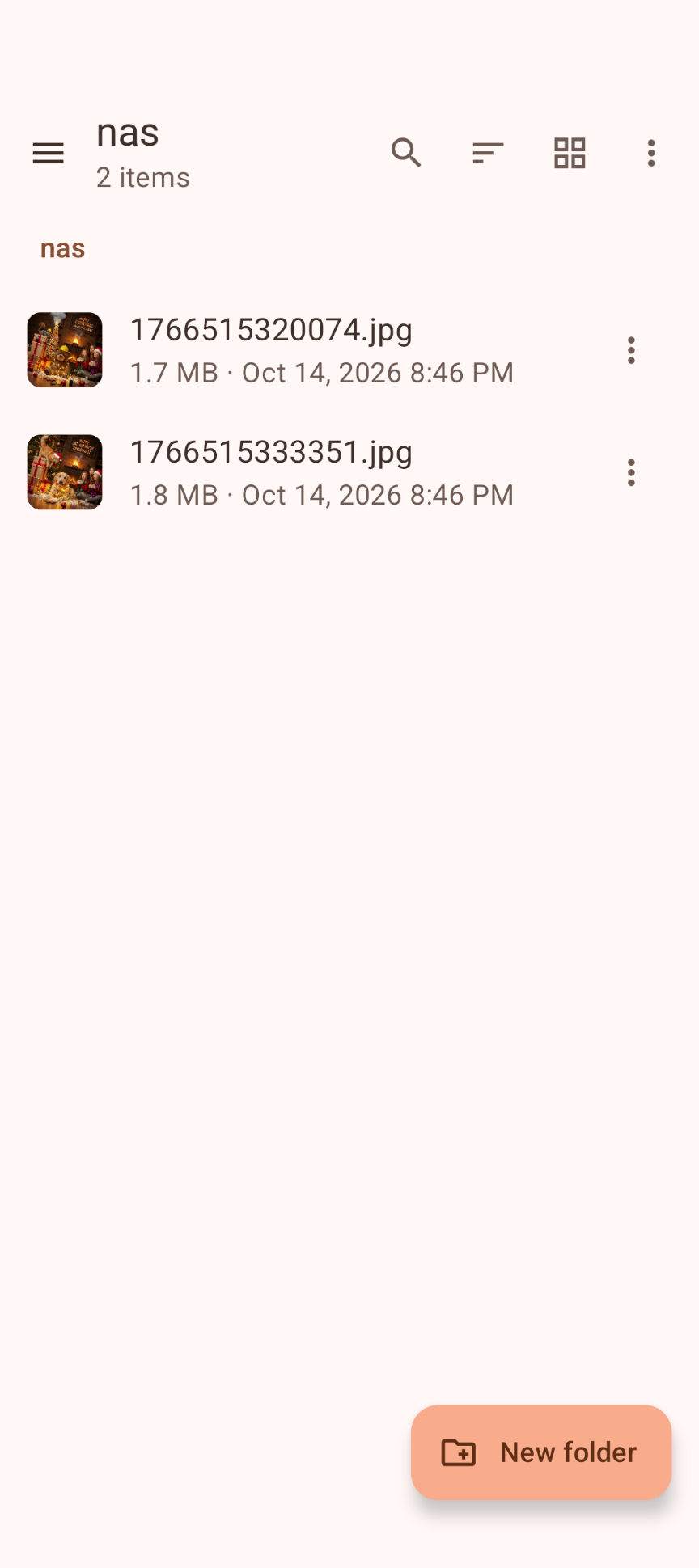
To see and manage every file, like on a computer, turn on All files access for FileDeck in Android's settings. Prefer not to? Use Places › Add a folder (USB drive, SD card…) instead: Android's folder picker opens at the top of internal storage, and SD cards and USB drives are in its ☰ menu. Pick a folder, tap Use this folder and then Allow. The app then gets access to that folder only.
3. Add a network location
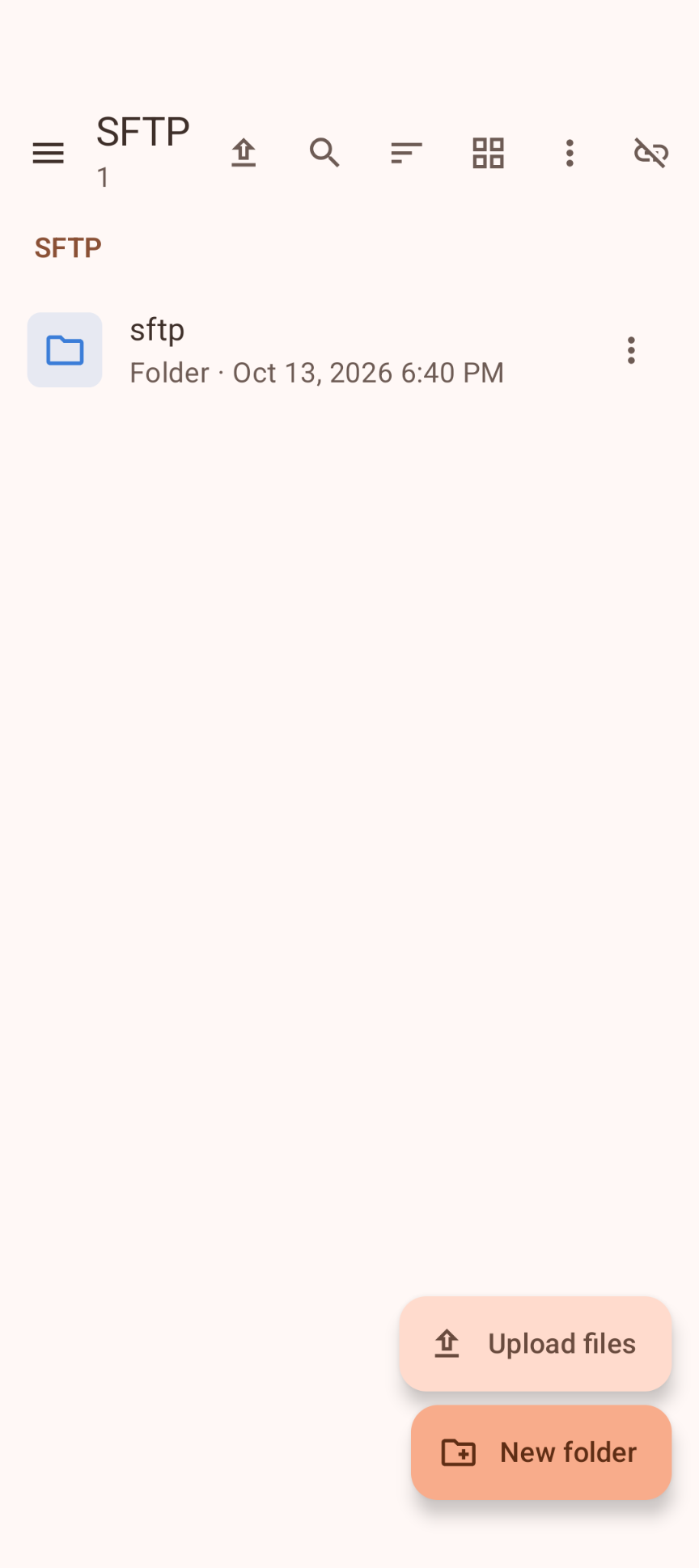
Tap Places › Add network location (NAS, SFTP, FTP, SMB…), choose the protocol and enter the server, port, user name and password (or an SSH key for SFTP). Some examples:
- Pocket NAS: WebDAV, port 8080 (HTTP) or 8443 (HTTPS), with the user name and password shown in Pocket NAS.
- SFTP Studio: SFTP, port 2222, with the address, user name and password from its Server page.
- Windows share or NAS: SMB, with the name of the share (FileDeck can't list all shares of a server).
The first time you connect, FileDeck shows the server's SSH key or HTTPS certificate once so you can confirm it.
4. Open and select
Tap a file to open it in its default app, or a folder to open it. Double-tap or long-press an item (or use ⋮ › Select) to start selecting; then tap to add or remove items, and long-press another item to select everything in between. Select all, Invert selection and Clear are in the selection bar.
5. Copy, move and more
Use the selection bar or the ⋮ menu of an item:
- Copy or Cut, go to another location, and Paste. When a name already exists, choose Replace, Skip or Keep both (folders are merged on Replace).
- Send to e-mail, a desktop link, a zipped folder, or any storage, bookmark or saved location.
- Open with…, Share…, Rename, Delete, New folder, New empty file, Zip, Extract, Copy path and Add to bookmarks.
- Properties shows the type, size (folders are counted live), dates, permissions and checksums.
6. Search
Tap 🔍 to search the current folder and everything below it. Type part of a name or a wildcard pattern, add filters (type, size, date, hidden files, files only, search inside text files) and watch the results appear. Tap Stop at any time, or Show in folder to jump to a result.
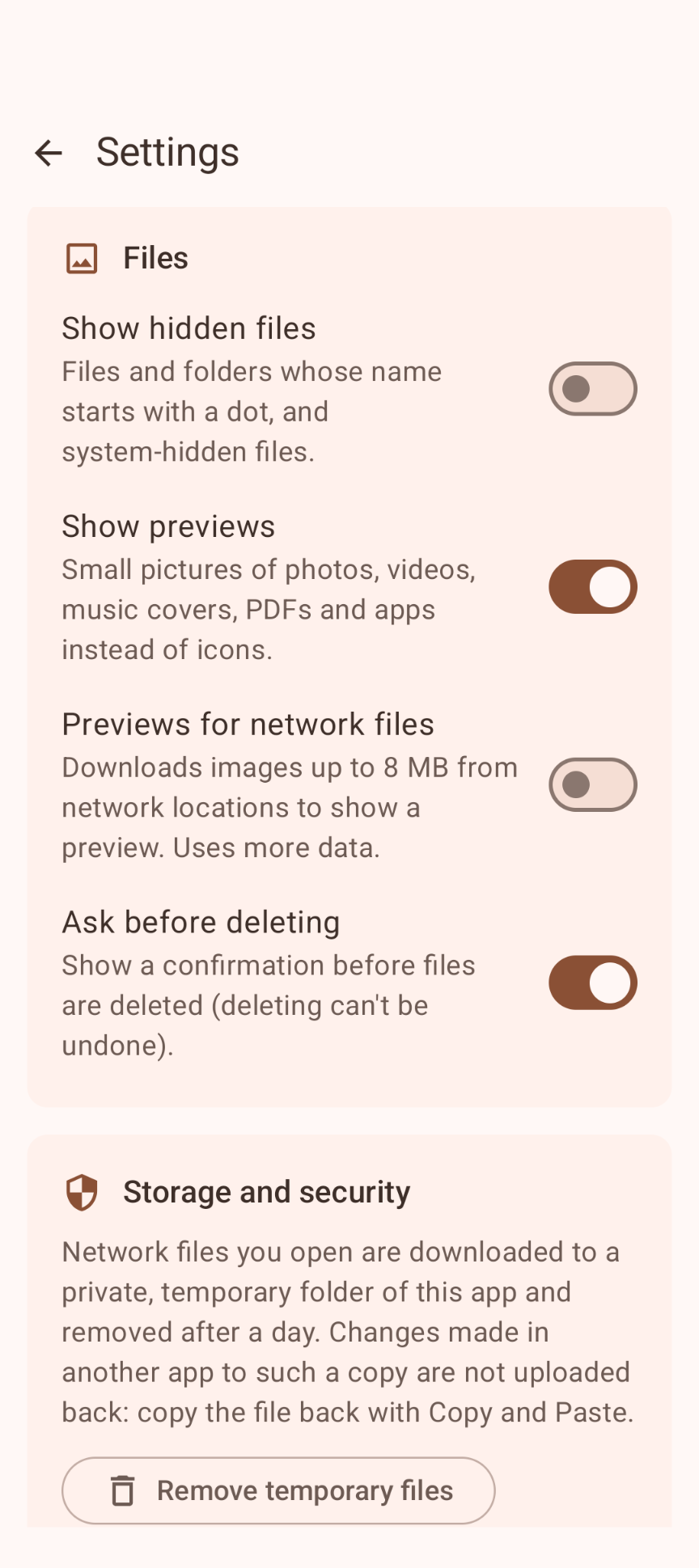
- Show hidden files: files and folders whose name starts with a dot, and system-hidden files.
- Show previews: small pictures of photos, videos, music covers, PDFs and apps instead of icons.
- Previews for network files: (off by default) downloads images up to 8 MB from network locations to show a preview. Uses more data.
- Ask before deleting: shows a confirmation first, because deleting can't be undone.
- Remove temporary files: clears the private copies of network files you opened.
Good to know
- Keep the app on screen for long copies. FileDeck never runs in the background: when you leave the app, running copies pause and continue when you return, and idle network connections are closed.
- Opening network files: a file you open from a network location is downloaded to a private, temporary folder and removed after a day. Changes made to that copy in another app are not uploaded back; copy the file back with Copy and Paste.
- Archives: only zip-based formats (zip, jar, apk, epub) can be extracted. RAR, 7z and tar files are shown and can be opened with another app.
- SMB: enter the share name; listing all shares of a server is not supported.
- Send by e-mail only opens your own e-mail app; FileDeck can't send messages itself.
Permissions this app requests
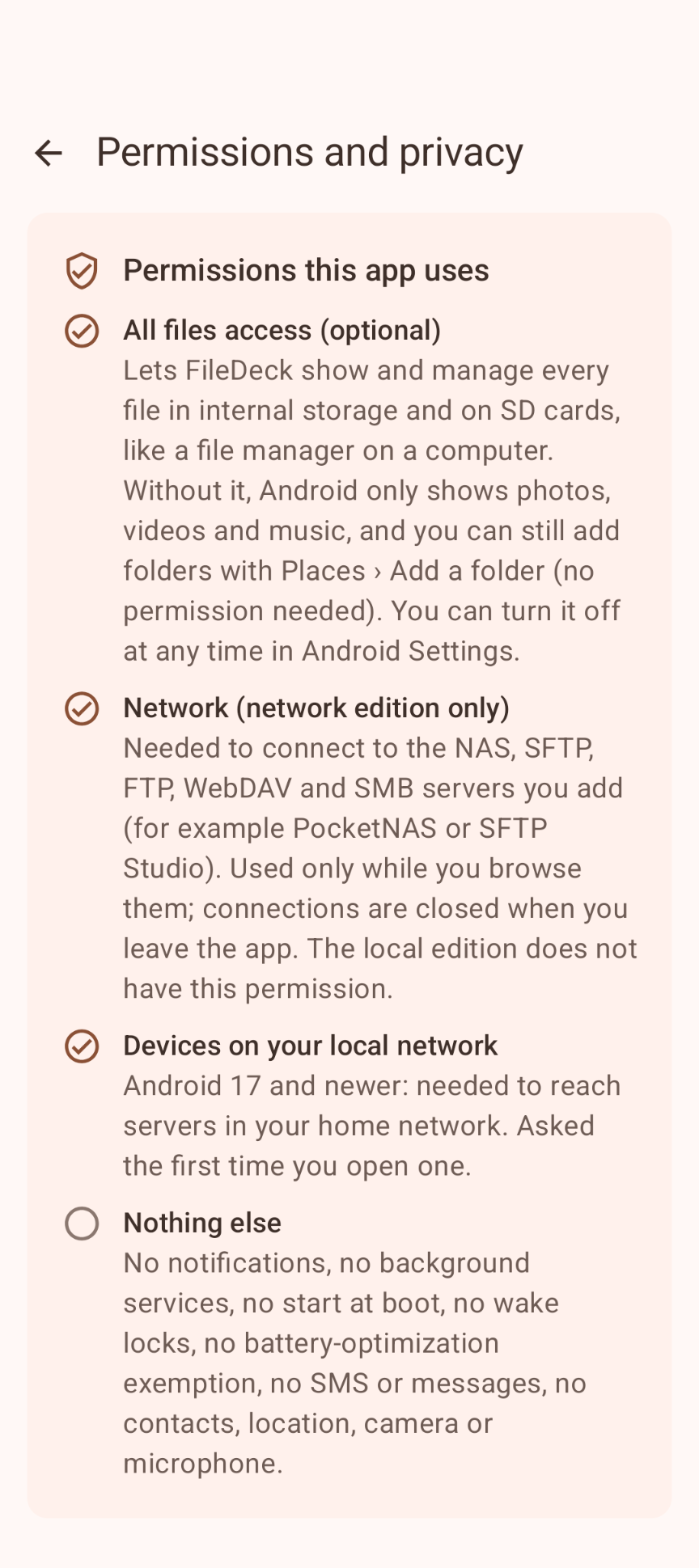
We believe in being transparent about every permission. Here is exactly what the app asks for and why. The same list, with a live "allowed / not allowed" status, is in the app under Places › Permissions and privacy.
| Permission | Why it is needed |
|---|---|
| All files access (optional) | Lets FileDeck show and manage every file in internal storage and on SD cards, like a file manager on a computer. You turn it on yourself in Android's settings and can turn it off at any time. Without it, the app still works: Android shows photos, videos and music, and Places › Add a folder gives access to any folder you pick (also USB drives) without a permission. |
| Read/write storage (Android 8–10 only, optional) | The same as above on Android versions that don't have "All files access". |
| Internet | To connect to the NAS, SFTP, FTP, WebDAV and SMB servers you add — Android requires it for any network connection, even on your home network. Used only while you browse them; connections are closed when you leave the app. The app never contacts us or anyone else on its own. |
| Devices on your local network (Android 17+) | Needed to reach servers on your home network. Asked the first time you open one. |
Privacy & cost — in plain terms
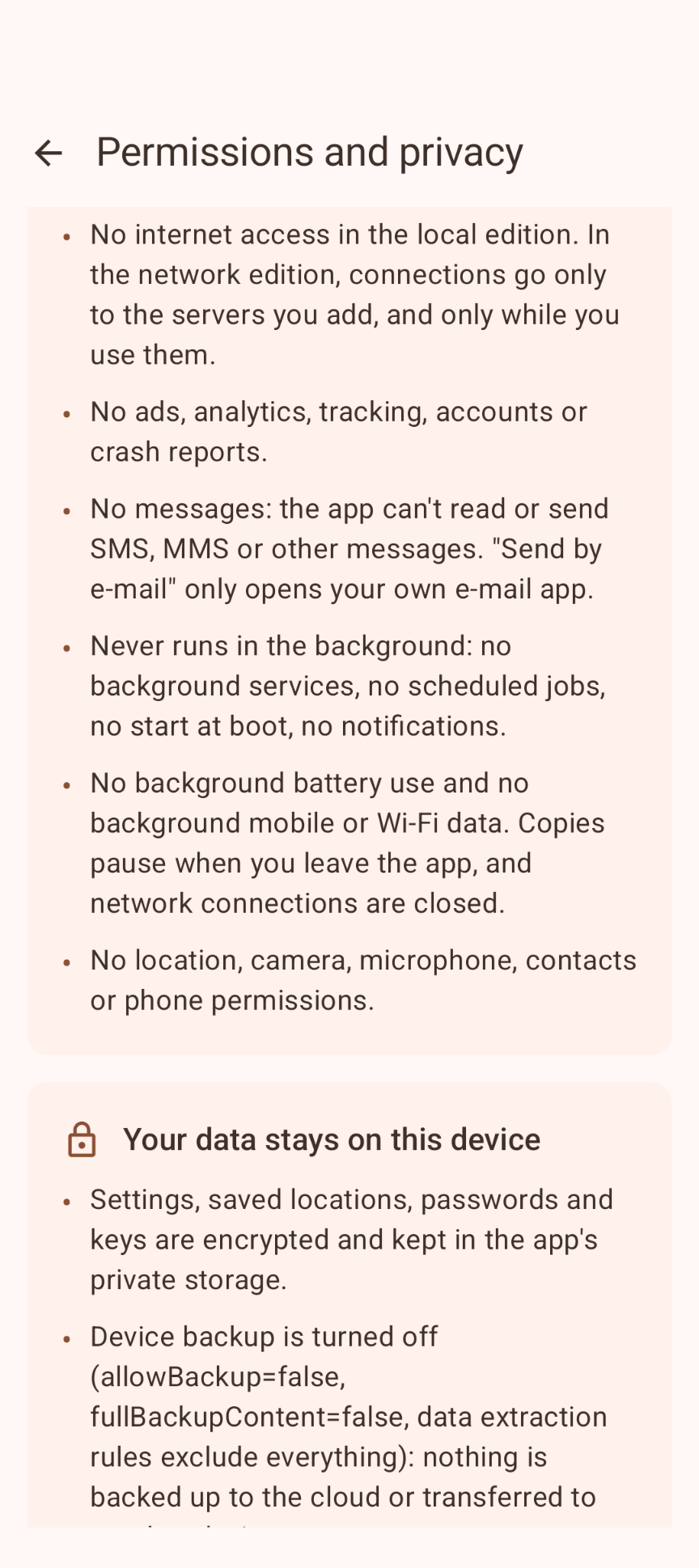
- No usage data collected. No analytics, crash reports, telemetry or advertising.
- No personal data requested. No account with us, no sign-up; the only logins are the ones for your own servers.
- No cookies, no tracking. This website sets none either.
- Your files go only where you send them. Files move directly between your device and the servers you add. Nothing is ever sent to us.
- Nothing runs in the background. No background battery use and no background mobile or Wi-Fi data.
- No payment, ever. The app is completely free, with no ads and no in-app purchases.
Saved locations, passwords, SSH keys and trusted server identities are encrypted (AES-256-GCM, with a key in the Android Keystore) and kept in the app's private storage. Cloud backup and device transfer are disabled. For the full statement, see Privacy & Disclaimer.
Responsible use & your responsibility
FileDeck is a hobby and educational project. It can rename, move and delete files on your device and on your servers, and deleting can't be undone, so keep "Ask before deleting" on and always keep a backup of important files. Only connect to servers you own or are allowed to use, and take a warning about a changed server identity seriously.
The app is provided "as is", for learning and experimentation, without any warranty. Please read the full Privacy Statement & Disclaimer before use — by installing or using the app you accept those terms.
Images