 Android app
Tag Actions
Link any NFC tag to one or more actions. Hold the tag against your phone and its actions run — even when the app is closed.
What the app does
Tag Actions links an NFC tag — a sticker, key ring, card or any other tag your phone can read — to one or more actions. Hold the tag against the back of your phone and its actions run, one after another, even when the app is closed.
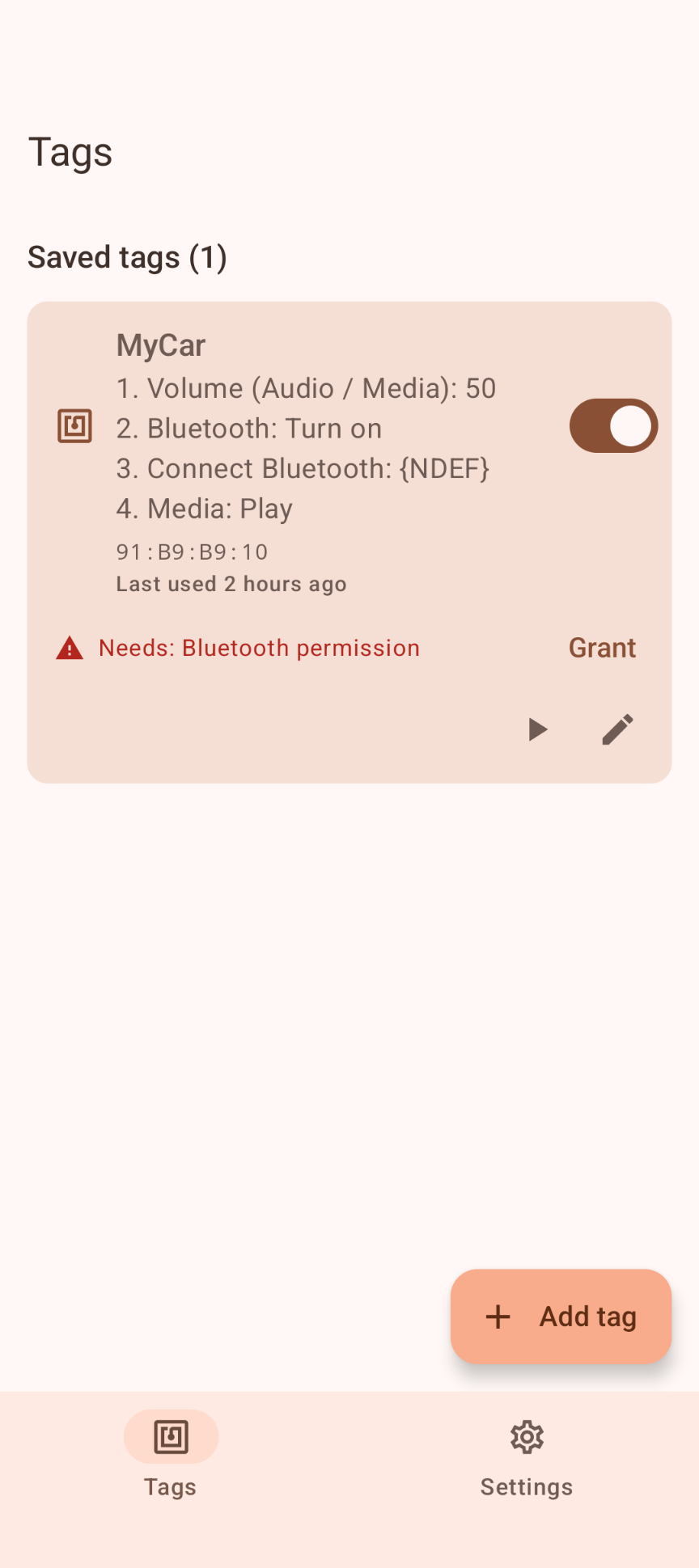
Stick a tag on your desk to start a focus playlist, one on your nightstand for sleep mode, or one in your car to connect Bluetooth and start your music. Each tag can run a whole list of steps, such as Volume 50 → Bluetooth on → Connect car → Play.
Some ideas
🚗 In the car
Turn on Bluetooth, connect to the car audio, set the media volume and press play — with a single tap.
🛏 On the nightstand
Sleep mode silences everything except your alarms. Scan again in the morning to switch the ringer back on.
🏠 Smart home
A web request switches lights or devices through Home Assistant, Shelly, Hue, IFTTT and similar services.
📍 On the way home
Share location texts a map link to a contact every few minutes. Scan the tag again to stop.
Highlights
- 26 built-in actions, from flashlight and media controls to Bluetooth, Do Not Disturb and smart-home requests
- Several actions per tag, in the order you choose, with a Wait step in between when needed
- Runs in the background: scanning a saved tag works even when the app is closed
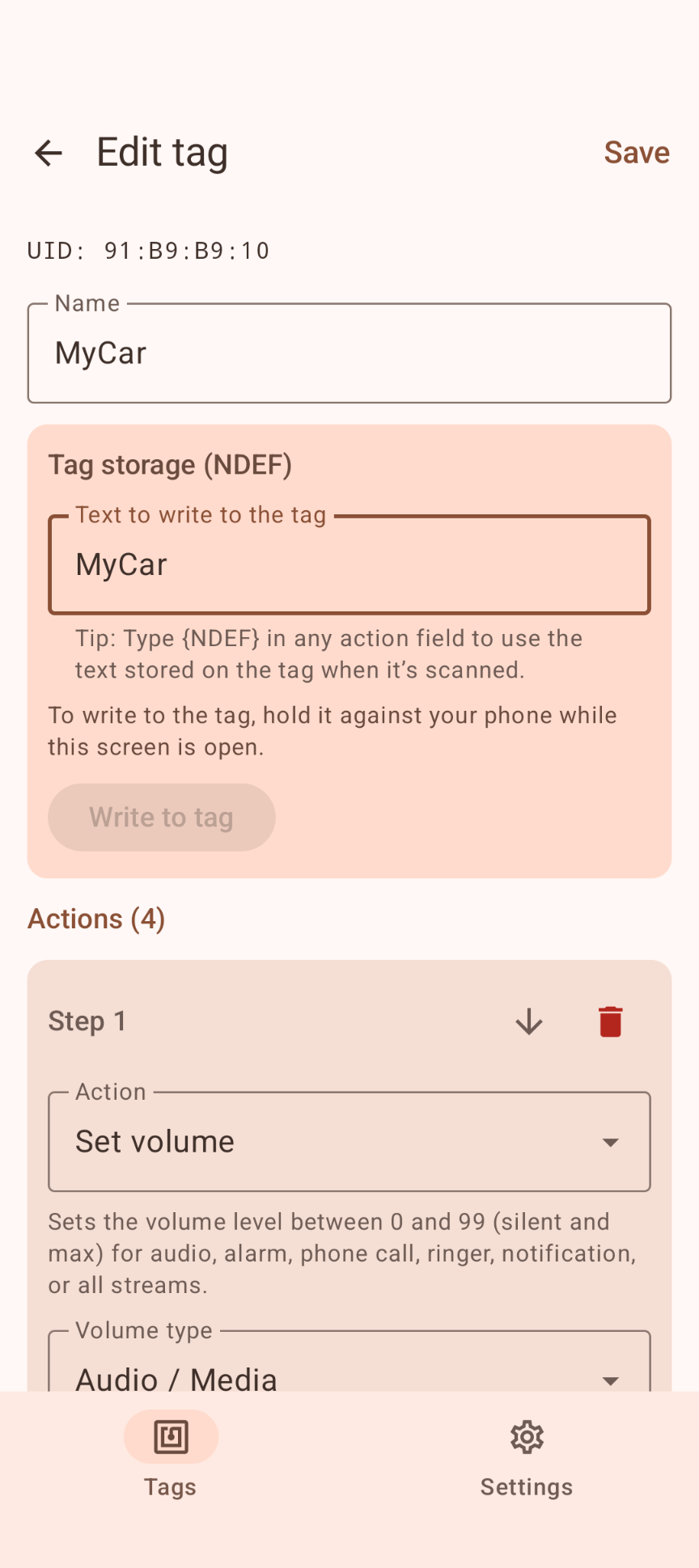
- Write your own text to NTAG/NDEF stickers and use it in any action with {NDEF}
- Each tag has its own on/off switch, a Run now (▶) button and an Edit button
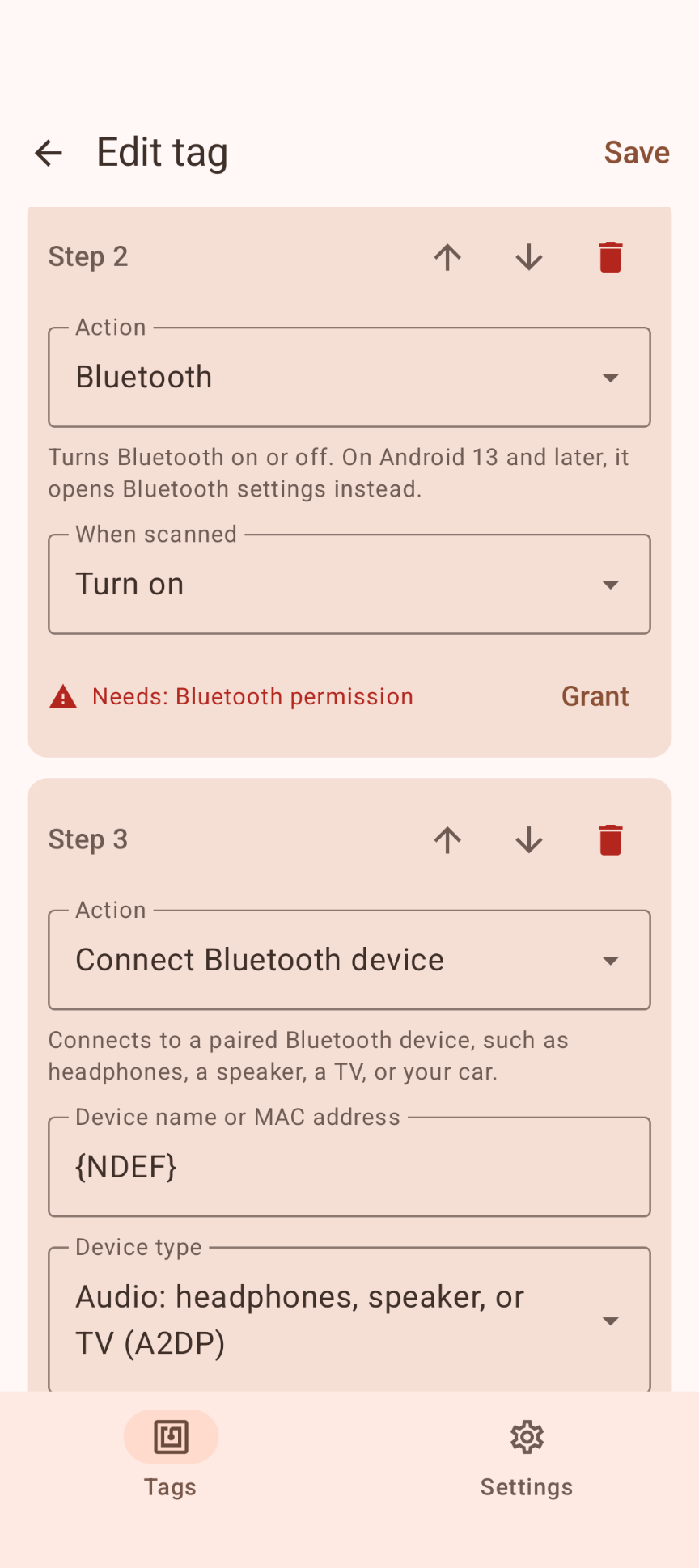
- Clear permission status per action: a red "Needs: …" line with a Grant button, green once granted
- Warns about cards and phones that report a new random ID on every scan
- Material 3 design with light and dark themes; adapts to phones, tablets, foldables and Chromebooks
Download
Why Tag Actions isn't on the Google Play Store
Google currently enforces highly demanding and complex requirements to publish new apps (such as mandatory closed testing phases with at least 20 people for 14 days, rigorous identity verification, and heavy administrative overhead). Because we build apps purely for our own enjoyment and want to keep it simple, we prefer to share the app with you directly.
How to Install the App
- Directly on your phone: Open the downloaded file. If prompted, allow your browser or file manager to "Install unknown apps" from outside the Google Play Store. Google started blocking this way of installing APK files.
- Via your computer: Connect your phone to your computer with a USB cable and install the app using Android Debug Bridge (ADB).
By downloading you agree to the Privacy Statement & Disclaimer. Use is entirely at your own risk.
How to install an APK directly on your phone
- Tap the download button above and wait for tagactions.apk to finish downloading.
- Open the file (via your notification shade or the Files app).
- Android will ask permission to install unknown apps. Tap Settings and enable "Allow from this source" for your browser or file manager.
- Go back and tap Install.
- Open Tag Actions when installation completes.
Installing apps from outside the Play Store is a normal Android feature. You can turn the "unknown sources" permission back off afterwards if you prefer.
How to install an APK via your computer
The cleanest, safest, and most secure way to install an APK file—without modifying your phone's mobile security settings or enabling "Unknown Sources"—is via ADB (Android Debug Bridge) from your computer. This is an official command-line utility supplied by Google for Android developers.
Step 1: Download ADB on your computer (The fastest way)
You do not need to install the massive Android Studio suite. Google provides a lightweight, standalone package called Platform-Tools.
- Windows: Download the official Android SDK Platform-Tools for Windows.
- Mac / Linux: Download the zip package above or install it instantly via your terminal line:
- Mac (via Homebrew): Run
brew install android-platform-tools - Linux (Ubuntu/Debian): Run
sudo apt install adb
- Mac (via Homebrew): Run
Note: If you downloaded the ZIP file (Windows/Mac), extract it into an easy-to-reach directory, such as C:\platform-tools or your Desktop.
Step 2: Prepare your Android phone
- Open the Settings app on your phone.
- Go to About phone (or System > About).
- Tap Build number 7 times rapidly until a notification pop-up says: "You are now a developer!".
- Return to the main Settings menu, open the new Developer options panel, and turn on USB debugging.
Step 3: Install the APK file
- Connect your phone to your computer using a USB cable.
- Look at your phone's screen: a prompt will ask "Allow USB debugging?". Check the option for “Always allow from this computer” and tap Allow.
- Move your downloaded APK file directly into the folder where you extracted the platform-tools files.
- Open Command Prompt (CMD) on Windows or Terminal on Mac/Linux, and change directories to that folder (e.g., on Windows, type:
cd C:\platform-tools). - Run this command to verify your computer properly detects your device:
(If you see a serial number followed by the word 'device', you are connected successfully!)adb devices - Run the installation script command:
adb install tagactions.apk
When the terminal returns a Success message, the app is fully installed on your device and ready to launch!
User manual
The app is in English. It has two tabs: Tags and Settings.
1. Add a tag
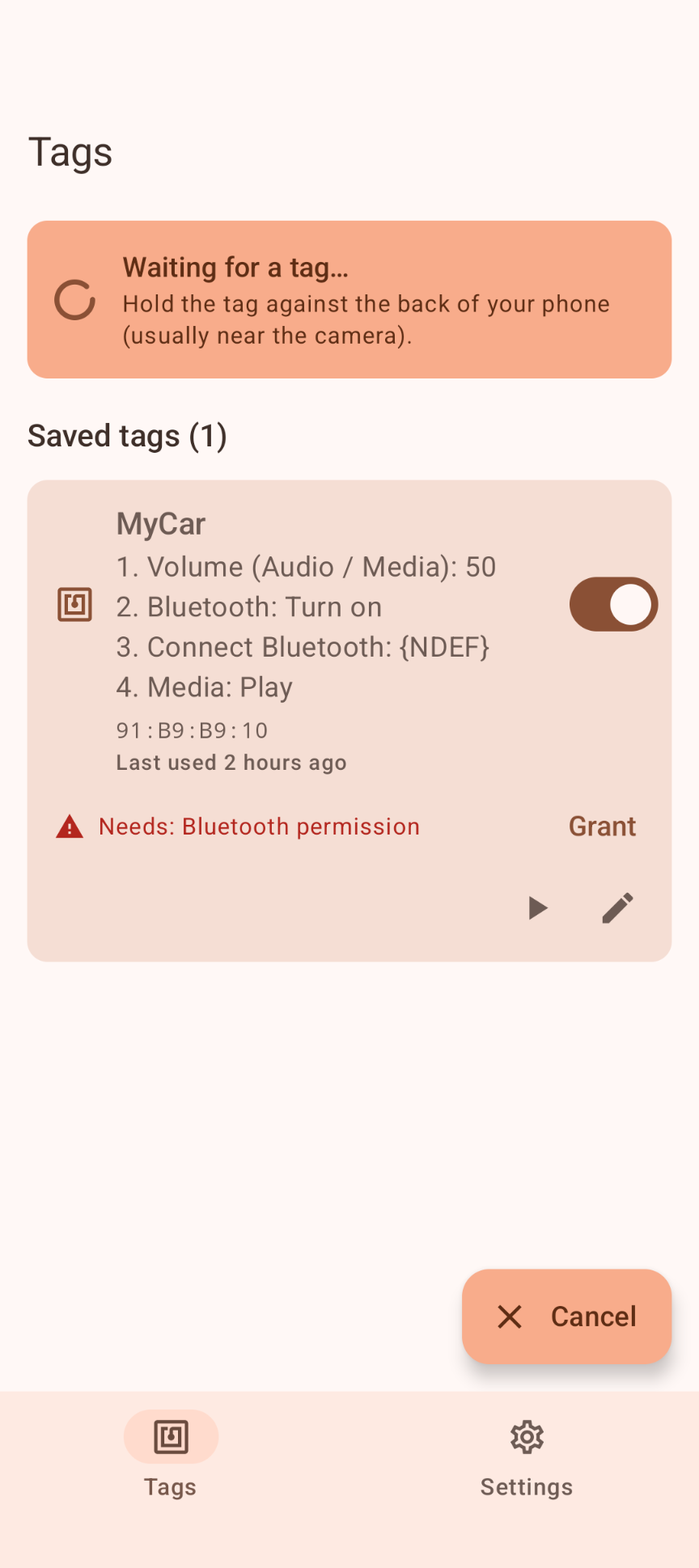
On the Tags tab, tap Add tag and hold a tag against the back of your phone (usually near the camera). The tag editor opens with the tag's ID filled in.
2. Choose the actions
Give the tag a name, add one or more actions and fill in their fields. Use the arrows to change the order of the steps, and the trash can to remove one. Tap Save.
3. Grant what is needed
Some actions need a permission or special access. They show a red "Needs: …" line: tap Grant next to it. Once granted, the line turns green ("Granted: …").
4. Turn on background mode
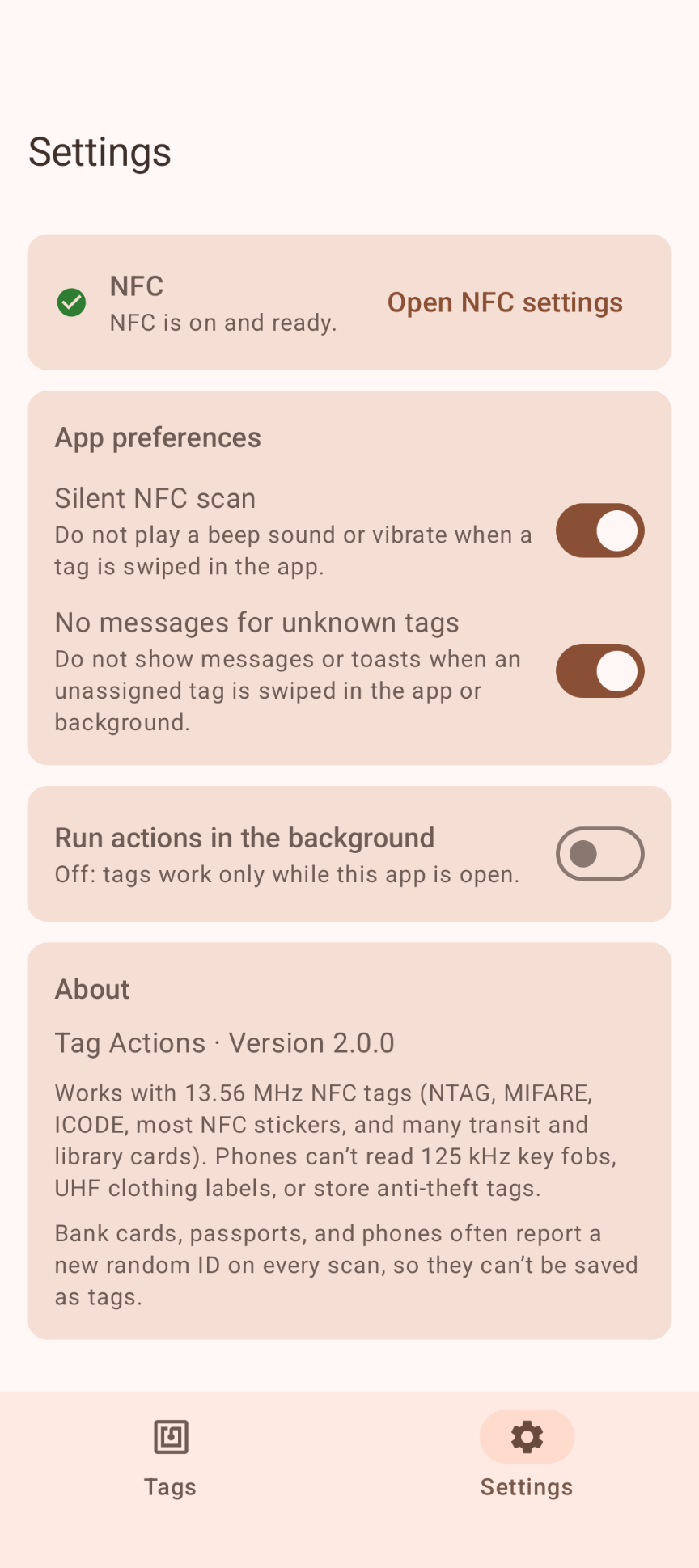
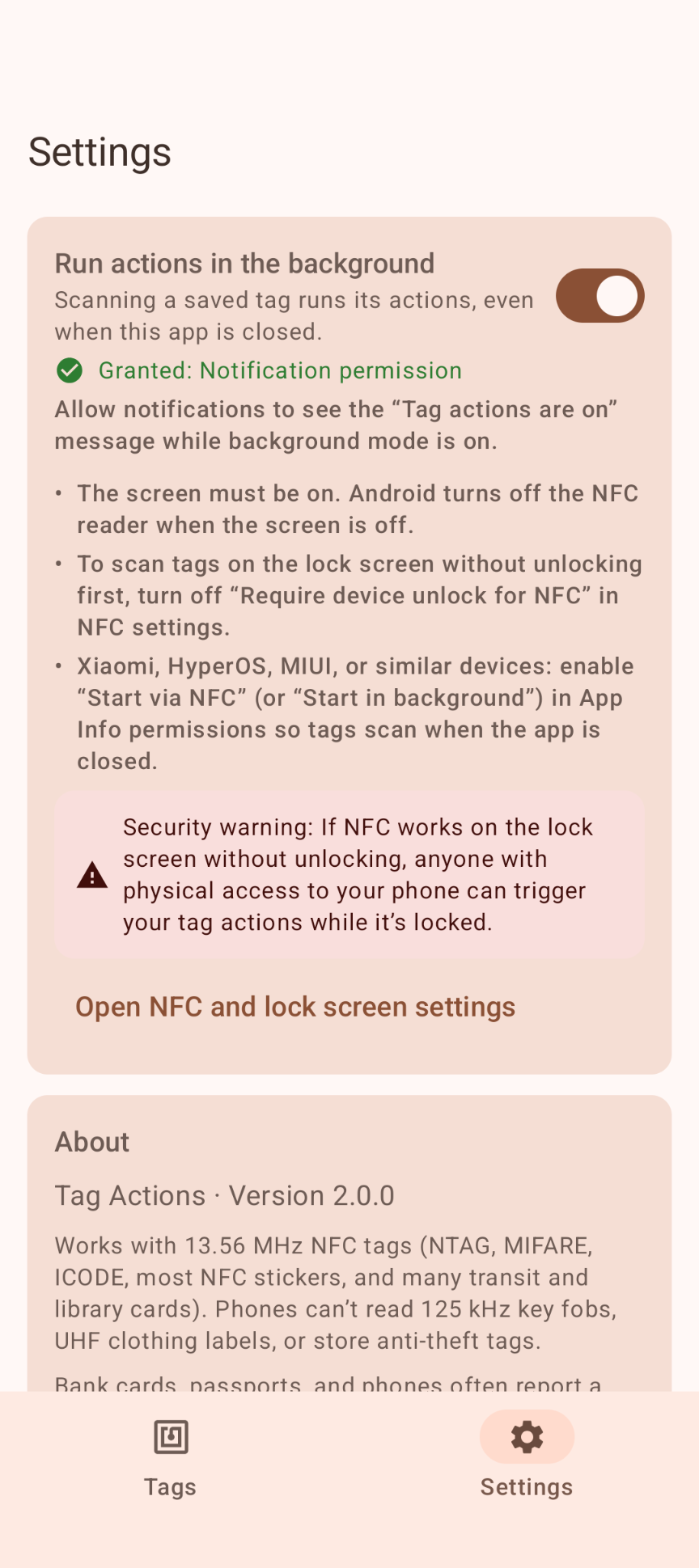
In Settings, turn on Run actions in the background so tags also work when the app is closed. On Android 13 and later, allow notifications when asked: the "Tag actions are on" notification then shows while background mode is on.
5. Scan
Hold the tag against your phone and its actions run. In the tag list you can switch a tag off, run it right away with ▶, or edit it. A new tag is only added after you tap Add tag; scanning an unknown tag at any other time just shows "Unknown tag …".
Built-in actions
Android only lets ordinary apps switch some settings directly. Where that isn't allowed on your Android version, the action opens the right settings screen for you instead.
| Action | What it does |
|---|---|
| Airplane mode | Turns airplane mode on or off (with ADB-granted access, see below), otherwise opens its settings |
| Bluetooth | Turns Bluetooth on or off (Android 12 and earlier), otherwise opens Bluetooth settings |
| Camera | Takes a photo in the background or opens the camera app |
| Connect Bluetooth device | Connects to a paired device (headphones, speaker, TV, car) by name or MAC address |
| Copy text to clipboard | Copies preset text |
| Flashlight | Toggle, on or off |
| Go to home screen | Leaves the current app (Android doesn't let apps close other apps) |
| Hotspot & tethering | Opens Hotspot & tethering settings |
| Location | Turns location on or off (with ADB-granted access), otherwise opens its settings |
| Media controls | Play/pause, play, pause, next, previous |
| Open app | Opens an installed app |
| Open website | Opens a web address in your browser |
| Quick Share | Opens Quick Share |
| Ringer mode | Ring, Vibrate, Silent, or switch between Silent and Ring |
| Screen cast | Opens screen cast settings |
| Send email | Opens your email app with to, subject and message filled in; you tap Send |
| Send text message | Sends a preset SMS to a contact |
| Set volume | Sets the volume (0–99) for audio, alarm, phone call, ringer, notification or all streams |
| Share location | Texts a Google Maps link to a contact every X minutes for Y minutes; scan again to stop |
| Sleep mode | Do Not Disturb "Alarms only": everything silent except alarms |
| Start timer | Starts a countdown in the Clock app |
| Theater mode | Do Not Disturb "Total silence": no sound, no vibration, no alarms |
| Voice recorder | Opens the voice recorder app |
| Wait | Pauses before the next action (for example 0.5 seconds) |
| Web request (smart home) | Calls a web address (Home Assistant, Shelly, Hue, IFTTT, …) |
| Wi-Fi | Turns Wi-Fi on or off (Android 9 and earlier), otherwise opens Wi-Fi settings |
Good to know
- Which tags work: only 13.56 MHz NFC tags (NTAG, MIFARE, ICODE, most NFC stickers, many library and transit cards). Phones can't read 125 kHz key fobs, UHF clothing labels or store anti-theft tags.
- Random IDs: bank cards, passports and phones often report a new ID on every scan, so they can't be saved as tags. The app warns you about these.
- Screen on: Android only reads NFC with the screen on (and, by default, unlocked). That's an Android limit, not the app's.
- Web links on tags: a tag that contains a web link may open the browser instead, unless the app is open.
- Theater mode also silences alarms. Use Sleep mode if you need your wake-up alarm.
- Flashlight: Android can turn the flashlight off when it closes the app in the background.
- Email isn't sent automatically, because that would require storing your email password in the app.
Permissions this app requests
We believe in being transparent about every permission. Because Tag Actions can do many different things, it lists many permissions — but Android only asks you for one when you use an action that needs it (the Grant button). Here is exactly what each one is for:
| Permission | Why it is needed |
|---|---|
| NFC | To read tags and write your own text to NDEF stickers. This is the app's core function: a phone with NFC is required. |
| Do Not Disturb access | For Sleep mode, Theater mode and the Silent ringer mode. Granted by you in Android's settings. |
| Internet | Only for the Web request action, which calls the address you entered (for example your Home Assistant). The app never contacts us or anyone else on its own. |
| Send SMS | For Send text message and Share location: texts go only to the contact you picked. |
| Location (precise & approximate) | Only for Share location, to put your position in the map link. |
| Foreground service & notifications | For background mode (the "Tag actions are on" notification) and to keep a running location share alive. |
| Run at startup | To show the background notification again after a reboot. |
| Set alarm | For Start timer, which starts a countdown in your Clock app. |
| Bluetooth / Nearby devices | For the Bluetooth and Connect Bluetooth device actions. |
| Camera | Only for the Camera action. |
| Wi-Fi state | For the Wi-Fi action. |
| Write secure settings (optional) | Lets the airplane mode and location actions switch directly. An app can't grant this to itself: only you can, from a computer with ADB. Without it, those actions open the settings screen instead. |
Privacy & cost — in plain terms
- No usage data collected. No analytics, telemetry or advertising, and no Google Play services or Firebase.
- No personal data requested. There are no accounts, no sign-up, no login.
- No cookies, no tracking. This website sets none either.
- Only what you set up leaves your phone. A text message goes to the contact you chose, a web request to the address you entered. Nothing is ever sent to us.
- No payment, ever. The app is completely free, with no ads and no in-app purchases.
Your tags and settings are stored only in a private file on your device. Cloud backup and device transfer are disabled. For the full statement, see Privacy & Disclaimer.
Responsible use & your responsibility
Tag Actions is a hobby and educational project. You decide what each tag does, so please set it up with care: only share someone's location or send texts with their knowledge, keep in mind that your provider may charge for text messages, and remember that Theater mode also silences your alarms. Only send web requests to devices and services you own or are allowed to control.
The app is provided "as is", for learning and experimentation, without any warranty. Please read the full Privacy Statement & Disclaimer before use — by installing or using the app you accept those terms.
Images