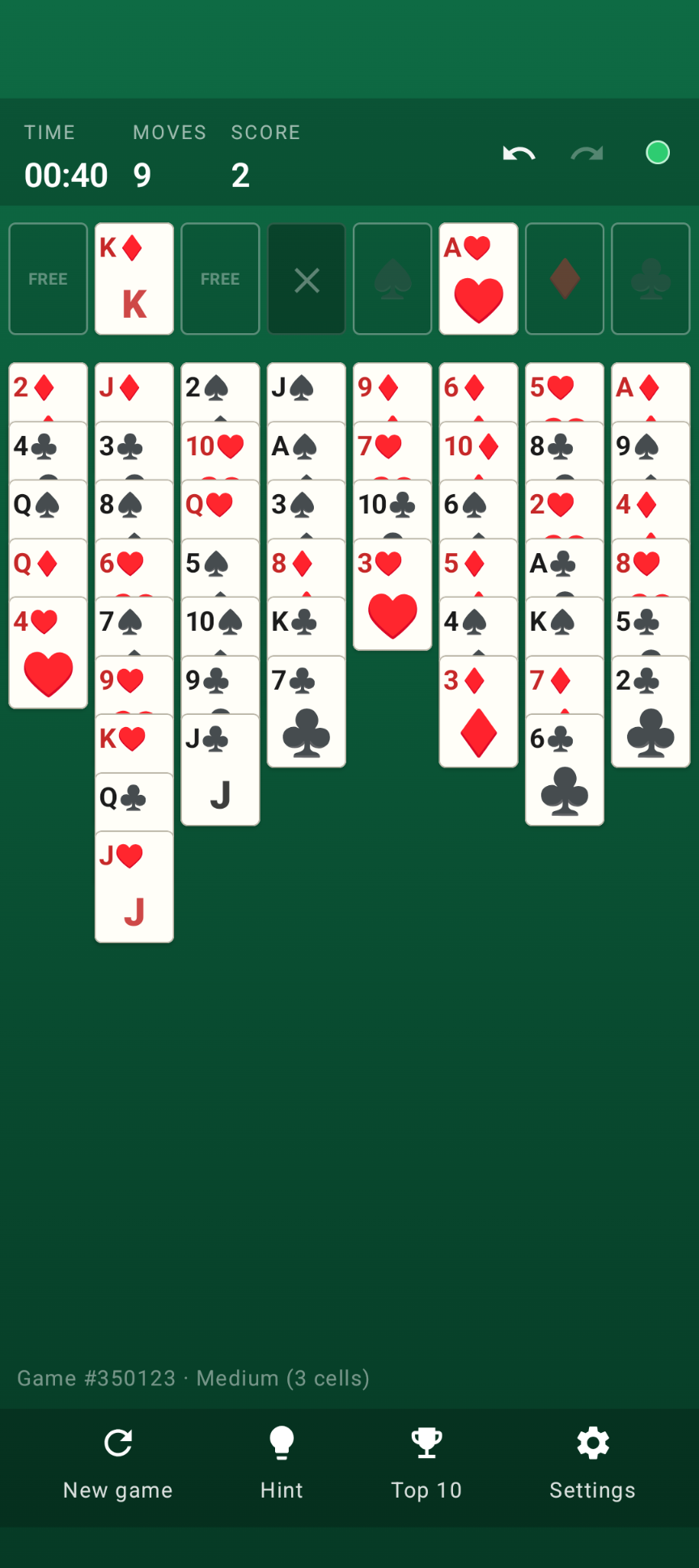
 Android game
FreeCell
The classic all-cards-face-up patience game, with the same numbered deals as Windows FreeCell.
The game
FreeCell is the card game where every card is face up from the start: almost every deal can be won with careful planning. Use the free cells to park cards, build down in alternating colors, and move all cards to the four foundations.
Every deal has a game number from 1 to 1,000,000 that matches classic Windows FreeCell exactly — so game #1 is the deal you remember. Try game #11982, the most famous unwinnable deal: the lamp turns red right away.
Three difficulty levels
Easy — 4 free cells
The classic game.
Medium — 3 free cells
Less room to park cards.
Hard — 2 free cells
Every free cell counts.
Always winnable
The built-in solver checks that every new deal can be won.
Highlights
- Game numbers that match Windows FreeCell; choose any number to play
- Winnable lamp: 🟢 still winnable, 🔴 can't be won anymore — tap it for details
- Hints that follow a winning line, from the built-in solver
- Unlimited undo / redo within a game
- Drag whole runs (supermoves); if there isn't enough free space, the app tells you how many cards you can move
- Tap a card to send it to the best spot; safe cards go to the foundations automatically and a sorted game finishes itself
- Top 10 by score, time and moves, per difficulty or overall, including the game number
- Close the app and your game (and clock) continue where you left off
- Material 3 design; adapts to phones, tablets, foldables and Chromebooks, in portrait and landscape
Download
Why FreeCell isn't on the Google Play Store
Google currently enforces highly demanding and complex requirements to publish new apps (such as mandatory closed testing phases with at least 20 people for 14 days, rigorous identity verification, and heavy administrative overhead). Because we build apps purely for our own enjoyment and want to keep it simple, we prefer to share the app with you directly.
How to Install the App
- Directly on your phone: Open the downloaded file. If prompted, allow your browser or file manager to "Install unknown apps" from outside the Google Play Store. Google started blocking this way of installing APK files.
- Via your computer: Connect your phone to your computer with a USB cable and install the app using Android Debug Bridge (ADB).
By downloading you agree to the Privacy Statement & Disclaimer. Use is entirely at your own risk.
How to install an APK directly on your phone
- Tap the download button above and wait for freecell.apk to finish downloading.
- Open the file (via your notification shade or the Files app).
- Android will ask permission to install unknown apps. Tap Settings and enable "Allow from this source" for your browser or file manager.
- Go back and tap Install.
- Open FreeCell when installation completes.
Installing apps from outside the Play Store is a normal Android feature. You can turn the "unknown sources" permission back off afterwards if you prefer.
How to install an APK via your computer
The cleanest, safest, and most secure way to install an APK file—without modifying your phone's mobile security settings or enabling "Unknown Sources"—is via ADB (Android Debug Bridge) from your computer. This is an official command-line utility supplied by Google for Android developers.
Step 1: Download ADB on your computer (The fastest way)
You do not need to install the massive Android Studio suite. Google provides a lightweight, standalone package called Platform-Tools.
- Windows: Download the official Android SDK Platform-Tools for Windows.
- Mac / Linux: Download the zip package above or install it instantly via your terminal line:
- Mac (via Homebrew): Run
brew install android-platform-tools - Linux (Ubuntu/Debian): Run
sudo apt install adb
- Mac (via Homebrew): Run
Note: If you downloaded the ZIP file (Windows/Mac), extract it into an easy-to-reach directory, such as C:\platform-tools or your Desktop.
Step 2: Prepare your Android phone
- Open the Settings app on your phone.
- Go to About phone (or System > About).
- Tap Build number 7 times rapidly until a notification pop-up says: "You are now a developer!".
- Return to the main Settings menu, open the new Developer options panel, and turn on USB debugging.
Step 3: Install the APK file
- Connect your phone to your computer using a USB cable.
- Look at your phone's screen: a prompt will ask "Allow USB debugging?". Check the option for “Always allow from this computer” and tap Allow.
- Move your downloaded APK file directly into the folder where you extracted the platform-tools files.
- Open Command Prompt (CMD) on Windows or Terminal on Mac/Linux, and change directories to that folder (e.g., on Windows, type:
cd C:\platform-tools). - Run this command to verify your computer properly detects your device:
(If you see a serial number followed by the word 'device', you are connected successfully!)adb devices - Run the installation script command:
adb install freecell.apk
When the terminal returns a Success message, the app is fully installed on your device and ready to launch!
How to play
1. Start a game
Tap New game and choose New deal, Restart this deal or Choose game number…. Set the number of free cells in Settings; it is remembered.
2. Build the columns
Put a card on a card one rank higher and of the opposite color (red on black, black on red). An empty column accepts any card or run.
3. Use the free cells
Each free cell (top left) holds one card. Use them to free up the cards you need.
4. Move runs
You can move a run of several cards at once if there is enough free space: (free cells + 1) × 2empty columns. When moving to an empty column, that column doesn't count.
5. Fill the foundations
Build each foundation (top right) up by suit, from Ace to King. Cards on the foundations stay there, as in Windows FreeCell.
Scoring & lamp
FreeCell has no official scoring, so the app uses Solitaire-style scoring:
| Action | Points |
|---|---|
| Card to foundation | +10 (up to 520) |
| Time | −2 per 10 seconds |
| Win (games longer than 30 s) | bonus of 700,000 ÷ seconds played |
The score never drops below 0.
The winnable lamp
| Lamp | Meaning |
|---|---|
| 🟢 Green | The game can still be won from here. |
| 🔴 Red | Proven that the game can't be won anymore. Try Undo. |
| 🟡 Yellow | Too complex to decide quickly (rare). After a few moves it usually turns green or red. |
| ⚪ Gray, pulsing | Checking… |
Permissions this app requests
- No internet, no mobile or Wi-Fi data. Android blocks all network access for the app.
- No background running. No services, jobs or alarms. When the game leaves the screen, it pauses the clock, saves the game and stops all computation (solver and hints); it continues when you return.
Privacy & cost — in plain terms
- No usage data collected. No analytics, crash reporting or advertising SDKs, and no Google Play services or Firebase.
- No personal data requested. There are no accounts, no sign-up, no login.
- No cookies. The app is not a web app and stores no cookies; this website sets none either.
- No internet connection. The game works fully offline.
- No payment, ever. The game is completely free, with no ads and no in-app purchases.
Your settings, top 10 and the game in progress are stored only in a private file on your device. Cloud backup and device transfer are disabled. For the full statement, see Privacy & Disclaimer.
Provided as is
FreeCell is a hobby project, shared for learning and fun. It is provided "as is", without any warranty. Please read the full Privacy Statement & Disclaimer before use — by installing or using the app you accept those terms.
Images