 Android app
SFTP Studio
An SFTP, FTP and SSH server and client in one app. Share folders from your phone with any computer on your network, or connect to your web host, NAS or another device to upload and download files.
What the app does
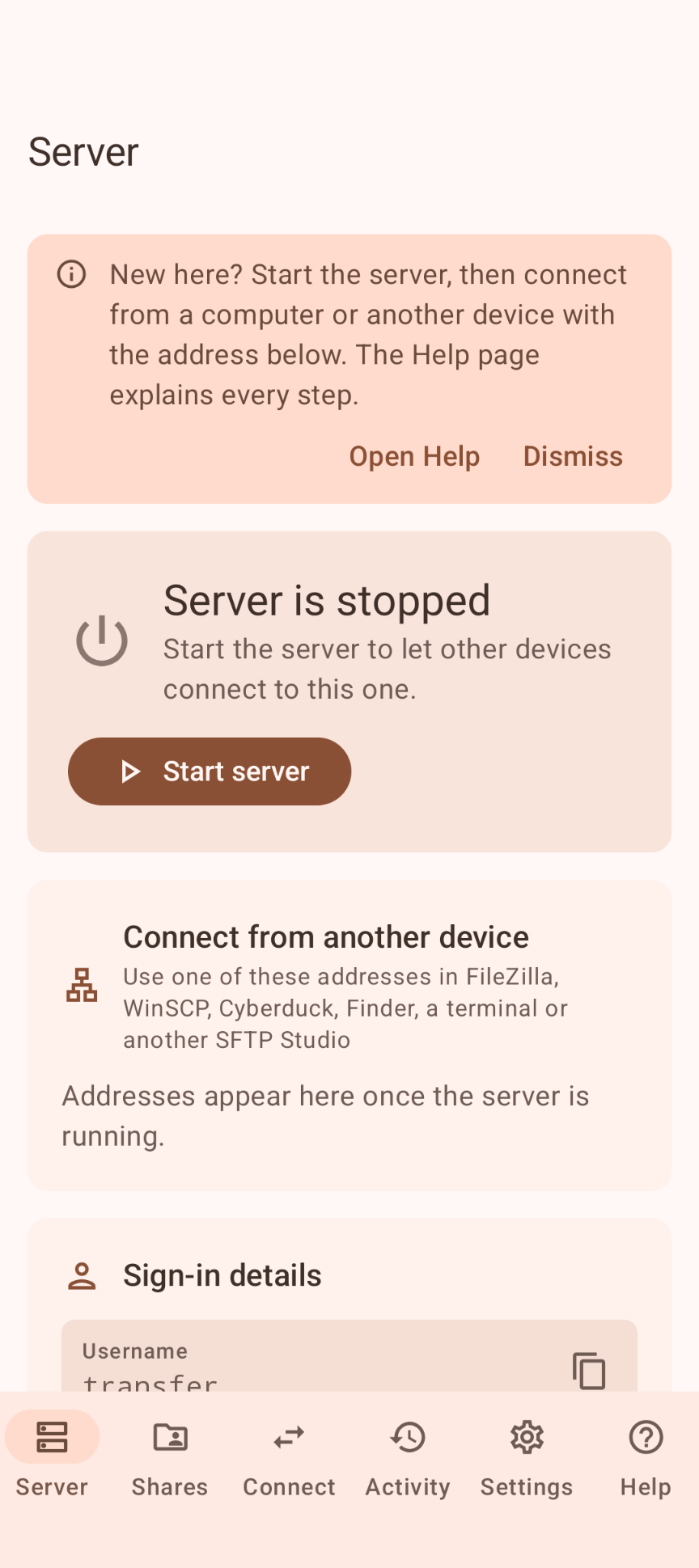
SFTP Studio is two tools in one app. As a server, it shares folders on your phone so computers, phones and tablets on the same network can upload and download files with a standard program such as FileZilla, WinSCP or a terminal. As a client, it connects to other servers — your web host, a NAS, or another device running SFTP Studio.
Two ways to use it
📤 Server: share from this phone
Choose the folders to share and tap Start server. Each folder appears as a top-level folder (/Photos, /Music…) in FileZilla, WinSCP, Cyberduck, the macOS Finder, a terminal or another SFTP Studio. Nothing else on your phone is visible.
📥 Client: connect to a server
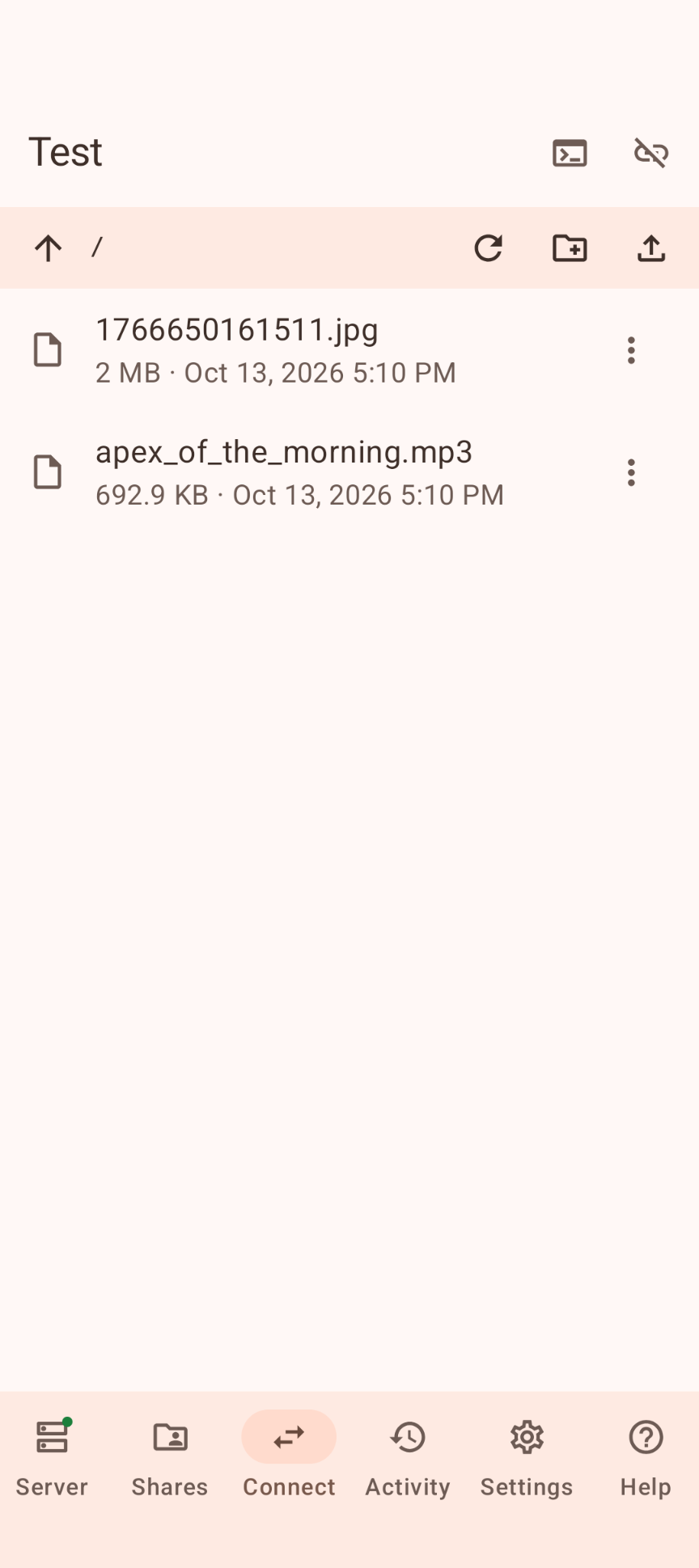
Connect to a server with SFTP (password or private key), FTP or FTPS. Browse, upload and download with progress, create folders, rename and delete — and run single commands over SSH.
Which protocol should I use?
| Protocol | When to use it |
|---|---|
| SFTP | The modern, secure choice: passwords and files are encrypted. Use it whenever possible. Port 2222 by default. |
| SSH terminal | Runs commands on the server. As a server option it lets people run commands on your phone, so it is off by default. |
| FTP | The old File Transfer Protocol. Everything, including the password, is sent unencrypted. Only for older devices (printers, scanners, smart TVs) on a network you trust. Port 2121 by default; off unless you turn it on. |
| FTPS (client only) | FTP wrapped in TLS encryption, offered by some web hosts. |
Why not the standard ports 22 and 21? Ports below 1024 need administrator rights on computers and are not allowed on Android at all.
Highlights
- Share any number of folders, including folders on an SD card or USB drive, each with its own read-only and guest setting
- Sign in with a strong generated password and/or SSH public keys
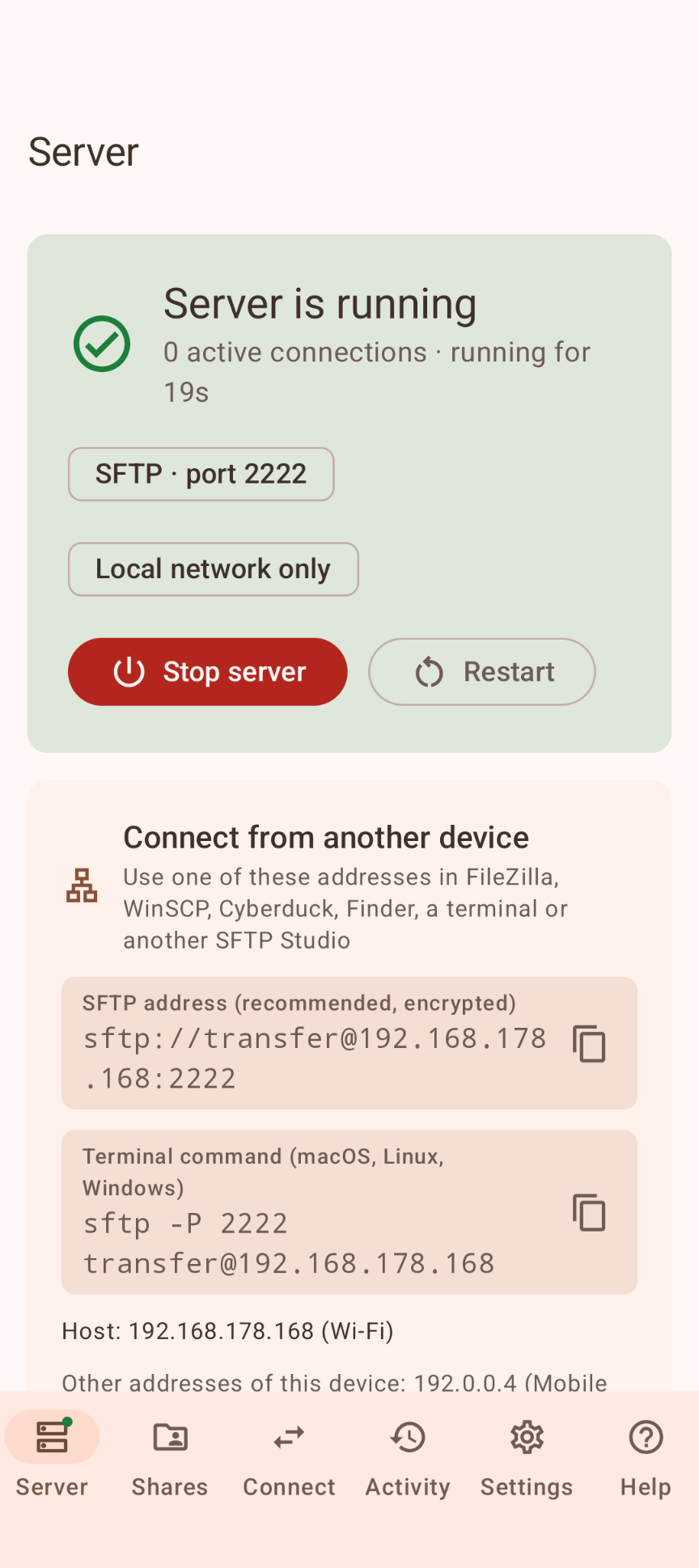
- Local network only by default: connections from outside your network are refused (Tailscale VPN addresses are accepted)
- Keeps running with the screen off or the phone locked, with a Stop button in the notification
- Ready-to-copy addresses and commands on the Server page, and a Help page with step-by-step instructions for FileZilla, WinSCP and terminals
- Host key fingerprints for safe first connections, in both directions
- Activity log of connections and transfers, kept in memory only
- Material 3 design with light, dark and Material You colors; adapts to phones, tablets, foldables and Chromebooks
Download
Why SFTP Studio isn't on the Google Play Store
Google currently enforces highly demanding and complex requirements to publish new apps (such as mandatory closed testing phases with at least 20 people for 14 days, rigorous identity verification, and heavy administrative overhead). Because we build apps purely for our own enjoyment and want to keep it simple, we prefer to share the app with you directly.
How to Install the App
- Directly on your phone: Open the downloaded file. If prompted, allow your browser or file manager to "Install unknown apps" from outside the Google Play Store. Google started blocking this way of installing APK files.
- Via your computer: Connect your phone to your computer with a USB cable and install the app using Android Debug Bridge (ADB).
By downloading you agree to the Privacy Statement & Disclaimer. Use is entirely at your own risk.
How to install an APK directly on your phone
- Tap the download button above and wait for sftp-studio.apk to finish downloading.
- Open the file (via your notification shade or the Files app).
- Android will ask permission to install unknown apps. Tap Settings and enable "Allow from this source" for your browser or file manager.
- Go back and tap Install.
- Open SFTP Studio when installation completes.
Installing apps from outside the Play Store is a normal Android feature. You can turn the "unknown sources" permission back off afterwards if you prefer.
How to install an APK via your computer
The cleanest, safest, and most secure way to install an APK file—without modifying your phone's mobile security settings or enabling "Unknown Sources"—is via ADB (Android Debug Bridge) from your computer. This is an official command-line utility supplied by Google for Android developers.
Step 1: Download ADB on your computer (The fastest way)
You do not need to install the massive Android Studio suite. Google provides a lightweight, standalone package called Platform-Tools.
- Windows: Download the official Android SDK Platform-Tools for Windows.
- Mac / Linux: Download the zip package above or install it instantly via your terminal line:
- Mac (via Homebrew): Run
brew install android-platform-tools - Linux (Ubuntu/Debian): Run
sudo apt install adb
- Mac (via Homebrew): Run
Note: If you downloaded the ZIP file (Windows/Mac), extract it into an easy-to-reach directory, such as C:\platform-tools or your Desktop.
Step 2: Prepare your Android phone
- Open the Settings app on your phone.
- Go to About phone (or System > About).
- Tap Build number 7 times rapidly until a notification pop-up says: "You are now a developer!".
- Return to the main Settings menu, open the new Developer options panel, and turn on USB debugging.
Step 3: Install the APK file
- Connect your phone to your computer using a USB cable.
- Look at your phone's screen: a prompt will ask "Allow USB debugging?". Check the option for “Always allow from this computer” and tap Allow.
- Move your downloaded APK file directly into the folder where you extracted the platform-tools files.
- Open Command Prompt (CMD) on Windows or Terminal on Mac/Linux, and change directories to that folder (e.g., on Windows, type:
cd C:\platform-tools). - Run this command to verify your computer properly detects your device:
(If you see a serial number followed by the word 'device', you are connected successfully!)adb devices - Run the installation script command:
adb install sftp-studio.apk
When the terminal returns a Success message, the app is fully installed on your device and ready to launch!
User manual
The app is in U.S. English. It has six tabs: Server, Shares, Connect, Activity, Settings and Help. Every setting has an explanation, and the Help page fills in your own address and user name.
Share files from your phone
- Choose the folders. Open Shares and add the folders you want to share, with the system folder picker or one of the suggested folders (a default folder is shared to start with). To share anything outside the app's own folder, such as Download or DCIM, allow All files access when asked.
- Start the server. Open Server and tap Start server. Allow notifications so you can see and stop the server from the notification shade.
- Connect from the other device. Make sure it is on the same Wi-Fi or wired network. Open an SFTP app and enter the address, user name and password shown on the Server page (see the table below).
- Check the fingerprint. The first time, your SFTP program shows the server's fingerprint: compare it with the one on the Server page and accept it.
- Stop the server when you are done.
- Read-only: people can download from that folder but not upload, rename or delete.
- Guest access: when anonymous FTP is allowed (Settings › Protocols), guests can download from these folders only.
- Rename share: changes the name people see, not the real folder.
- Remove: stops sharing the folder. Its files are never deleted.
- Not available: the folder was moved or its drive is not connected. The server skips it and keeps sharing the others.
- Browse: open a share to see its files, create folders, and rename or delete files on this device.
- Changes take effect after the server restarts; the app shows a Restart button when needed.
Connect a server program
Replace transfer and 192.168.1.23 with the user name and address shown on the Server page.
| Program | How to connect |
|---|---|
| FileZilla (Windows, macOS, Linux) | File → Site Manager → New site → Protocol SFTP, host 192.168.1.23, port 2222, logon type Normal, then your user name and password → Connect → check the fingerprint → Always trust this host. Or type sftp://transfer@192.168.1.23:2222 in Quickconnect. |
| WinSCP (Windows) | New Session → File protocol SFTP, host name 192.168.1.23, port 2222, your user name → Login → enter the password and accept the host key after comparing the fingerprint. |
| Terminal (macOS, Linux, Windows 10/11) | sftp -P 2222 transfer@192.168.1.23, then ls, cd, get file.jpg, put photo.jpg, exit. Copy one file with scp -P 2222 report.pdf transfer@192.168.1.23: |
| File managers | Linux file managers: Connect to Server with sftp://transfer@192.168.1.23:2222. On macOS use a program such as Cyberduck. |
| SSH terminal | When the SSH terminal is turned on in Settings: ssh -p 2222 transfer@192.168.1.23 |
Sign in with a key instead of a password
Keys are more secure than passwords. On the computer that connects, show your public key with cat ~/.ssh/id_ed25519.pub and copy the line that starts with ssh-ed25519 into Settings › Public keys. You can then turn off password sign-in if you only want keys.
Connect to another server (client)
- Open Connect and tap Add.
- Choose SFTP, FTP or FTPS and enter the host, port and user name. Your web host's control panel lists the right values. For SFTP, use a password or paste a private key (Ed25519, ECDSA or RSA, with an optional passphrase).
- Tap Save & connect. The first time, the server's key fingerprint is saved; you are warned if it ever changes.
- Tap a folder to open it and ↑ to go up. Use the ⋮ menu on a file to download, rename or delete it, and the upload button to upload into the current folder.
- With SFTP, the terminal button runs single commands on the server (no interactive programs).
Running in the background
While the server runs, SFTP Studio shows a permanent notification. This lets it keep running when the screen is off, the phone is locked or you switch to other apps.
- Allow notifications when asked, so you can see and stop the server from the notification shade.
- Settings › Background and power › Battery optimization: tap Allow, otherwise Android's Doze mode can pause network access after the screen turns off.
- Keep CPU and Wi-Fi awake keeps long transfers from stalling. It uses more battery; plug the phone in for big transfers.
- Some brands (Samsung, Xiaomi, Huawei, OnePlus, Oppo and others) have extra battery managers: set SFTP Studio to Unrestricted there as well.
- If Android stops the app anyway, the server starts again automatically, and optionally after a reboot (Settings › Start after the device restarts).
- On a Chromebook, the Chromebook must stay awake; other devices connect to the Chromebook's own IP address.
How your files are protected
- Sign-in required. Only people who know the user name and password (a strong random password is generated for you) or have an authorized key can sign in.
- Locked inside the shares. Everyone who connects only sees the shared folders and can't reach anything else on your phone. Shares can't be created, renamed or removed remotely. Make a folder read-only when people only need to download.
- Local network only. On by default: connections from outside your local network are refused. Private addresses (192.168.x.x, 10.x.x.x, 172.16–31.x.x, local IPv6) and Tailscale addresses are accepted.
- Verified identity. The server has a permanent SSH host key, with its fingerprint on the Server page. As a client, the app checks every server's key and warns you if it changes.
- Limits. Idle timeout, a connection limit, and logging of failed sign-ins.
- Encrypted settings. Settings, passwords, keys and the server identity are encrypted with AES-256-GCM using a key in the Android Keystore. Cloud backup and device-to-device transfer are disabled.
- Activity log in memory only. It is never saved.
Good to know
- Connection refused or timeout: check that the server is running, the port is right and both devices are on the same network. Guest networks and some office or school Wi-Fi block devices from talking to each other.
- Works on Wi-Fi but not on mobile data: mobile networks don't allow incoming connections. Use Wi-Fi, or turn on the phone's hotspot and connect the other device to it.
- Port already in use: another app uses that port. Pick another one in Settings (for example 2223).
- Sign-in fails: user names and passwords are case-sensitive. Copy them with the copy buttons on the Server page.
- FTP file lists hang: make sure your FTP program uses passive mode; the passive ports (50000–50050 by default) must not be blocked by a firewall.
- Windows or macOS firewall: allow the SFTP program on private networks when asked.
- A shared folder is missing: it shows Not available on the Shares page. Connect its drive or add the folder again, then restart the server.
Permissions this app requests
We believe in being transparent about every permission. Here is exactly what the app asks for and why:
| Permission | Why it is needed |
|---|---|
| Internet | Android has no separate "local network" permission on most versions: this permission is required to open any network port, both for the server and for client connections you make. The app never contacts us or anyone else on its own. |
| Devices on your local network (Android 17+) | Needed to reach and be reached by devices on your home network. |
| Network & Wi-Fi state | To show your phone's addresses and react when the network changes. |
| Foreground service & notifications | To keep the server running in the background, with a visible notification and a Stop button. |
| Wake lock | For Keep CPU and Wi-Fi awake, so transfers don't stall with the screen off. |
| Ignore battery optimizations | To ask whether the app may be excluded from battery optimization, so Android doesn't pause the server. |
| Run at startup | Optional: start the server again after a reboot. |
| All files access (optional) | To share folders outside the app's own folder, such as Download, DCIM, an SD card or a USB drive. Without it, only the app's own folder can be shared. |
| Read/write storage (Android 8–10 only) | The same as above on Android versions that don't have "All files access". |
Privacy & cost — in plain terms
- No usage data collected. No analytics, telemetry or advertising.
- No personal data requested. No account with us, no sign-up; the only logins are for your own server and the servers you connect to.
- No cookies, no tracking. This website sets none either.
- No cloud. Files go directly between your own devices, or between your phone and the server you connect to. Nothing is ever sent to us.
- No payment, ever. The app is completely free, with no ads and no in-app purchases.
For the full statement, see Privacy & Disclaimer.
Responsible use & your responsibility
SFTP Studio is a hobby and educational project, not a replacement for a professional server or backup solution. Only share folders on networks you trust, give the password only to people you trust, and turn the server off when you don't need it. Leave the SSH terminal off unless you really need it, and avoid plain FTP outside your home network. Only connect to servers you own or are allowed to use, and always keep a backup of important files.
The app is provided "as is", for learning and experimentation, without any warranty. Please read the full Privacy Statement & Disclaimer before use — by installing or using the app you accept those terms.
Images