 Android app
NetScope
A privacy-first analyzer for your own Wi-Fi or wired network. Find every device, then ping, trace, scan ports, look up DNS and wake computers — without any cloud service, account or tracking.
What the app does
NetScope inspects the local network your phone is connected to. It shows how your network is set up, finds the devices on it — router, computers, NAS, printers, TVs, smart plugs — and gives you the classic network tools to find out why something can't be reached.
Everything happens on your phone. NetScope only talks to the hosts you enter and to your network's own DNS server: there is no cloud, no telemetry and no remote lookup service.
Some ideas
🔍 What's on my network?
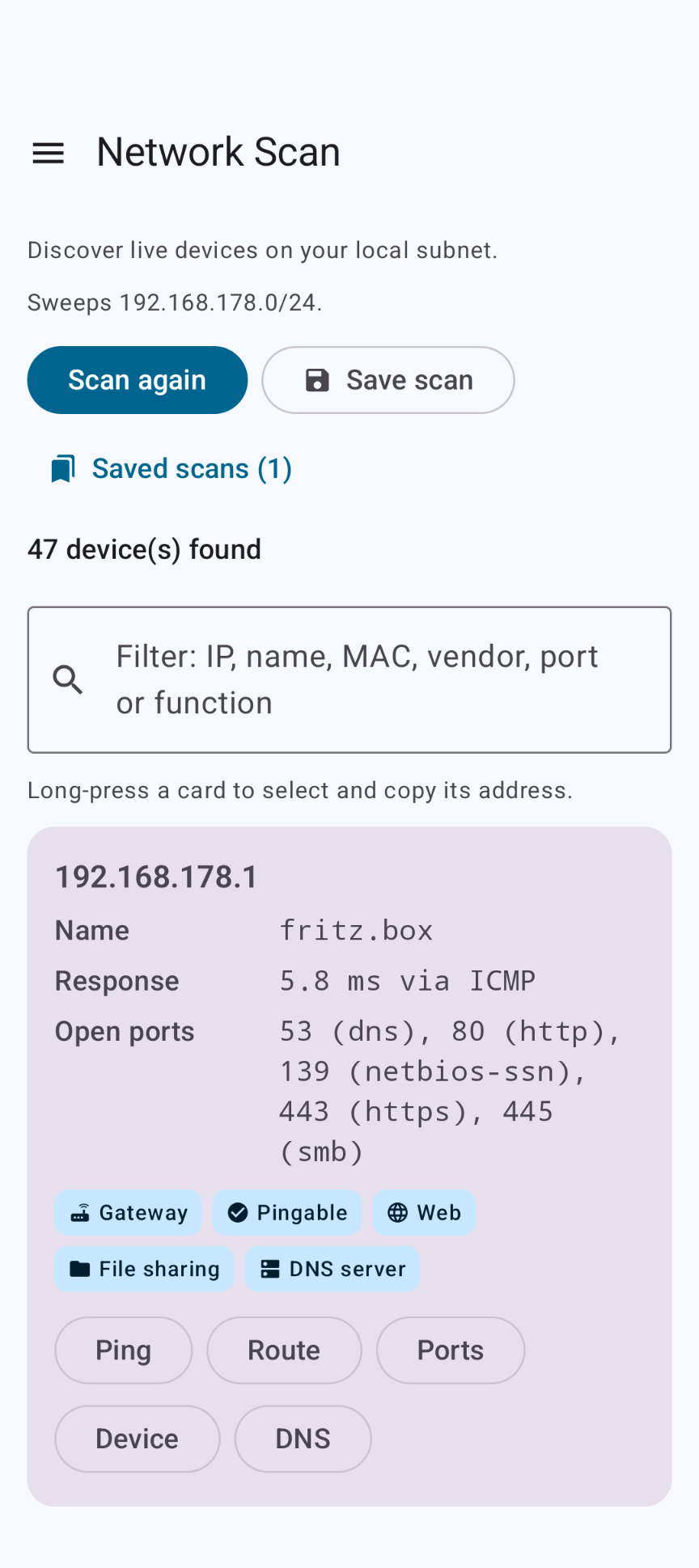
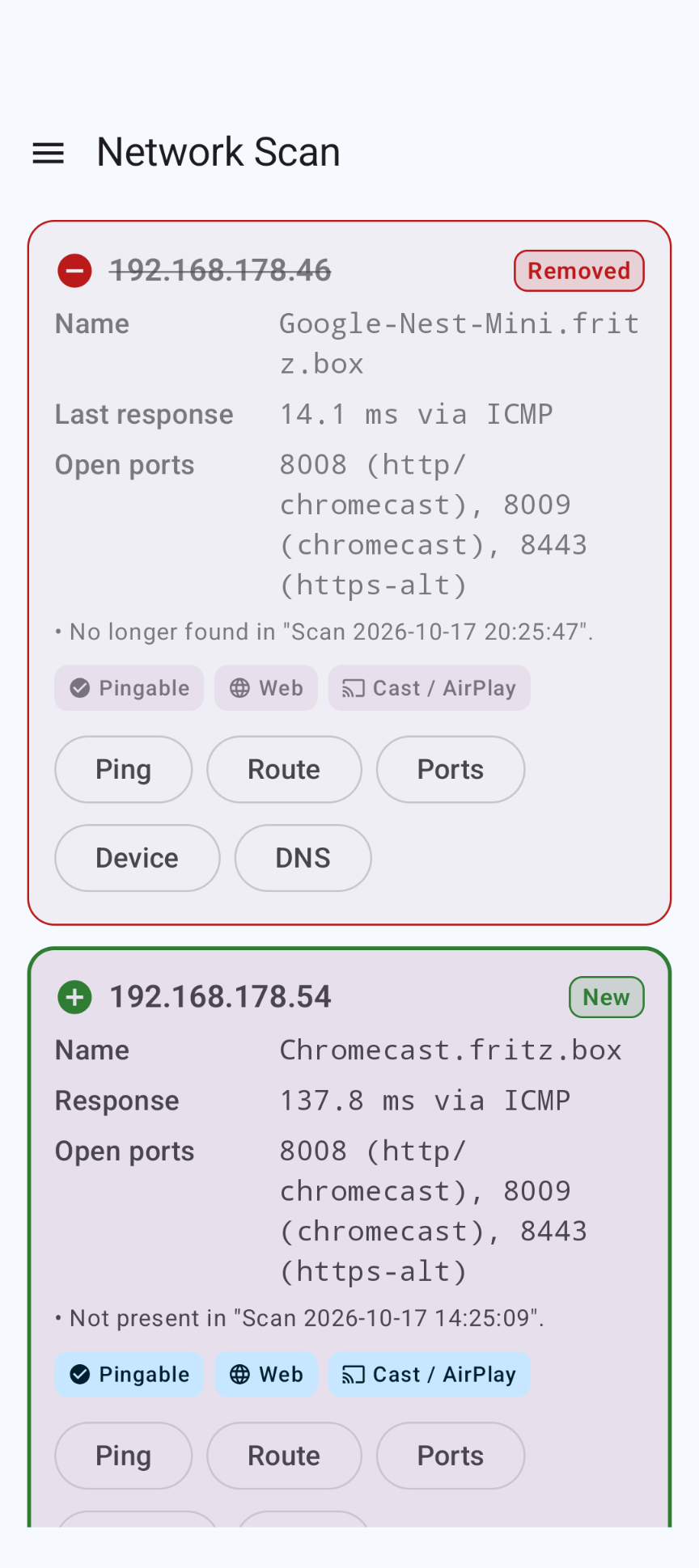
Run a Network Scan to list every device that answers, with its name, response time, open ports and badges such as Gateway, Printer, Cast / AirPlay or Smart home.
📊 What has changed?
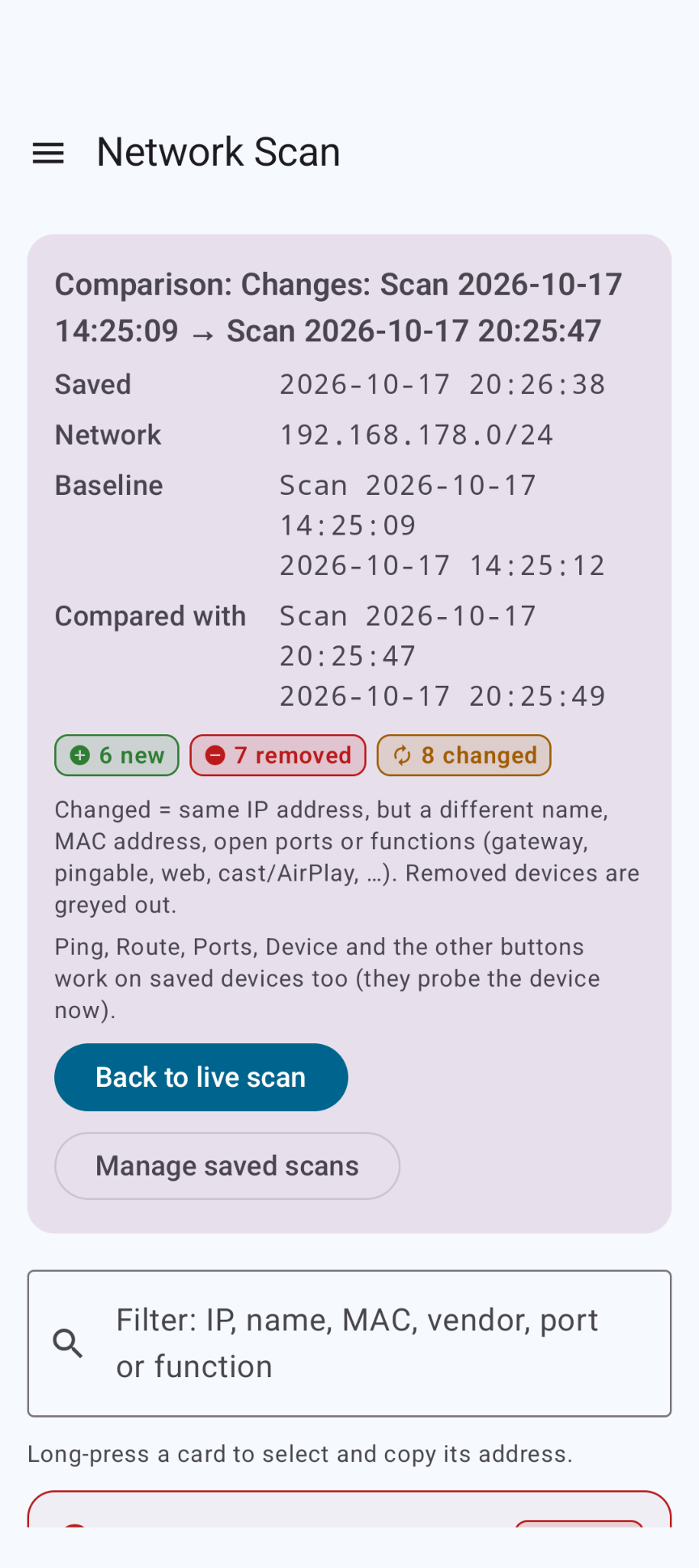
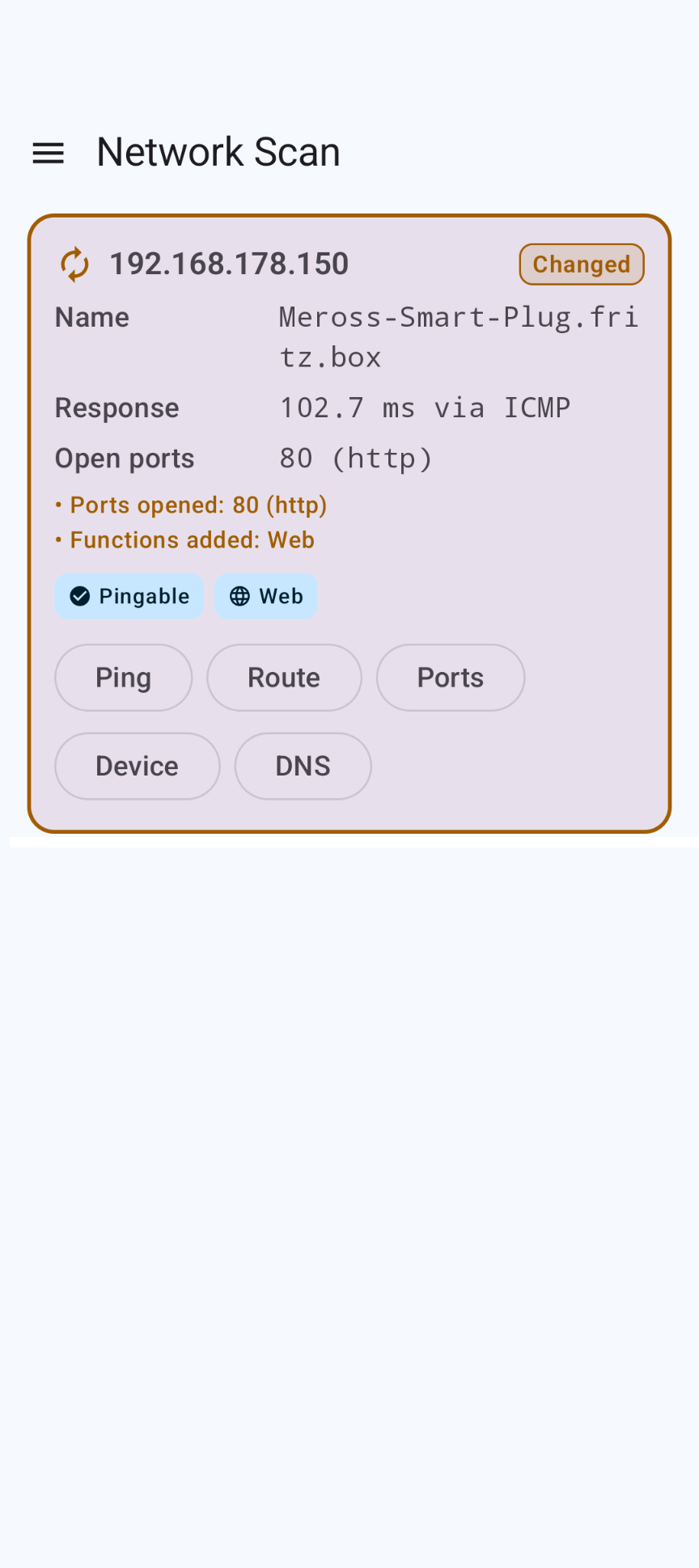
Save a scan and compare it with a later one: new devices, devices that disappeared, and devices whose name, ports or functions changed.
🩺 Why can't I reach it?
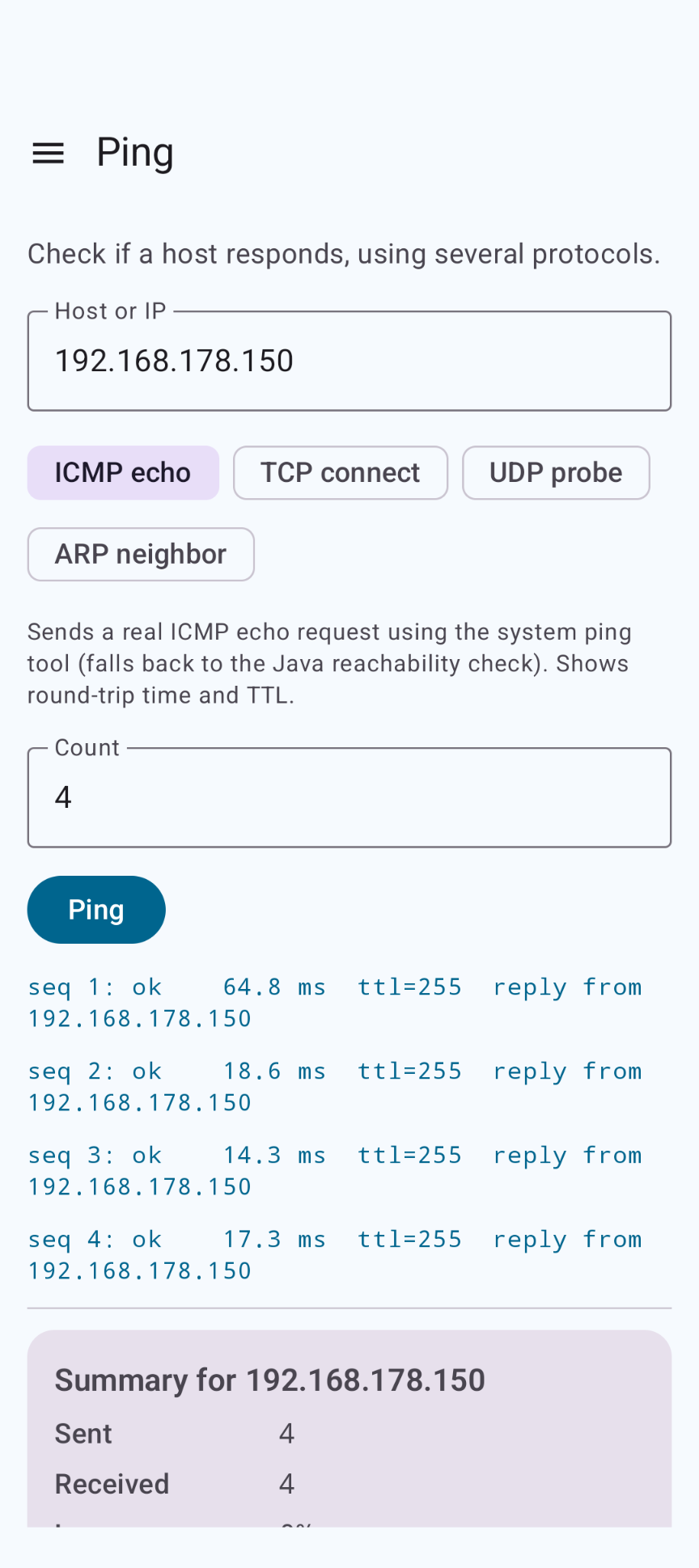
Ping a device four different ways, follow the route, scan its ports and look up its DNS records to find where things go wrong.
⏰ Wake up a computer
Send a Wake-on-LAN magic packet to start a computer or NAS from your phone, picked from the devices with a known MAC address.
Highlights
- 11 tools in one app, from a network overview to a subnet calculator
- Saved scans with date and time: open, rename, delete and compare two scans
- Per-device buttons for Ping, Route, Ports, Device and DNS on every scan result
- A Device Info profile: host name, manufacturer, likely device type and role, and an OS guess
- A full DNS client: 17 record types, all response sections and DNSSEC status
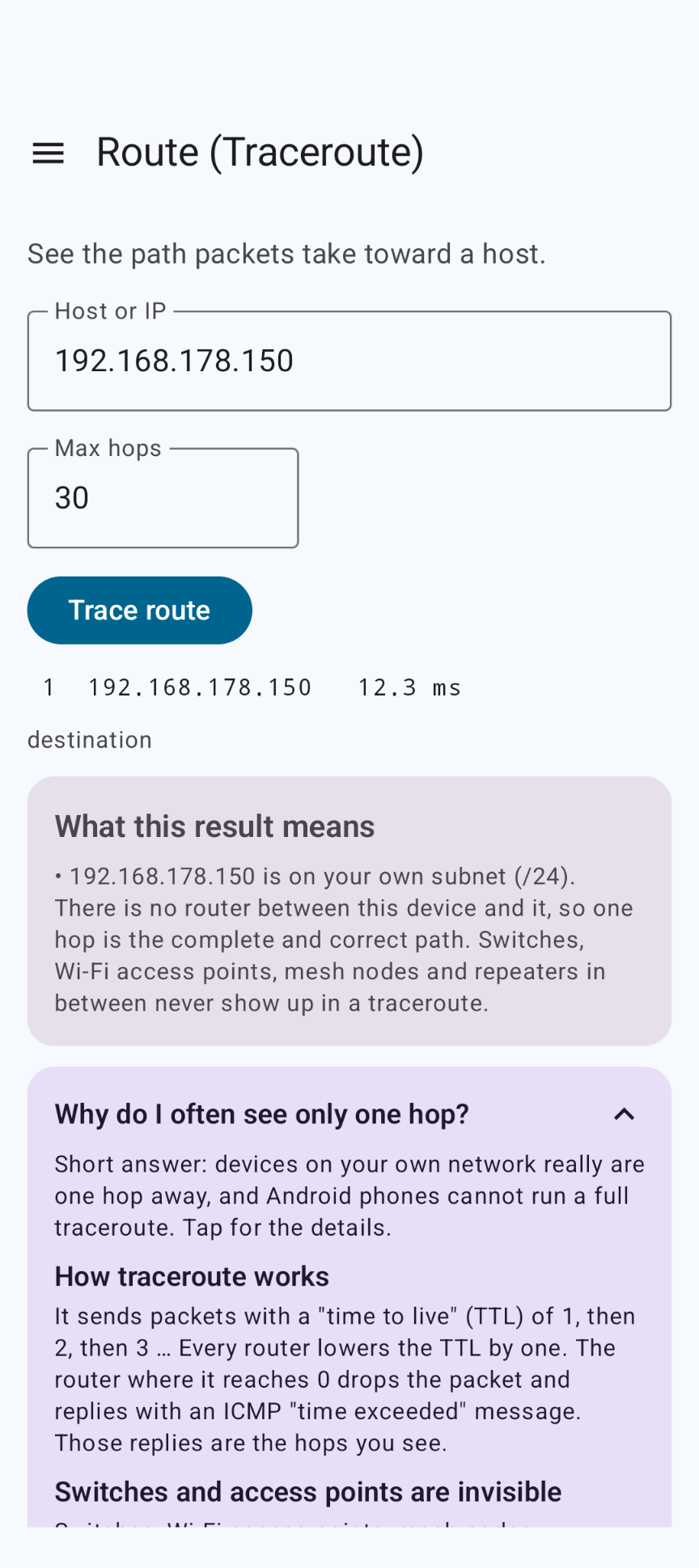
- Clear explanations on screen, for example why a traceroute on your own network shows only one hop
- Nothing runs in the background: every tool runs only when you start it
- Material 3 design with light and dark themes; a slide-in menu on phones and a permanent menu on wide screens
Download
Why NetScope isn't on the Google Play Store
Google currently enforces highly demanding and complex requirements to publish new apps (such as mandatory closed testing phases with at least 20 people for 14 days, rigorous identity verification, and heavy administrative overhead). Because we build apps purely for our own enjoyment and want to keep it simple, we prefer to share the app with you directly.
How to Install the App
- Directly on your phone: Open the downloaded file. If prompted, allow your browser or file manager to "Install unknown apps" from outside the Google Play Store. Google started blocking this way of installing APK files.
- Via your computer: Connect your phone to your computer with a USB cable and install the app using Android Debug Bridge (ADB).
By downloading you agree to the Privacy Statement & Disclaimer. Use is entirely at your own risk.
How to install an APK directly on your phone
- Tap the download button above and wait for netscope.apk to finish downloading.
- Open the file (via your notification shade or the Files app).
- Android will ask permission to install unknown apps. Tap Settings and enable "Allow from this source" for your browser or file manager.
- Go back and tap Install.
- Open NetScope when installation completes.
Installing apps from outside the Play Store is a normal Android feature. You can turn the "unknown sources" permission back off afterwards if you prefer.
How to install an APK via your computer
The cleanest, safest, and most secure way to install an APK file—without modifying your phone's mobile security settings or enabling "Unknown Sources"—is via ADB (Android Debug Bridge) from your computer. This is an official command-line utility supplied by Google for Android developers.
Step 1: Download ADB on your computer (The fastest way)
You do not need to install the massive Android Studio suite. Google provides a lightweight, standalone package called Platform-Tools.
- Windows: Download the official Android SDK Platform-Tools for Windows.
- Mac / Linux: Download the zip package above or install it instantly via your terminal line:
- Mac (via Homebrew): Run
brew install android-platform-tools - Linux (Ubuntu/Debian): Run
sudo apt install adb
- Mac (via Homebrew): Run
Note: If you downloaded the ZIP file (Windows/Mac), extract it into an easy-to-reach directory, such as C:\platform-tools or your Desktop.
Step 2: Prepare your Android phone
- Open the Settings app on your phone.
- Go to About phone (or System > About).
- Tap Build number 7 times rapidly until a notification pop-up says: "You are now a developer!".
- Return to the main Settings menu, open the new Developer options panel, and turn on USB debugging.
Step 3: Install the APK file
- Connect your phone to your computer using a USB cable.
- Look at your phone's screen: a prompt will ask "Allow USB debugging?". Check the option for “Always allow from this computer” and tap Allow.
- Move your downloaded APK file directly into the folder where you extracted the platform-tools files.
- Open Command Prompt (CMD) on Windows or Terminal on Mac/Linux, and change directories to that folder (e.g., on Windows, type:
cd C:\platform-tools). - Run this command to verify your computer properly detects your device:
(If you see a serial number followed by the word 'device', you are connected successfully!)adb devices - Run the installation script command:
adb install netscope.apk
When the terminal returns a Success message, the app is fully installed on your device and ready to launch!
The tools
| Tool | What it tells you |
|---|---|
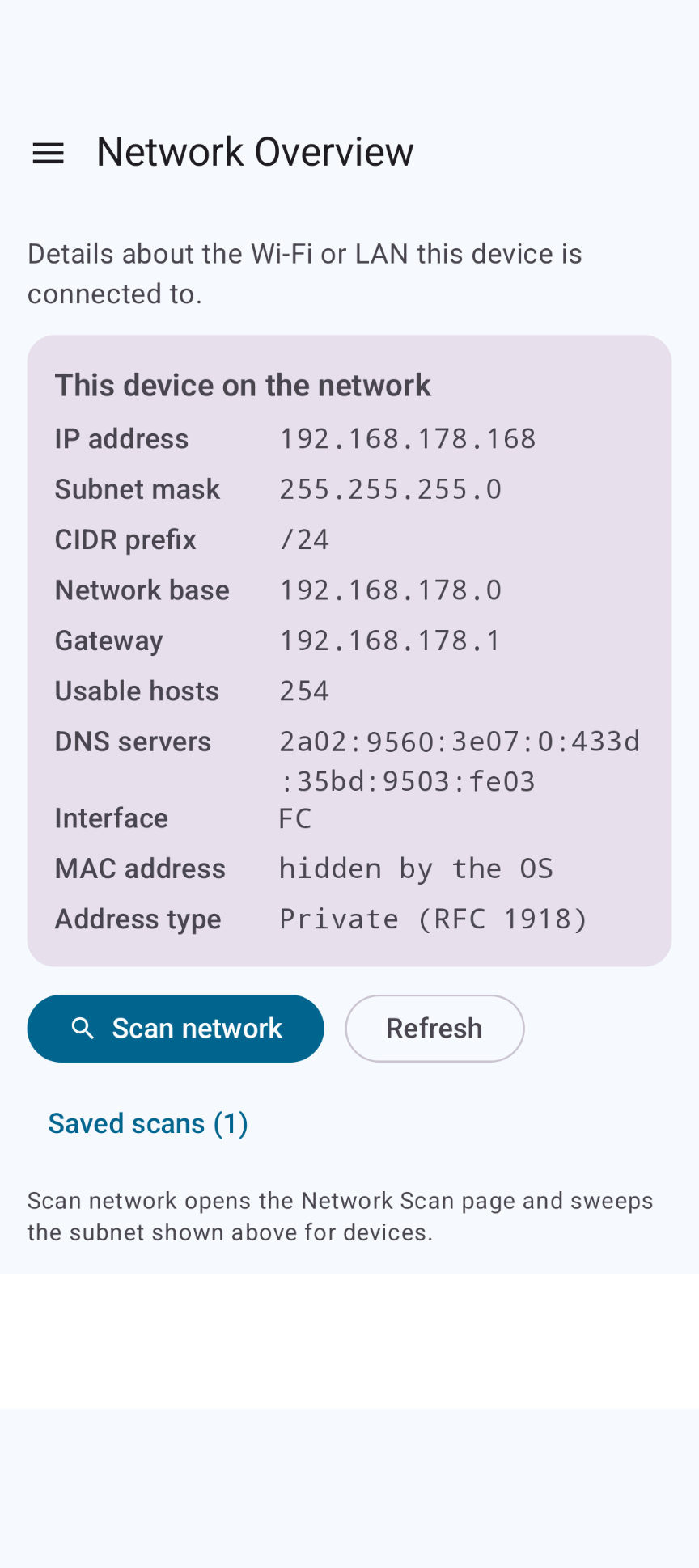
| Network Overview | Your IP address, subnet mask, CIDR prefix, network base, gateway, number of usable hosts, DNS servers, interface and address type. |
| Network Scan | Sweeps your local subnet and lists the devices that answer, with response time, open-port hints and function badges (gateway, pingable, web, cast/AirPlay, file sharing, printer, remote access, DNS, media, smart home, Apple mobile). Results can be filtered and saved. |
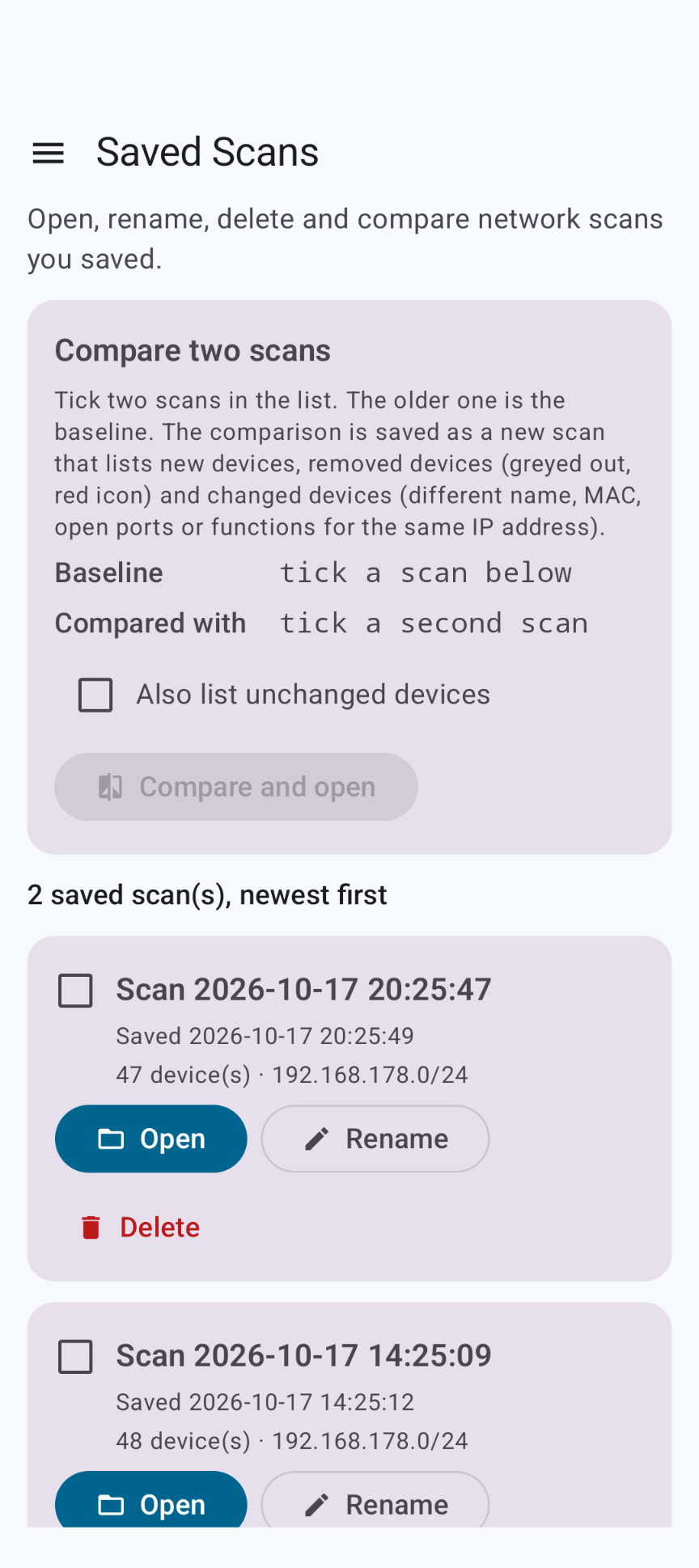
| Saved Scans | Your saved scans, newest first: open, rename, delete, and compare two. A comparison is saved as a new scan showing new, removed and changed devices — and devices that moved to another IP address. |
| Ping | Checks whether a host responds, with four methods: ICMP echo, TCP connect, UDP probe and ARP neighbor. Shows each reply and a min/avg/max/loss summary. |
| Route (Traceroute) | Shows the hop-by-hop path toward a host, with an explanation of the result. |
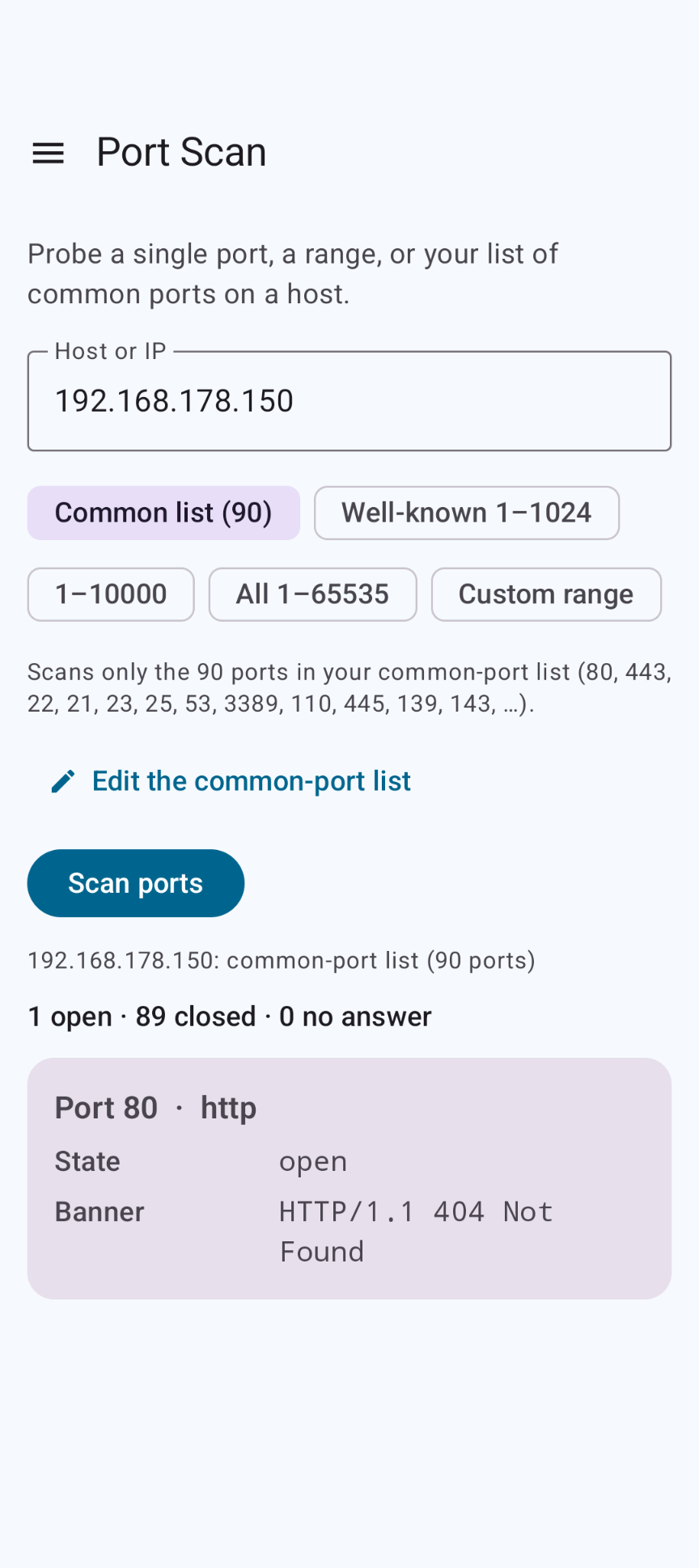
| Port Scan | Probes your common-port list, a single port or a range, names the service and reads a short banner where one is offered. |
| Common Ports | Edit the list used by the Port Scan's Common list. Ships with about 90 of the most used TCP ports; Restore default at any time. |
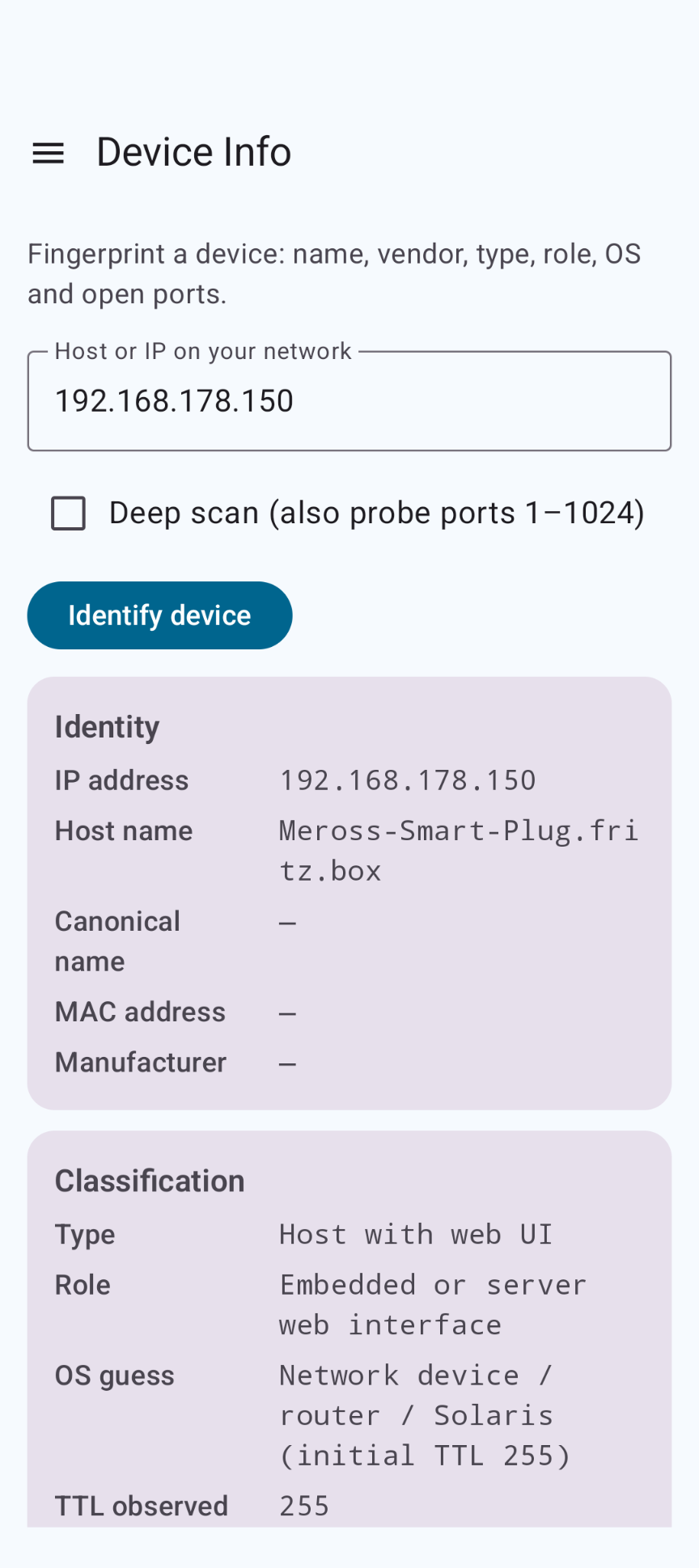
| Device Info | A best-effort profile of a device on your network: host name, MAC address and manufacturer (where available), likely type (computer, NAS, router, printer, IoT, media server…), role, OS guess and open ports. |
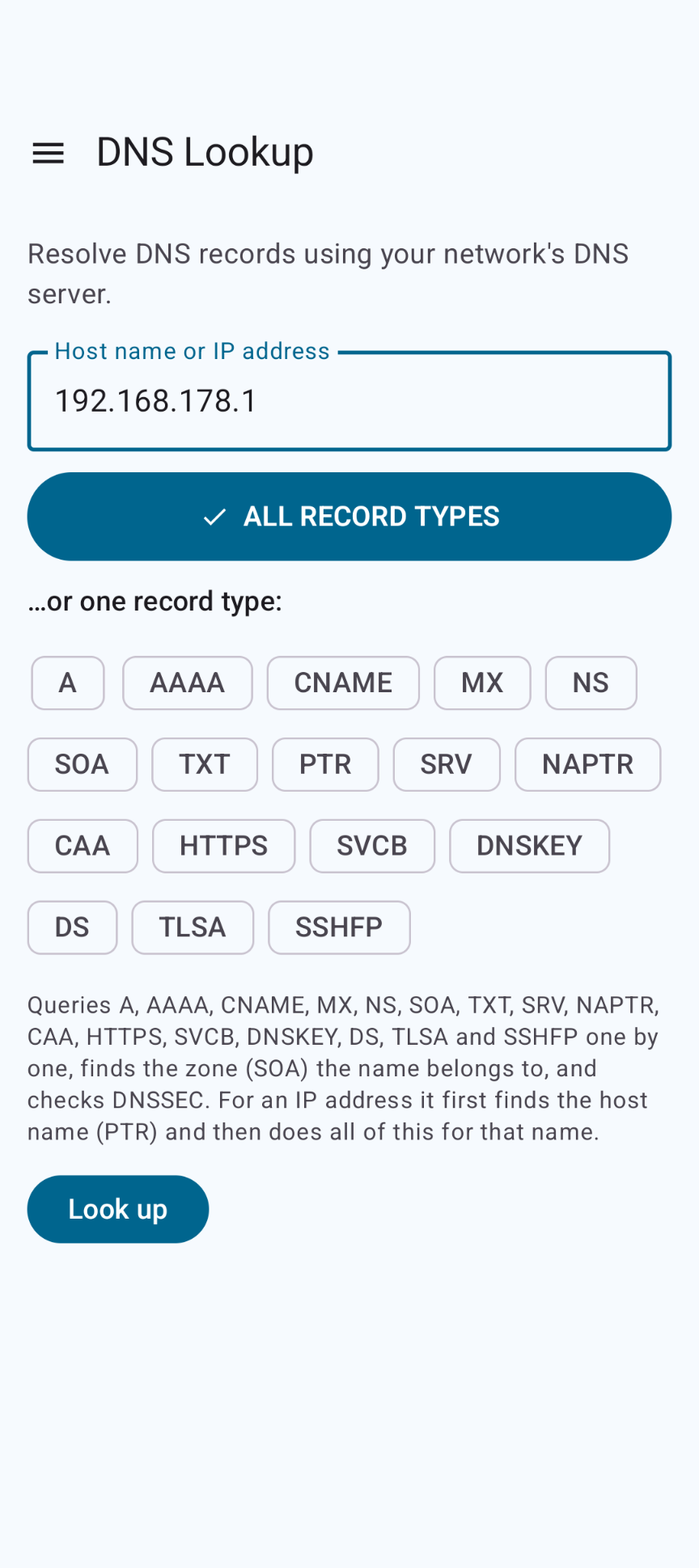
| DNS Lookup | All record types at once, or one of A, AAAA, CNAME, MX, NS, SOA, TXT, PTR, SRV, NAPTR, CAA, HTTPS, SVCB, DNSKEY, DS, TLSA and SSHFP. Finds the zone, turns an IP address into its host name first, and reports DNSSEC status. |
| Wake-on-LAN | Sends a magic packet to wake a computer or NAS. |
| Subnet Calculator | Network, broadcast, host range, mask, wildcard, host count, address type and a binary view for any IPv4 address and prefix. |
User manual
The app is in U.S. English. Open the menu with ☰ (top left) to switch between the tools; on wide screens the menu is always visible.
1. Allow local network access (Android 17+)
On Android 17 and newer, apps need your permission to reach devices on your local network. NetScope asks on first launch; while it is missing, a banner at the top shows an Allow button. Without it, every probe on your network times out.
2. Network Overview
Opens on launch and shows how your network is set up. Tap Refresh after switching networks, or Scan network to go straight to the Network Scan.
3. Network Scan
Tap Start scan. Devices appear as they answer; tap Stop at any time. Use the filter box to find a device by IP, name, MAC, vendor, port or function, and long-press a card to copy its address. Tap Save scan to keep the result (named Scan with the date and time). Each device card has buttons for Ping, Route, Ports, Device and DNS.
4. Saved Scans and comparing
Open shows a saved scan in the Network Scan page, with all the per-device buttons. Use Rename and Delete to tidy up. To compare, tick two scans and tap Compare and open: the older one is the baseline, and the differences are saved as a new scan — new devices in green, removed devices greyed out in red, changed devices in orange with a list of what changed.
5. The other tools
- Ping: enter a host or IP, a count and (for TCP/UDP) a port, choose a method and tap Ping. The selected method is explained on screen.
- Route: enter a host and the maximum number of hops, then tap Trace route.
- Port Scan: choose Common list, Well-known 1–1024, 1–10000, All 1–65535 or a Custom range (set both fields to the same number to scan one port), then tap Scan ports.
- Device Info: enter a host or IP on your network and tap Identify device. Tick Deep scan to also probe ports 1–1024 (slower, more detail).
- DNS Lookup: enter a name or IP address, tap ALL RECORD TYPES or a single type, and tap Look up.
- Wake-on-LAN: enter or pick a MAC address, keep the suggested broadcast address and tap Send magic packet.
- Subnet Calculator: type an address with /prefix (or a mask).
Good to know
Network discovery is best-effort: devices decide for themselves what they reveal. Some honest caveats:
- MAC address and manufacturer are hidden by Android 10 and newer (apps may no longer read the neighbor table), so the app shows "hidden by the OS". Phones and laptops often use randomized MAC addresses anyway.
- One hop on your own network is correct. Devices on your own subnet are one hop away, and switches, access points and repeaters never show up in a traceroute. Android can't run a real traceroute, so NetScope traces with ping and an increasing TTL (hop addresses, but no per-hop times).
- Network scan size: the sweep is limited to a /22 network (up to 1,024 addresses) so it stays fast. A device counts as "up" when it answers ping or any of 22 common ports.
- Saved scans store the 22 ports the sweep probes, not a full port scan, so "ports opened/closed" in a comparison refers to those ports.
- Device type, role and OS are educated guesses from open ports, the host name and the TTL — hints, not guarantees.
- DNSSEC status depends on your DNS server: many home routers don't validate, so a signed domain can look "not validated" or even "not signed" there.
- Mobile data: NetScope analyzes the Wi-Fi or Ethernet network you're connected to; there is nothing to scan on a mobile data connection.
Permissions this app requests
We believe in being transparent about every permission. Here is exactly what the app asks for and why:
| Permission | Why it is needed |
|---|---|
| Internet | Android refuses to open any network connection without it — including connections to devices on your own Wi-Fi. A network analyzer can't work without it. NetScope only talks to the hosts you enter and your network's DNS server; there is no telemetry, ads or cloud. |
| Network state | To read the real gateway and DNS servers of your Wi-Fi or Ethernet network. |
| Devices on your local network (Android 17+) | Android 17 blocks apps from the local network unless you allow this. Asked on first launch; while it is missing a banner shows an Allow button. Older Android versions ignore it. |
Privacy & cost — in plain terms
- No usage data collected. No analytics, telemetry, update checks or advertising.
- No personal data requested. There are no accounts, no sign-up, no login.
- No cookies, no tracking. This website sets none either.
- Results stay on your phone. Tool results live in memory and are gone when you close the app. Only the scans you save and your common-port list are stored, in the app's private storage.
- No payment, ever. The app is completely free, with no ads and no in-app purchases.
Cloud backup and device transfer are disabled, so nothing leaves your device that way either. For the full statement, see Privacy & Disclaimer.
Responsible use & your responsibility
NetScope is a hobby and educational project for learning how your own network works. Only scan networks and devices you own or are explicitly allowed to analyze. Scanning a network at work, school, a hotel or on public Wi-Fi without permission may break its rules or the law, and port scans can trigger security alarms.
The app is provided "as is", for learning and experimentation, without any warranty. Please read the full Privacy Statement & Disclaimer before use — by installing or using the app you accept those terms.
Images