 Android app
Offline Recorder
Record meetings, lectures and voice notes, turn them into text, and make shorter, cleaner copies — entirely on your phone, without any internet access. No ads, no accounts, no tracking.
What the app does
Offline Recorder is a voice recorder that keeps everything on your device. It keeps recording in the background — with the screen off or the phone locked — and can convert your recordings to text with an offline speech engine (Vosk, open source).
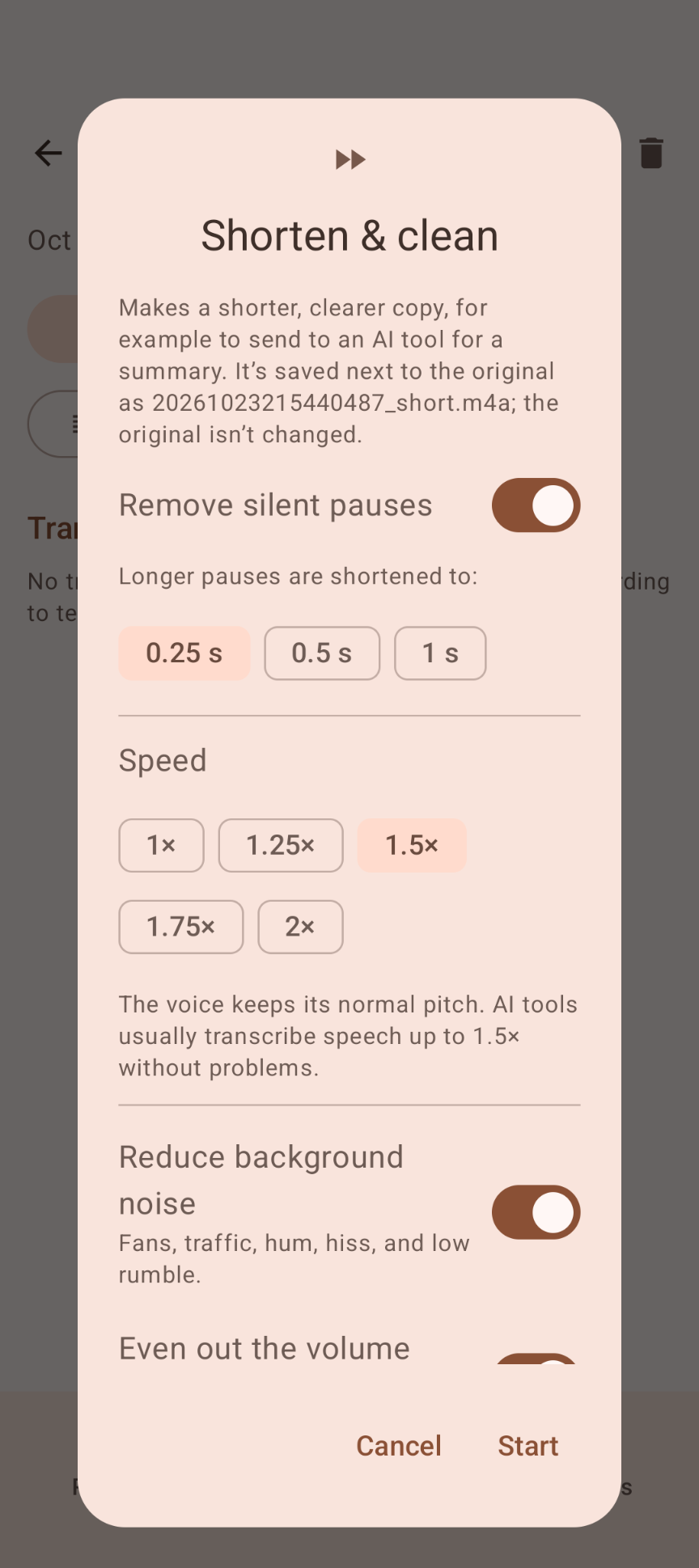
Want to send a recording to an AI tool for a summary, or share it by email? Shorten & clean makes a shorter, clearer copy: it removes silent pauses, speeds it up without the chipmunk effect, reduces background noise and evens out the volume.
Everything in one place
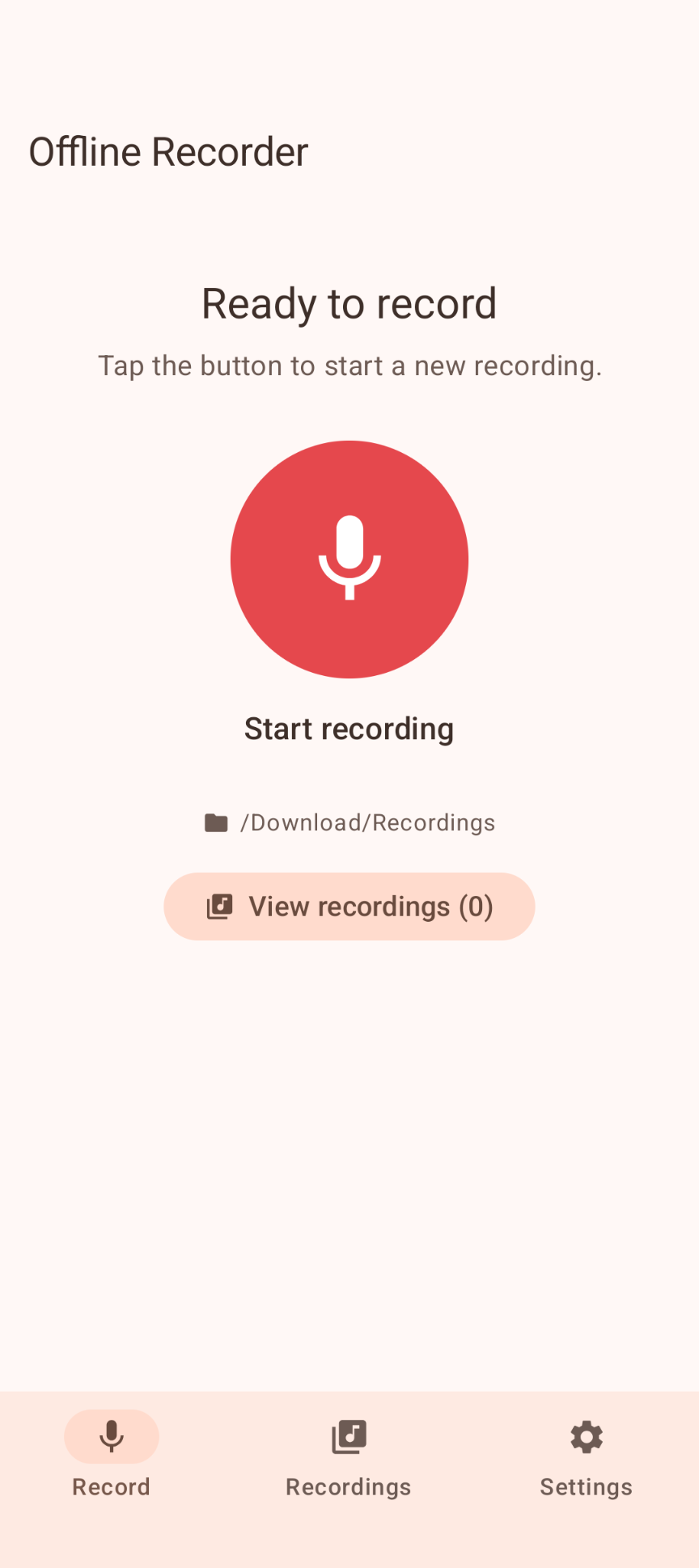
🎙️ Record
One big button. Recording continues when you close the app, lock the phone or turn off the screen, with a notification showing the timer and a Stop button. Files are saved every few seconds, so a recording stays usable even if the phone shuts down.
📝 Speech to text
Offline transcription in English (US), plus any language you add yourself (Dutch, German, Spanish…). Each recording gets its own transcript, shown in its details.
✂️ Shorten & clean
Shorten pauses to 0.25, 0.5 or 1 second, speed up to 2× (the voice keeps its pitch), reduce fans, traffic, hum and hiss, and even out quiet and loud parts. The original is never changed.
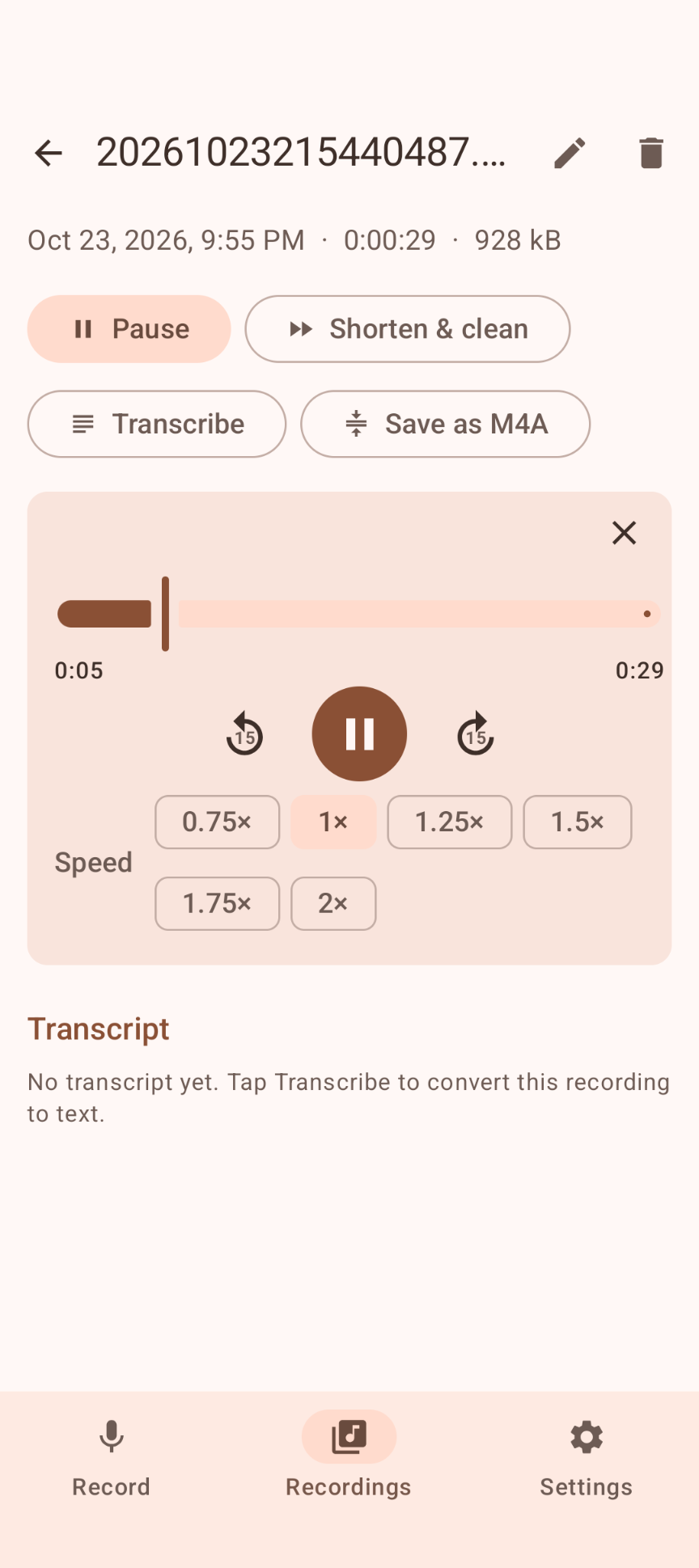
▶️ Play & share
A player with a seek bar, ±15 seconds and speeds from 0.75× to 2×. Save as M4A makes a copy that is about 8 times smaller than WAV — handy for AI tools and email.
Highlights
- Records 16 kHz mono WAV (about 115 MB per hour), named by date and time
- Save recordings in a folder you choose, for example Download/Recordings
- Rename, delete, transcribe, shorten and convert each recording; the transcript is renamed and deleted with it
- Plays and converts other audio files too (m4a, mp3…)
- When processing stops halfway, the part that was done is kept and the app tells you where and why
- Material 3 design with Material You colors and light and dark themes; on tablets and in landscape the list and details sit side by side
Download
Why Offline Recorder isn't on the Google Play Store
Google currently enforces highly demanding and complex requirements to publish new apps (such as mandatory closed testing phases with at least 20 people for 14 days, rigorous identity verification, and heavy administrative overhead). Because we build apps purely for our own enjoyment and want to keep it simple, we prefer to share the app with you directly.
How to Install the App
- Directly on your phone: Open the downloaded file. If prompted, allow your browser or file manager to "Install unknown apps" from outside the Google Play Store. Google started blocking this way of installing APK files.
- Via your computer: Connect your phone to your computer with a USB cable and install the app using Android Debug Bridge (ADB).
By downloading you agree to the Privacy Statement & Disclaimer. Use is entirely at your own risk.
The APK is larger than our other apps (about 45 MB) because the offline speech engine is built in. The speech models are downloaded separately, once — see the manual below. Version 2.0 installs over version 1 and keeps your folder, models and speech language.
How to install an APK directly on your phone
- Tap the download button above and wait for offlinerecorder.apk to finish downloading.
- Open the file (via your notification shade or the Files app).
- Android will ask permission to install unknown apps. Tap Settings and enable "Allow from this source" for your browser or file manager.
- Go back and tap Install.
- Open Offline Recorder when installation completes.
Installing apps from outside the Play Store is a normal Android feature. You can turn the "unknown sources" permission back off afterwards if you prefer.
How to install an APK via your computer
The cleanest, safest, and most secure way to install an APK file—without modifying your phone's mobile security settings or enabling "Unknown Sources"—is via ADB (Android Debug Bridge) from your computer. This is an official command-line utility supplied by Google for Android developers.
Step 1: Download ADB on your computer (The fastest way)
You do not need to install the massive Android Studio suite. Google provides a lightweight, standalone package called Platform-Tools.
- Windows: Download the official Android SDK Platform-Tools for Windows.
- Mac / Linux: Download the zip package above or install it instantly via your terminal line:
- Mac (via Homebrew): Run
brew install android-platform-tools - Linux (Ubuntu/Debian): Run
sudo apt install adb
- Mac (via Homebrew): Run
Note: If you downloaded the ZIP file (Windows/Mac), extract it into an easy-to-reach directory, such as C:\platform-tools or your Desktop.
Step 2: Prepare your Android phone
- Open the Settings app on your phone.
- Go to About phone (or System > About).
- Tap Build number 7 times rapidly until a notification pop-up says: "You are now a developer!".
- Return to the main Settings menu, open the new Developer options panel, and turn on USB debugging.
Step 3: Install the APK file
- Connect your phone to your computer using a USB cable.
- Look at your phone's screen: a prompt will ask "Allow USB debugging?". Check the option for “Always allow from this computer” and tap Allow.
- Move your downloaded APK file directly into the folder where you extracted the platform-tools files.
- Open Command Prompt (CMD) on Windows or Terminal on Mac/Linux, and change directories to that folder (e.g., on Windows, type:
cd C:\platform-tools). - Run this command to verify your computer properly detects your device:
(If you see a serial number followed by the word 'device', you are connected successfully!)adb devices - Run the installation script command:
adb install offlinerecorder.apk
When the terminal returns a Success message, the app is fully installed on your device and ready to launch!
User manual
The app is in U.S. English. The tabs are Record, Recordings and Settings.
1. Choose a storage folder
Open Settings › Storage folder › Choose folder. Open Downloads, create a folder such as Recordings and tap Use this folder. Until you choose one, recordings go to the app's own folder, which is removed when you uninstall the app.
2. Allow background recording
In Settings, tap Allow background activity so Android doesn't stop a long recording. On Samsung, Xiaomi and Huawei phones, also set Offline Recorder to Unrestricted in Android's battery settings. Allow notifications when asked: the notification shows that recording is running and has a Stop button.
3. Record
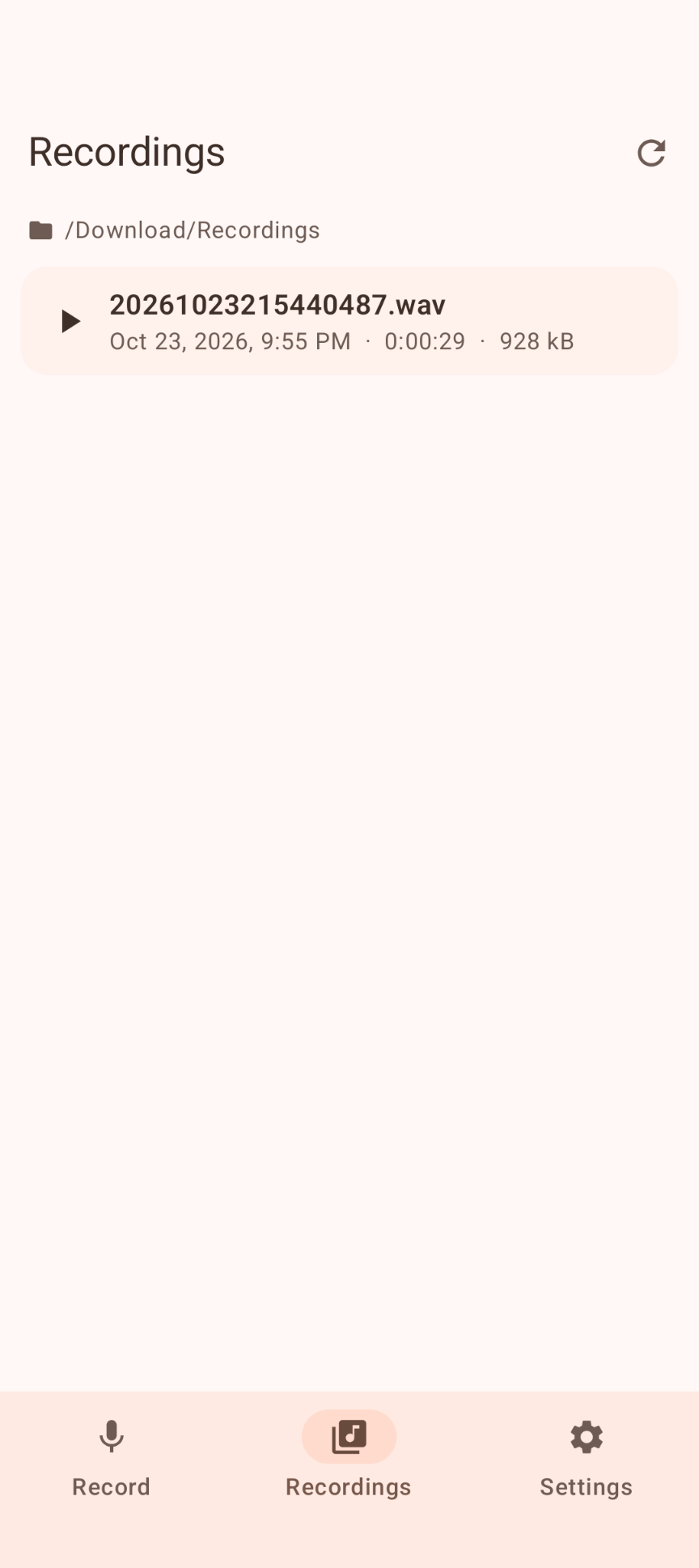
On the Record tab tap the microphone. The first time, Android asks for microphone access. Tap again (or Stop in the notification) to finish. The recording appears on the Recordings tab.
4. Add speech models (once)
Transcription needs an offline speech model per language. Download it once with your browser from alphacephei.com/vosk/models:
- English (US): vosk-model-small-en-us-0.15.zip (about 40 MB)
- Dutch: vosk-model-small-nl-0.22.zip (about 40 MB)
- Other languages: pick the matching small model on that page.
Then go to Settings › Speech recognition language. English (US) is always there; tap Add language to add another. Tap Import .zip next to the language and choose the downloaded file. Select the language that is spoken in your recordings.
5. Play, transcribe and convert
Tap a recording to open its details. From there you can Play it, Transcribe it (the text appears below), Save as M4A, rename it with the pencil or delete it with the trash can.
6. Shorten & clean
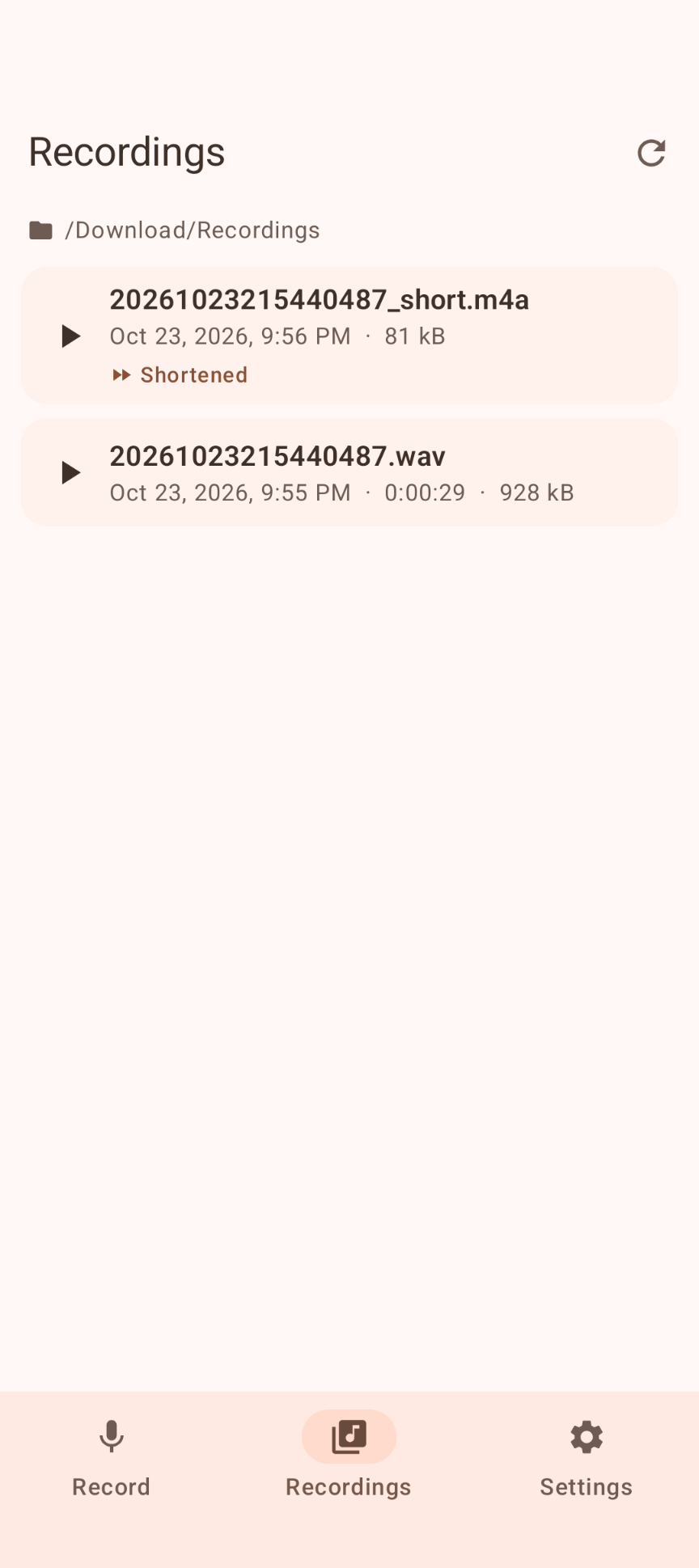
Tap Shorten & clean, choose the steps you want and tap Start. The copy is saved next to the original as <name>_short.m4a (or WAV) with a Shortened tag; the original isn't changed. AI tools usually transcribe speech up to 1.5× without problems. Processing a long recording takes a while on a phone; it continues in the background and a notification tells you when it's done.
Good to know
- Storage: WAV recordings use about 115 MB per hour; an M4A copy only about 15 MB per hour.
- Transcripts are saved next to the audio file, with the full file name plus .txt (for example 20261023215440487.wav.txt).
- Accuracy: the small offline models work well for clear speech; strong accents, crosstalk and noisy rooms give more mistakes. Try Reduce background noise first.
- If a recording stops when the screen is off, check the battery settings in step 2 — some phone brands are very strict.
Permissions this app requests
We believe in being transparent about every permission. Here is exactly what the app asks for and why.
| Permission | Why it is needed |
|---|---|
| Microphone | To record audio. Asked the first time you record. Only used while a recording is running. |
| Foreground service (microphone, media processing, data sync) | Lets a recording — and converting, shortening or transcribing a long recording — continue when you leave the app or lock the phone. Android always shows a notification while this runs. |
| Notifications (Android 13+) | To show the recording notification with its timer and Stop button, and the result of processing in the background. |
| Keep the device awake (wake lock) | So the phone doesn't fall asleep in the middle of a recording or conversion. |
| Ask to ignore battery optimizations | Used by the Allow background activity button, so Android doesn't stop long recordings. You decide in Android's dialog. |
Privacy & cost — in plain terms
- Fully offline. Recording, speech-to-text and audio processing all happen on your phone.
- No usage data collected. No analytics, crash reports, telemetry, advertising, Google Play Services or Firebase.
- No personal data requested. No account, no sign-up.
- No cookies, no tracking. This website sets none either.
- Your recordings stay yours. They only leave your phone when you share or copy them yourself.
- No payment, ever. The app is completely free, with no ads and no in-app purchases. The Vosk speech models are free too.
Settings are stored only in the app's private storage; recordings and transcripts in the folder you chose. Cloud backup and device transfer are disabled. For the full statement, see Privacy & Disclaimer.
Responsible use & your responsibility
Offline Recorder is a hobby and educational project. Recording people without their knowledge can be against the law where you live: always tell people you are recording and ask for their consent. Transcripts are made by software and can contain mistakes, so check important text against the recording. Keep a backup of recordings that matter.
The app is provided "as is", for learning and experimentation, without any warranty. Please read the full Privacy Statement & Disclaimer before use — by installing or using the app you accept those terms.
Images