 Windows application
AI OS Controller
Ask your computer questions in plain language. An AI — Google Gemini, Anthropic Claude or a free local model with Ollama — investigates by running commands on your PC, always with your approval, and explains what it found.
What the application does
AI OS Controller is a desktop assistant for diagnosing and managing your computer. Ask "Why is my computer slow?" or "How much free disk space do I have?", and the AI decides which commands would give the answer, asks you to run them, reads the results and explains what it found — step by step, until it has an answer.
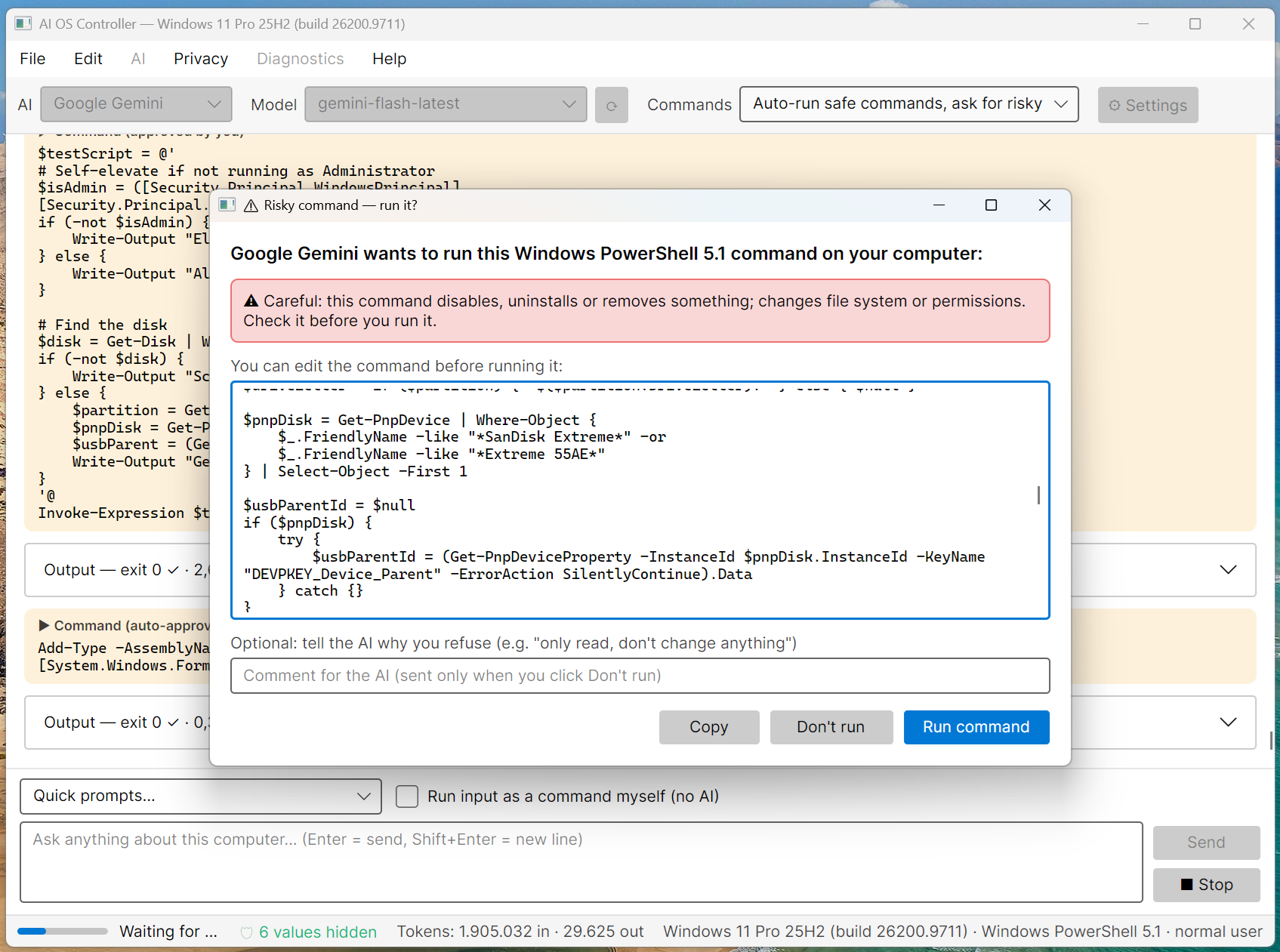
The most important rule: the AI can only run commands you allow. Every command is shown to you first, and you decide whether it runs, whether you want to change it, or whether it should not run at all.
Everything in one place
🤖 Three kinds of AI
Google Gemini and Anthropic Claude (cloud, with your own API key) or a local model with Ollama that runs on your own computer — free, offline and private. Switch AI in the middle of a conversation.
✋ You stay in control
Three modes: Ask before every command (default), Auto-run safe commands (read-only commands run, risky ones such as deleting, registry changes or installs still ask) and Chat only (the AI never runs anything).
🛡️ Privacy masking
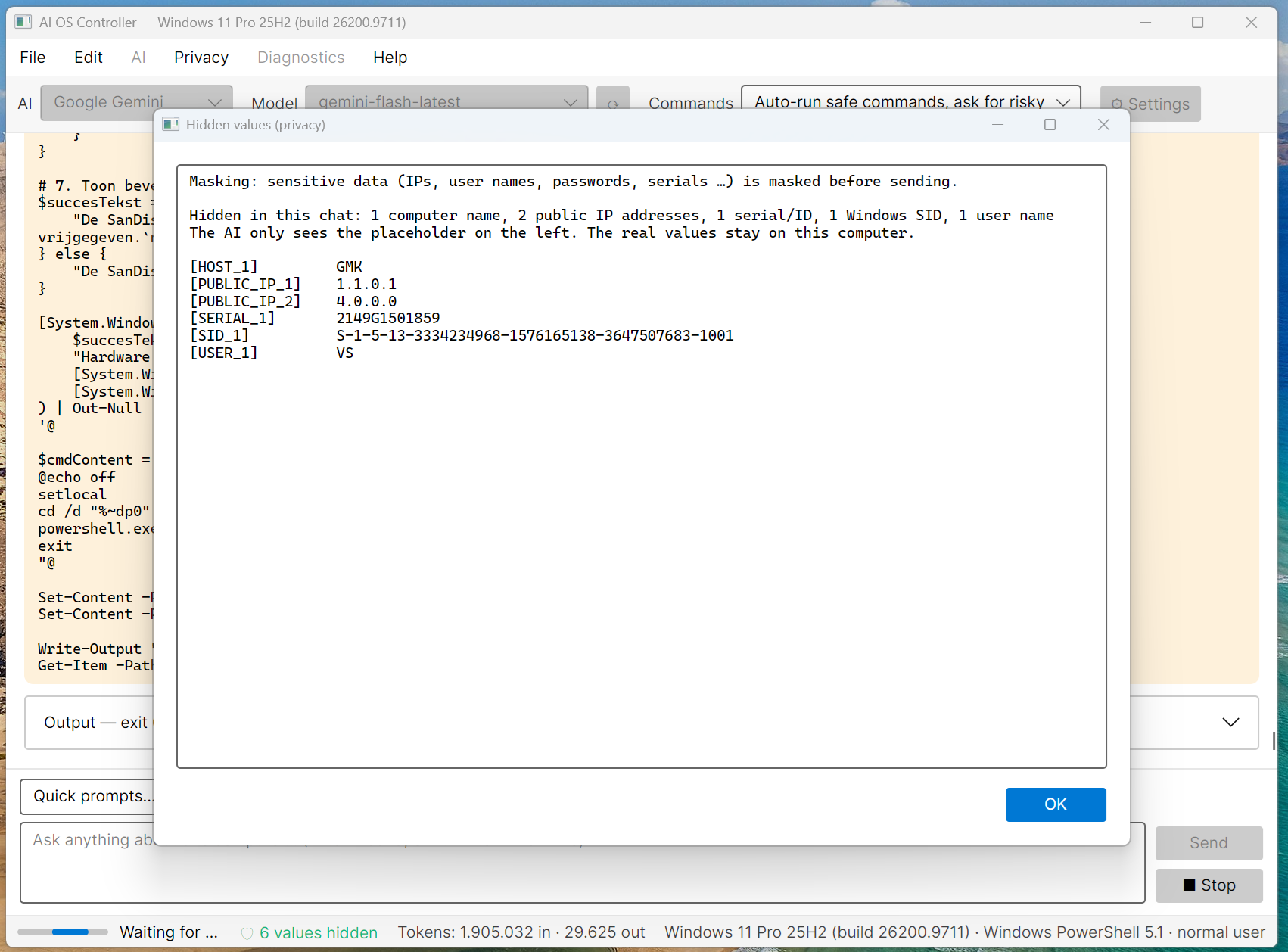
Before anything goes to a cloud AI, IP and MAC addresses, user and computer names, passwords, keys, Wi-Fi names, e-mail addresses and serial numbers are replaced by placeholders such as [LAN_IP_1]. The real values never leave your PC.
🩺 Built-in diagnostics
Ready-made checks for the system overview, hardware and USB, event log errors, network, latency, GPU and display, Windows Update and Defender, and power — with the AI analysing the results.
Highlights
- Detects your real system: Windows edition and build, CPU, memory, shell and whether you run as administrator
- Works with Windows PowerShell 5.1, PowerShell 7 and cmd
- Quick prompts for common questions, and Run input as a command myself without the AI
- Formatted answers with headings, tables and code blocks with Copy and Run… buttons
- A complete log of every chat and every command output; Export chat masked to share safely with a helpdesk or forum
- A text version (aioscli.exe) for terminals and servers
- Esc stops the AI and kills a running command at any moment
- A full user manual (PDF) is included in the download
Download
AI OS Controller is a Windows application without an installer: you download a zip file, unpack it and start the program from that folder. The zip contains the desktop app, the text version and the user manual (PDF).
By downloading you agree to the Privacy Statement & Disclaimer. Use is entirely at your own risk.
certutil -hashfile AiOsController.zip SHA256. The result must match the SHA-256 value shown above.
What you need
- Windows 10 or 11 (64-bit).
- The .NET 9 Runtime (free, from Microsoft). Check with
dotnet --list-runtimes: a line starting withMicrosoft.NETCore.App 9.means you're ready. Otherwise download .NET Runtime 9.0.x › Windows x64 from dotnet.microsoft.com. You don't need the SDK. - An AI: an API key for Google Gemini or Anthropic Claude, or Ollama with a local model (no key needed).
How to install
- Unblock the zip (recommended): right-click AiOsController.zip › Properties. If there is an Unblock checkbox at the bottom, tick it and click OK.
- Right-click the zip › Extract All… and choose a folder you control, for example C:\Users\<you>\Apps\AiOsController. Avoid C:\Program Files. Don't start the program from inside the zip window.
- Open the extracted AiOsController folder and double-click AiOsController.exe. Keep all files together in this folder.
- The first time, Windows SmartScreen may say "Windows protected your PC", because the program isn't signed by a known publisher. Click More info › Run anyway. You only need to do this once.
- Optional: right-click AiOsController.exe › Send to › Desktop (create shortcut), or Pin to Start.
To update later, close the program and replace the folder's contents with the new version; your settings, keys and logs are kept in your user profile. To remove it, delete the folder (and %APPDATA%\AiOsController for your settings and logs) — there is no uninstaller because nothing was installed.
Getting started
The application is in U.S. English. The complete manual, AI-OS-Controller-User-Manual.pdf, is in the downloaded folder.
1. Choose an AI and enter a key
When no API key is set, Settings opens at the first start. Choose Gemini or Claude, paste your API key (the Get a key… button opens the right page) and click Save. Using only a local AI? Choose Ollama (local); no key is needed.
2. Ask a question
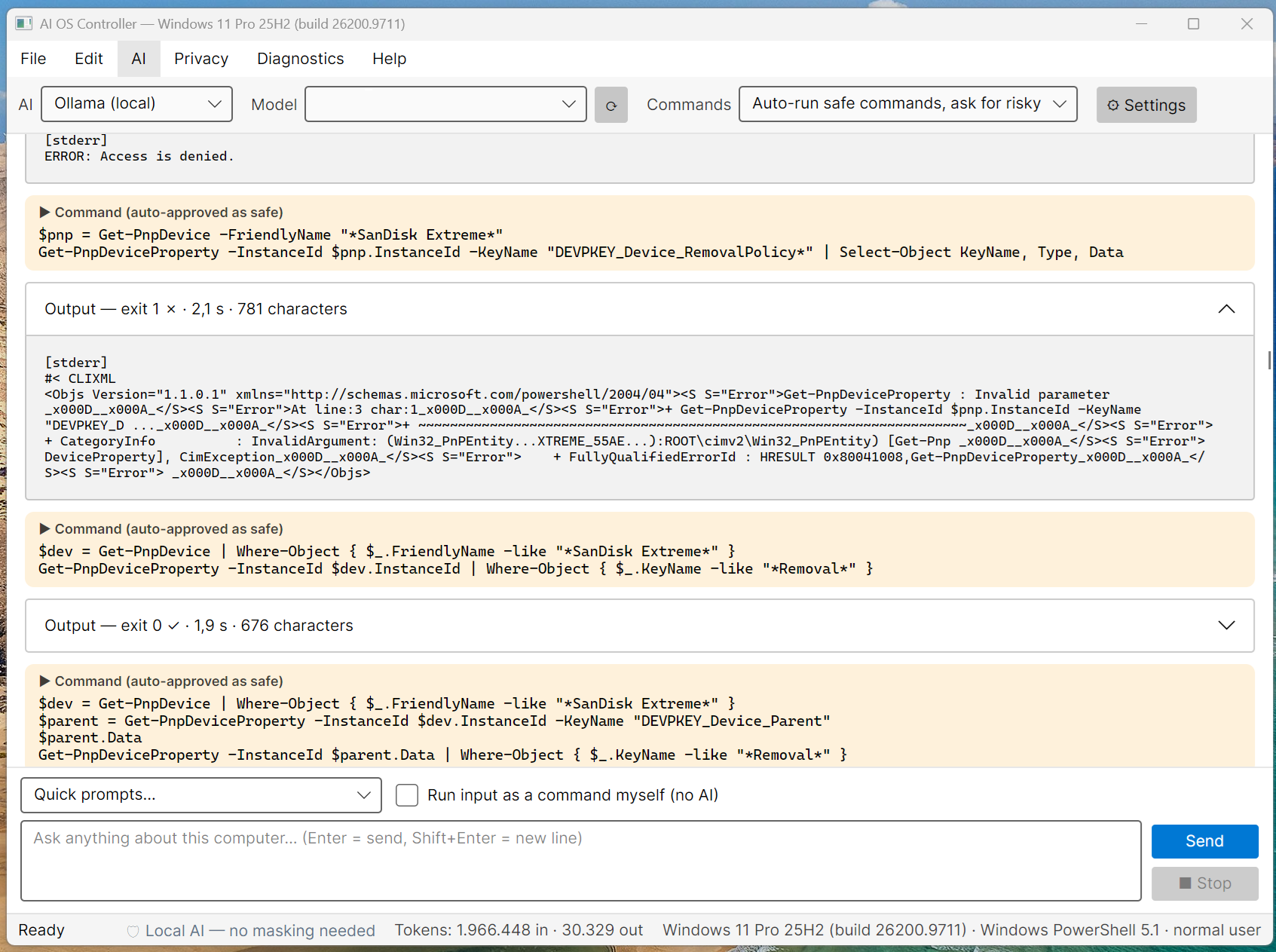
Type your question in the box at the bottom and press Enter (Shift+Enter for a new line), or pick one of the Quick prompts. The chat shows each command the AI runs, its output (folded under Output) and the final answer.
3. Approve, edit or refuse commands
When the AI wants to run a command, a window shows it in full. Click Run command, change it first, or click Don't run — optionally with a comment so the AI knows what you want instead (for example "only read, don't change anything"). Risky commands are marked in red and always ask, also in auto mode.
4. Run a diagnostic check
Open the Diagnostics menu and choose a check, such as Network & connectivity or Event log errors & warnings. The script runs after your approval and the AI analyses the output. Some checks need administrator rights: use File › Restart as Administrator.
5. Use a local AI with Ollama (optional)
- Install Ollama from ollama.com and download a model, for example
ollama pull qwen3:8b. - In the toolbar choose AI › Ollama (local), open ⚙ Settings › AI providers › Ollama and click Check connection.
- Everything now stays on your computer. Small local models make more mistakes than Gemini or Claude, so read each command carefully.
- Esc: stop the AI and kill a running command.
- Ctrl+Enter: always send. Ctrl+Up / Ctrl+Down: previous / next message.
- Ctrl+N: new chat. Ctrl+S: export the chat as Markdown. Ctrl+,: Settings. F5: refresh the model list.
Good to know
- The risk check is a safety net, not a sandbox. It recognizes common dangerous commands, but not every one. Always read a command before you approve it.
- Commands run on this computer, with the rights of the user who started the program — also when the AI is Ollama on another computer.
- Cost of cloud AI: the program is free, but Google and Anthropic may charge for API use, depending on your plan. The status bar shows the tokens used. Ollama is free.
- Masking is pattern based. It catches the common formats, but can't guarantee that every personal detail is found. Add your own words (name, company, address) under Privacy › Always hide.
- Logs contain the full output of every command (also unmasked values) and are stored on your computer only: %APPDATA%\AiOsController\logs.
- Portable mode: put a settings.json (an empty {} is enough) next to the exe and settings and logs are kept in that folder — handy on a USB stick.
- The program itself is cross-platform: with the .NET 9 Runtime for Linux or macOS,
dotnet AiOsController.dllstarts it there too (see the manual).
Privacy & cost — in plain terms
- Nothing is sent to us. No analytics, telemetry, crash reports, advertising or account with ExperimentApps.
- You choose where your questions go. With Gemini or Claude, your questions and (masked) command output are sent to Google or Anthropic, under their terms and privacy policies. With a local Ollama model, nothing leaves your computer.
- Sensitive values are masked before anything goes to a cloud AI (on by default). Click the 🛡 in the status bar to see what was hidden.
- API keys are stored encrypted with Windows DPAPI, in your user profile.
- No cookies, no tracking. This website sets none either.
- No payment to us, ever. The program is free. Cloud AI providers may charge you for their API.
For the full statement, see Privacy & Disclaimer.
Responsible use & your responsibility
AI OS Controller is a hobby and educational project. AI can make mistakes, and a wrong command can change settings, stop services or delete data. Read every command before you approve it, use Ask before every command or Chat only when you are unsure, keep backups of important data, and only use the program on computers you own or are explicitly allowed to manage. Never expose an Ollama server to the internet.
The app is provided "as is", for learning and experimentation, without any warranty. Please read the full Privacy Statement & Disclaimer before use — by installing or using the app you accept those terms.
Images