 Android app
NetWarden
See which apps on your phone connect to what — and block what you don't want. A firewall and traffic monitor that runs as a local VPN on your own phone, with no server in between. No ads, no accounts, no tracking.
What the app does
NetWarden shows you the network traffic of your phone and of each app: which addresses and domains they contact, how often and how much data they send. Then you decide what to block — an IP address, a range, a domain, a URL or a whole app.
It works as a local VPN: Android sends the traffic through NetWarden on your own phone, which records it and passes it on. There is no remote VPN server and your traffic is never sent to us.
Two kinds of session
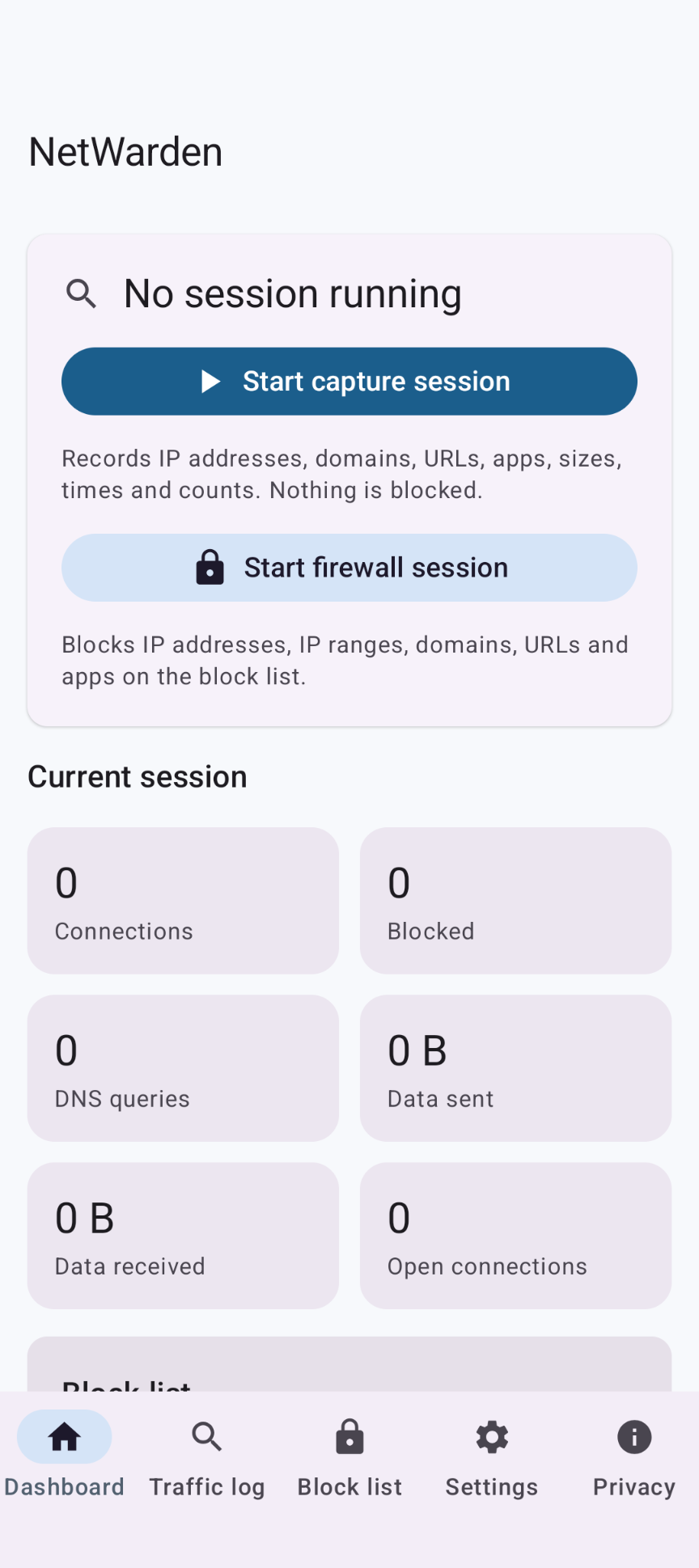
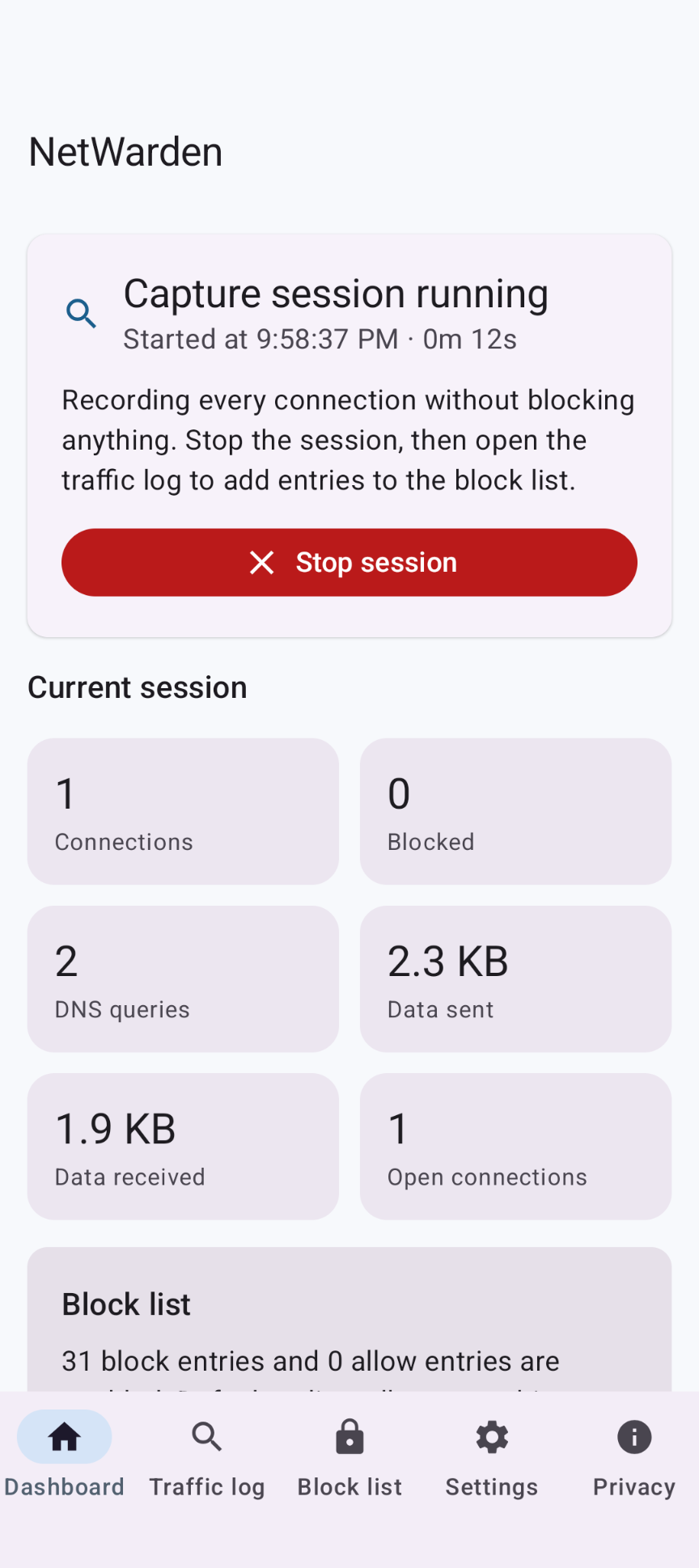
🔍 Capture session
Records every connection without blocking anything: app, IP address, port, protocol (TCP, UDP, DNS), domain name, URL (plain HTTP), bytes sent and received, first and last seen, and how often. Then add entries to your block list with one tap.
🔒 Firewall session
Applies your block list live, also to connections that are already open. Allow everything that isn't blocked, or switch to allow-list mode and block everything that isn't allowed.
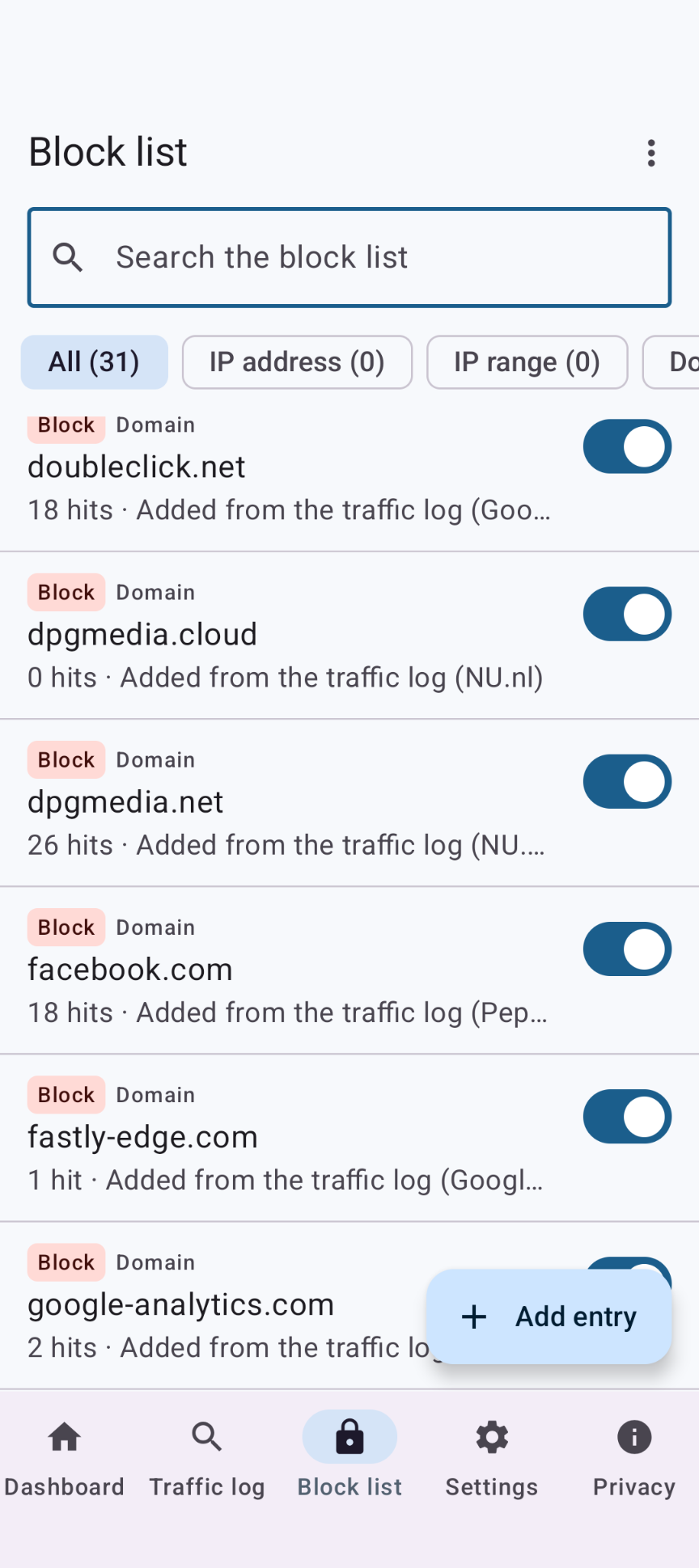
📋 Block list
IP addresses, IP ranges, domains (with subdomains and wildcards), URLs and apps — as block or allow entries. Hit counters per entry. Import a hosts file or a plain list, and export to JSON.
📊 Dashboard & log
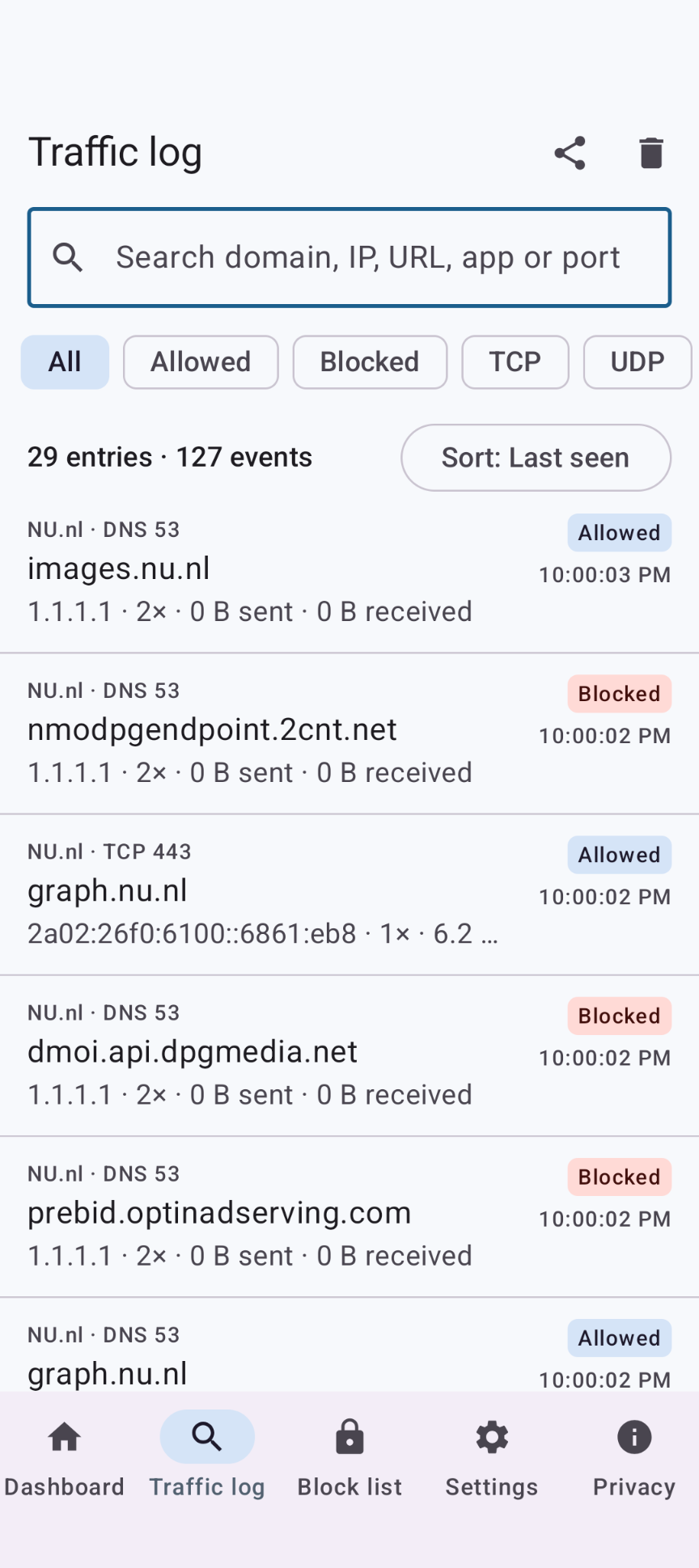
Live counters for connections, blocked attempts, DNS queries and data, plus the most active apps and domains. Search, filter and sort the traffic log, and export it as CSV or JSON.
Highlights
- Test one app at a time by sending only selected apps through the tunnel, or exclude apps
- Optional QUIC blocking, so apps fall back to connections where domain blocking works reliably
- Choose your own DNS server (presets for Cloudflare, Quad9, Google and AdGuard)
- Local network options: capture traffic to devices on your Wi-Fi, and a local relay that records connections other devices make to your phone
- Shortcuts to Android's VPN settings (Always-on VPN) and the app's battery and data settings
- Material 3 design with light and dark themes; on tablets the log and block list show list and details side by side
Download
Why NetWarden isn't on the Google Play Store
Google currently enforces highly demanding and complex requirements to publish new apps (such as mandatory closed testing phases with at least 20 people for 14 days, rigorous identity verification, and heavy administrative overhead). Because we build apps purely for our own enjoyment and want to keep it simple, we prefer to share the app with you directly.
How to Install the App
- Directly on your phone: Open the downloaded file. If prompted, allow your browser or file manager to "Install unknown apps" from outside the Google Play Store. Google started blocking this way of installing APK files.
- Via your computer: Connect your phone to your computer with a USB cable and install the app using Android Debug Bridge (ADB).
By downloading you agree to the Privacy Statement & Disclaimer. Use is entirely at your own risk.
How to install an APK directly on your phone
- Tap the download button above and wait for netwarden.apk to finish downloading.
- Open the file (via your notification shade or the Files app).
- Android will ask permission to install unknown apps. Tap Settings and enable "Allow from this source" for your browser or file manager.
- Go back and tap Install.
- Open NetWarden when installation completes.
Installing apps from outside the Play Store is a normal Android feature. You can turn the "unknown sources" permission back off afterwards if you prefer.
How to install an APK via your computer
The cleanest, safest, and most secure way to install an APK file—without modifying your phone's mobile security settings or enabling "Unknown Sources"—is via ADB (Android Debug Bridge) from your computer. This is an official command-line utility supplied by Google for Android developers.
Step 1: Download ADB on your computer (The fastest way)
You do not need to install the massive Android Studio suite. Google provides a lightweight, standalone package called Platform-Tools.
- Windows: Download the official Android SDK Platform-Tools for Windows.
- Mac / Linux: Download the zip package above or install it instantly via your terminal line:
- Mac (via Homebrew): Run
brew install android-platform-tools - Linux (Ubuntu/Debian): Run
sudo apt install adb
- Mac (via Homebrew): Run
Note: If you downloaded the ZIP file (Windows/Mac), extract it into an easy-to-reach directory, such as C:\platform-tools or your Desktop.
Step 2: Prepare your Android phone
- Open the Settings app on your phone.
- Go to About phone (or System > About).
- Tap Build number 7 times rapidly until a notification pop-up says: "You are now a developer!".
- Return to the main Settings menu, open the new Developer options panel, and turn on USB debugging.
Step 3: Install the APK file
- Connect your phone to your computer using a USB cable.
- Look at your phone's screen: a prompt will ask "Allow USB debugging?". Check the option for “Always allow from this computer” and tap Allow.
- Move your downloaded APK file directly into the folder where you extracted the platform-tools files.
- Open Command Prompt (CMD) on Windows or Terminal on Mac/Linux, and change directories to that folder (e.g., on Windows, type:
cd C:\platform-tools). - Run this command to verify your computer properly detects your device:
(If you see a serial number followed by the word 'device', you are connected successfully!)adb devices - Run the installation script command:
adb install netwarden.apk
When the terminal returns a Success message, the app is fully installed on your device and ready to launch!
User manual
The app is in U.S. English. The tabs are Dashboard, Traffic log, Block list, Settings and Privacy.
1. Start a capture session
On the Dashboard tap Start capture session. The first time, Android asks whether NetWarden may set up a VPN connection; tap OK. A key icon in the status bar shows that the VPN is active. Use your phone and apps as usual, then come back and tap Stop session.
2. Look at the traffic log
Open the Traffic log. Each entry shows the app, the domain or address, the protocol and port, how often it was seen and the data sent and received. Search for a domain, IP, URL, app or port, filter (allowed, blocked, TCP, UDP, DNS) and sort by last seen, count, size and more.
3. Build your block list
Tap an entry in the log and choose what to add: the IP address, its range, the domain, the parent domain, the URL, or the whole app — as a block or an allow entry. You can also add entries by hand on the Block list tab, or import a hosts file or a list. Allow entries always win over block entries.
4. Start a firewall session
Tap Start firewall session. Matching connections are refused, blocked domain names get a "no such domain" answer, and every blocked attempt is logged. New entries take effect immediately. Each entry shows how often it was hit.
5. Fine-tune in Settings
- Apps in the tunnel: send only selected apps through NetWarden, or exclude apps.
- Default policy: allow everything not blocked, or block everything not allowed.
- Block QUIC: recommended when you block domains (see below).
- Run in background (off by default): keep the session running when NetWarden is not on screen.
- Local network: capture traffic to devices on your Wi-Fi, and set up local relays.
Good to know
- NetWarden doesn't decrypt anything. For HTTPS it only sees the domain name, not the full URL; URL entries work for plain HTTP only.
- Private DNS with a host name (in Android's network settings) and DNS-over-HTTPS inside apps hide domain names. Set Private DNS to Off or Automatic to see every query.
- QUIC / HTTP-3 hides the server name; turn on Block QUIC for reliable domain blocking.
- Only one VPN can be active at a time on Android, so NetWarden can't run together with another VPN app.
- Sessions stop when you leave the app, unless you turn on Run in background. For protection all the time, also turn on Android's Always-on VPN for NetWarden.
- Incoming connections to a server app on your phone (such as Pocket NAS) can't pass through a VPN. Keep Capture local network traffic off, exclude that app, or use a local relay.
- Traffic between two other devices on your Wi-Fi never passes through your phone and can't be seen.
Permissions this app requests
We believe in being transparent about every permission. Here is exactly what the app asks for and why. The same list is in the app on the Privacy tab.
| Permission | Why it is needed |
|---|---|
| VPN connection (Android's consent dialog) | Not a regular permission: you allow it in Android's dialog the first time a session starts, and can revoke it in Android's VPN settings. It lets NetWarden see and filter the traffic of the apps on your phone. |
| Internet | Used only to pass on the traffic of the other apps that goes through the tunnel, so capturing doesn't block anything and allowed traffic keeps working. NetWarden itself never contacts a server: no analytics, ads, crash reporting, update checks or list downloads. |
| Devices on your local network (Android 17+, optional) | Only asked when you turn on Capture local network traffic or Local relay, because NetWarden then opens connections to devices on your Wi-Fi for the captured apps. |
Privacy & cost — in plain terms
- Your traffic stays on your phone. The VPN is local; there is no NetWarden server and nothing is sent to us.
- No usage data collected. No analytics, crash reports, telemetry or advertising.
- No personal data requested. No account, no sign-up.
- No cookies, no tracking. This website sets none either.
- No background use by default. A session stops when you leave the app, unless you turn on Run in background.
- No payment, ever. The app is completely free, with no ads and no in-app purchases.
The block list, settings and traffic log are stored only in the app's private storage on your phone. Cloud backup and device transfer are disabled. Files leave your phone only when you export them yourself. For the full statement, see Privacy & Disclaimer.
Responsible use & your responsibility
NetWarden is a hobby and educational tool for monitoring and testing. Only monitor devices you own or are allowed to examine. A block list can stop apps from working — including messaging, banking or emergency-related apps — so test your entries and stop the session if something doesn't work. NetWarden is not a replacement for a full security solution.
The app is provided "as is", for learning and experimentation, without any warranty. Please read the full Privacy Statement & Disclaimer before use — by installing or using the app you accept those terms.
Images