 Android app
LED Ticker
Turn your phone into a scrolling LED sign. Type a message, pick colors and effects, and hold it up — or tap two or more phones together to build one long display. No internet, no ads, no tracking.
What the app does
LED Ticker shows your text as a bright, scrolling dot-matrix LED sign on your phone or tablet. Use it at a party, a match, an airport pick-up or a concert. Turn your phone sideways, tap Full screen, and the message keeps scrolling with the screen kept on.
The fun part: put two to eight phones side by side and they become one long display. Tap the phones together once (NFC) and they stay linked over Bluetooth. The text then flows from one screen to the next, perfectly in step.
Everything you can set
🔤 Text & fonts
Up to 300 characters, with your own quick picks for messages you use often. Three dot-matrix fonts (Classic, Bold, Wide) and three system fonts that can show any character. About 120 symbols and emoji are drawn as LEDs.
💡 LEDs
7 to 64 rows, LED size and spacing, round or square LEDs, lit and unlit colors, background, brightness and a soft glow around every LED.
➡️ Motion
Scroll left, right, up or down, Bounce or Static. Speed 1–150 LEDs per second, the gap between repeats, and a mirror mode for reading through glass or in a mirror.
🌈 Effects
Rainbow, Gradient, Color cycle and Fire colors; Blink, Breathe, Sparkle, Wave and Invert effects, each with its own speed.
Highlights
- Multi-screen display: one tap (NFC) links a phone, Bluetooth keeps all screens in step and every change on the first phone appears on all screens right away
- Clocks are matched to within a few milliseconds, so the text really flows from phone to phone
- Fill screen fits the LEDs exactly to the phone held sideways; a bezel gap accounts for the phone edges between screens
- A sync test pattern shows that all screens are in step
- Settings are saved automatically; quick picks stay even after Reset all settings
- Material 3 design; on tablets and wide screens the live preview and the settings sit side by side
Download
Why LED Ticker isn't on the Google Play Store
Google currently enforces highly demanding and complex requirements to publish new apps (such as mandatory closed testing phases with at least 20 people for 14 days, rigorous identity verification, and heavy administrative overhead). Because we build apps purely for our own enjoyment and want to keep it simple, we prefer to share the app with you directly.
How to Install the App
- Directly on your phone: Open the downloaded file. If prompted, allow your browser or file manager to "Install unknown apps" from outside the Google Play Store. Google started blocking this way of installing APK files.
- Via your computer: Connect your phone to your computer with a USB cable and install the app using Android Debug Bridge (ADB).
By downloading you agree to the Privacy Statement & Disclaimer. Use is entirely at your own risk.
The multi-screen display needs phones with NFC and Bluetooth on Android 12 or newer. A single phone works on Android 8.0 and up.
How to install an APK directly on your phone
- Tap the download button above and wait for ledticker.apk to finish downloading.
- Open the file (via your notification shade or the Files app).
- Android will ask permission to install unknown apps. Tap Settings and enable "Allow from this source" for your browser or file manager.
- Go back and tap Install.
- Open LED Ticker when installation completes.
Installing apps from outside the Play Store is a normal Android feature. You can turn the "unknown sources" permission back off afterwards if you prefer.
How to install an APK via your computer
The cleanest, safest, and most secure way to install an APK file—without modifying your phone's mobile security settings or enabling "Unknown Sources"—is via ADB (Android Debug Bridge) from your computer. This is an official command-line utility supplied by Google for Android developers.
Step 1: Download ADB on your computer (The fastest way)
You do not need to install the massive Android Studio suite. Google provides a lightweight, standalone package called Platform-Tools.
- Windows: Download the official Android SDK Platform-Tools for Windows.
- Mac / Linux: Download the zip package above or install it instantly via your terminal line:
- Mac (via Homebrew): Run
brew install android-platform-tools - Linux (Ubuntu/Debian): Run
sudo apt install adb
- Mac (via Homebrew): Run
Note: If you downloaded the ZIP file (Windows/Mac), extract it into an easy-to-reach directory, such as C:\platform-tools or your Desktop.
Step 2: Prepare your Android phone
- Open the Settings app on your phone.
- Go to About phone (or System > About).
- Tap Build number 7 times rapidly until a notification pop-up says: "You are now a developer!".
- Return to the main Settings menu, open the new Developer options panel, and turn on USB debugging.
Step 3: Install the APK file
- Connect your phone to your computer using a USB cable.
- Look at your phone's screen: a prompt will ask "Allow USB debugging?". Check the option for “Always allow from this computer” and tap Allow.
- Move your downloaded APK file directly into the folder where you extracted the platform-tools files.
- Open Command Prompt (CMD) on Windows or Terminal on Mac/Linux, and change directories to that folder (e.g., on Windows, type:
cd C:\platform-tools). - Run this command to verify your computer properly detects your device:
(If you see a serial number followed by the word 'device', you are connected successfully!)adb devices - Run the installation script command:
adb install ledticker.apk
When the terminal returns a Success message, the app is fully installed on your device and ready to launch!
User manual
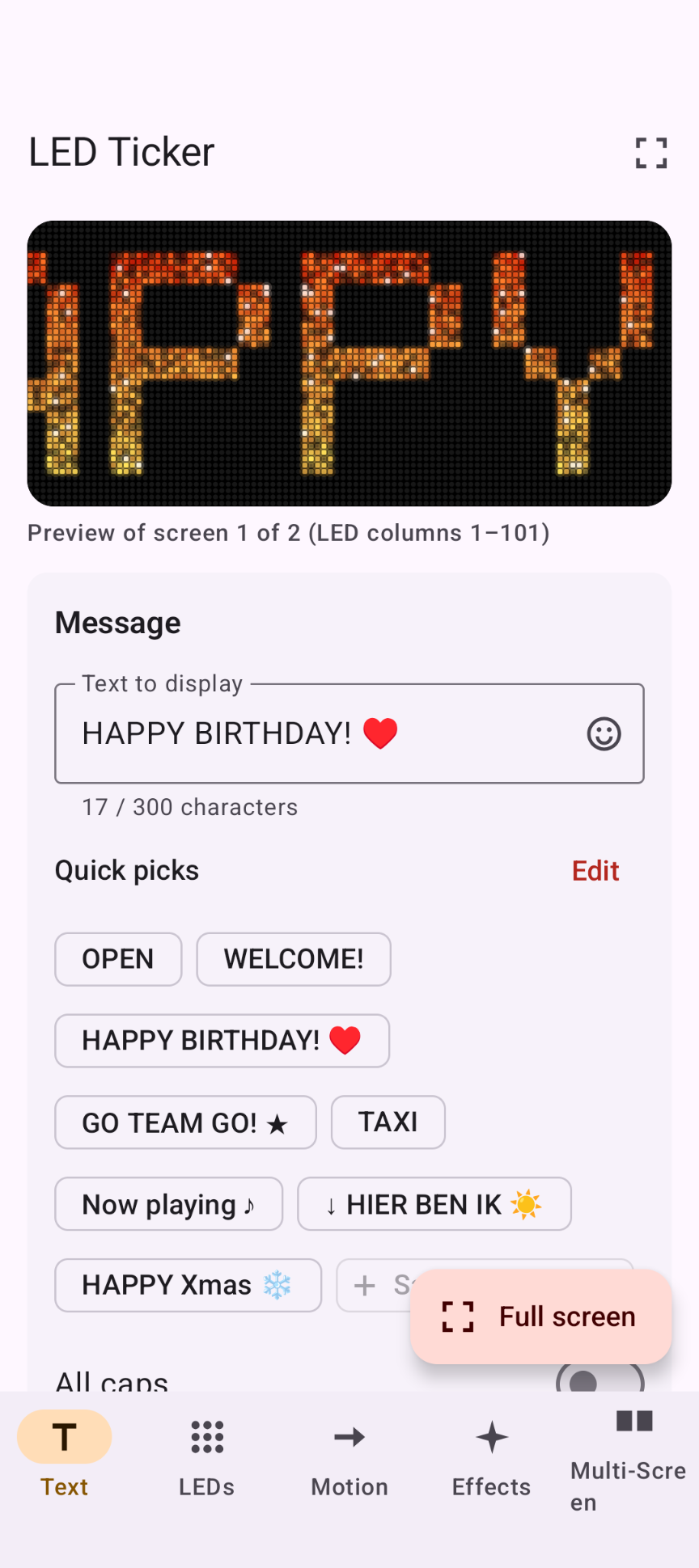
The app is in U.S. English. The tabs are at the bottom of the screen on a phone, or on the left on a tablet: Text, LEDs, Motion, Effects and Multi-Screen. The live preview at the top shows every change immediately.
1. Type your message
On the Text tab, type your message or tap one of the Quick picks. Tap ☺ in the text box to insert a symbol or emoji. If a character can't be drawn in the dot-matrix font, a red hint under the text box tells you which one; choose one of the system fonts to show it anyway.
To keep a message as a quick pick, tap Save current text. To remove one, tap Edit and then the quick pick.
2. Style the LEDs
On the LEDs tab choose the number of rows, the LED size and shape, and the colors. More rows give smoother letters; system fonts and emoji look best with about 16 rows or more. On Effects pick a color mode (for example Rainbow or Fire) and an effect such as Blink or Sparkle.
3. Set the motion
On the Motion tab choose Scroll, Bounce or Static, the direction and the speed. Turn on Mirror when people read the sign through a window or in a mirror.
4. Go full screen
Turn the phone sideways and tap Full screen. The system bars are hidden and the screen stays on. Tap the screen to show Exit, or press Back.
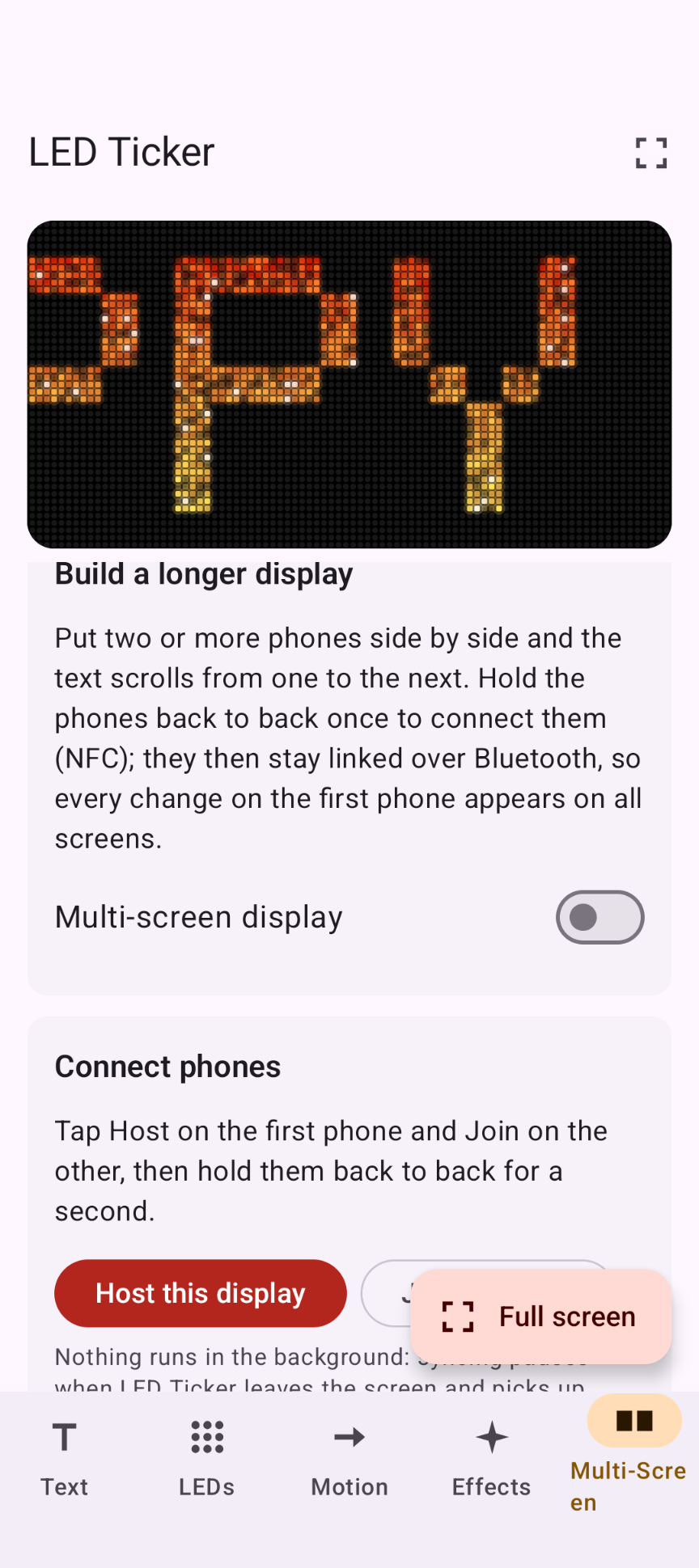
5. Connect phones into one long display
- Turn on NFC and Bluetooth on every phone.
- On the leftmost phone, open Multi-Screen and tap Host this display. It becomes screen 1.
- On the next phone tap Join a display and hold the phones back to back for a second (where the NFC antennas are, usually in the middle of the back). The phone buzzes and gets the next screen number. Repeat this for each phone.
- Line the phones up from left to right and tap Full screen on each one.
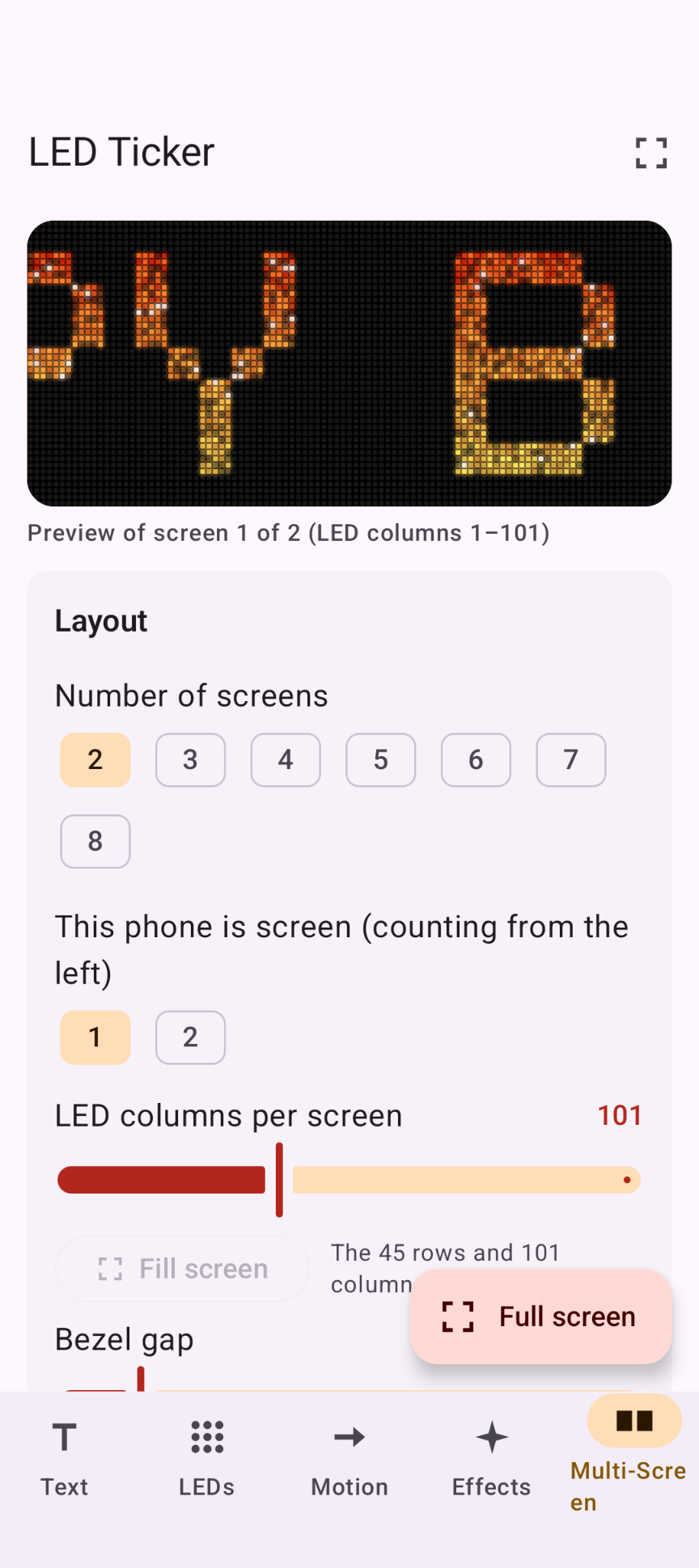
While linked, every change you make on the first phone (text, colors, speed…) appears on all screens. If a phone drops out, it reconnects by itself. Use Fill screen and Bezel gap on the Multi-Screen tab to make the letters line up across the phone edges, and the sync test pattern to check that all screens are in step.
Good to know
- Keep the app on screen. LED Ticker never runs in the background: animation, NFC and Bluetooth stop when you leave the app, and hosting or joining resumes automatically when you return.
- Battery: a bright full-screen display that stays on uses battery. Lower the brightness or plug in a charger for long events.
- Phones of different sizes can be combined: every phone uses the first phone's number of LED columns, so the letters line up.
- Multi-screen needs NFC and Android 12 or newer on every phone. Where exactly the NFC antenna sits differs per phone; slide the phones slowly if the tap isn't recognized.
Permissions this app requests
We believe in being transparent about every permission. Here is exactly what the app asks for and why.
| Permission | Why it is needed |
|---|---|
| NFC | To link phones by tapping them together. Granted at install, without a prompt. NFC is only active while the app is on screen. |
| Nearby devices (Bluetooth scan, connect and advertise — Android 12+) | To keep linked phones in step over Bluetooth. Asked the first time you host or join a display. The scan is marked as "never used for location", and Bluetooth stops as soon as the app leaves the screen. |
Privacy & cost — in plain terms
- No internet access. No analytics, crash reports, telemetry or advertising.
- No personal data requested. No account, no sign-up.
- No cookies, no tracking. This website sets none either.
- Phones only talk to each other. The display setup goes directly from phone to phone over NFC and Bluetooth.
- Nothing runs in the background. No background battery use and no data use.
- No payment, ever. The app is completely free, with no ads and no in-app purchases.
Your settings and quick picks are stored only in the app's private storage on your phone. Cloud backup and device transfer are disabled. For the full statement, see Privacy & Disclaimer.
Responsible use & your responsibility
LED Ticker is a hobby and educational project. Be considerate with bright, blinking displays: flashing effects can be uncomfortable or unsafe for people with photosensitive epilepsy, and a bright screen can dazzle drivers — never use it in or towards traffic. Follow the rules of the venue you are in.
The app is provided "as is", for learning and experimentation, without any warranty. Please read the full Privacy Statement & Disclaimer before use — by installing or using the app you accept those terms.
Images
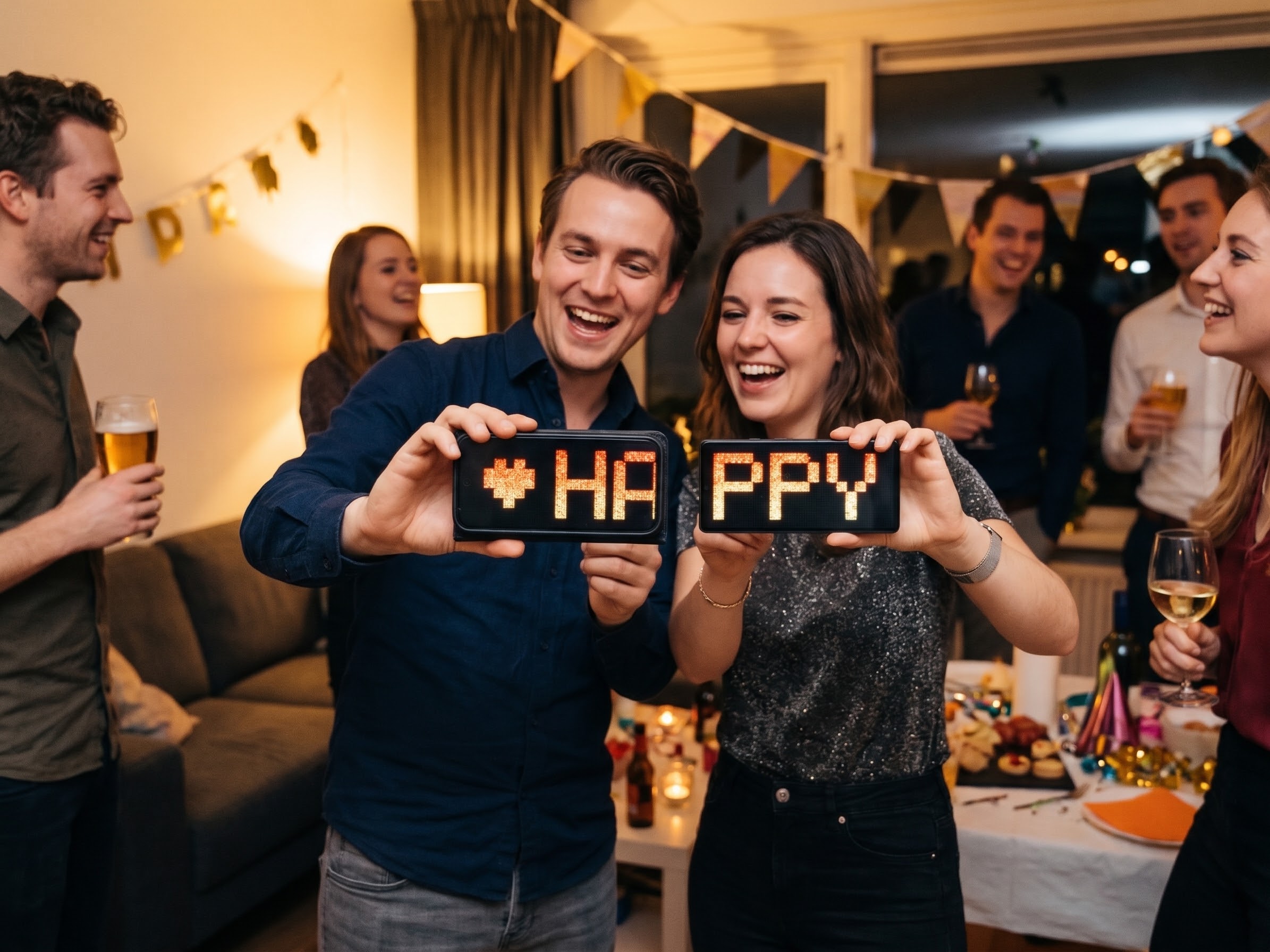
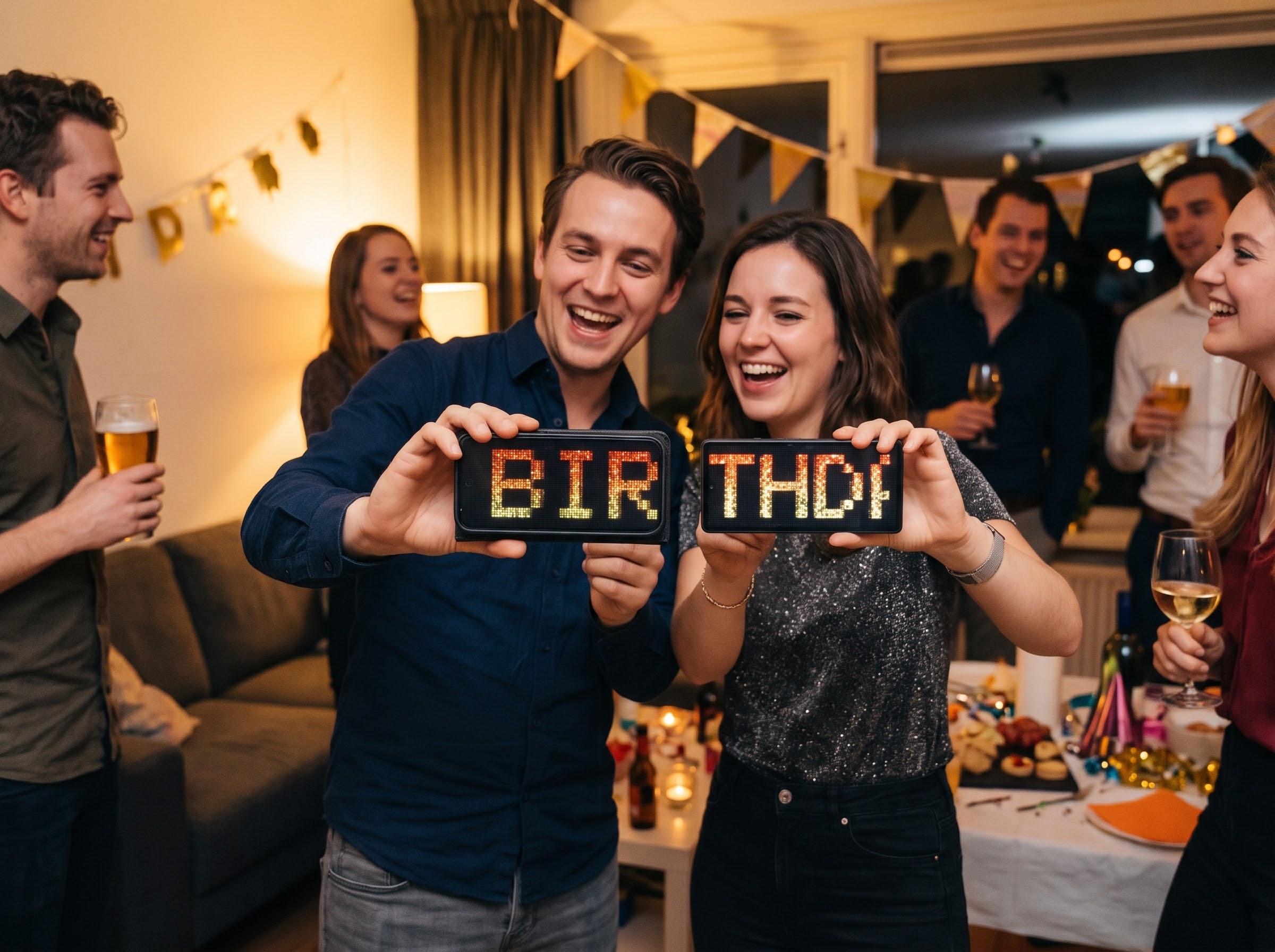
These two party photos were created with AI to show how the multi-screen display can be used. They are not photos of real people or events.