 Windows application
Disk Toolkit
Index your folders and drives, find the duplicate files across all of them, and clean up safely: you mark the copies to remove, and Disk Toolkit writes a PowerShell script that checks every file before it deletes anything.
What the application does
Disk Toolkit works in two steps. First it indexes a folder or a whole drive: it writes an index file (JSON) with the name, path, size, dates, attributes and, if you like, a SHA-256 checksum of every file. Then it compares one or more index files and reports every group of duplicates — also between drives that aren't connected at the same time, such as backup disks and USB sticks.
The application itself never deletes a file. In the results window you mark the copies you don't need, and Disk Toolkit writes a PowerShell script that you can run as a dry run first.
Everything in one place
🗂️ Create index
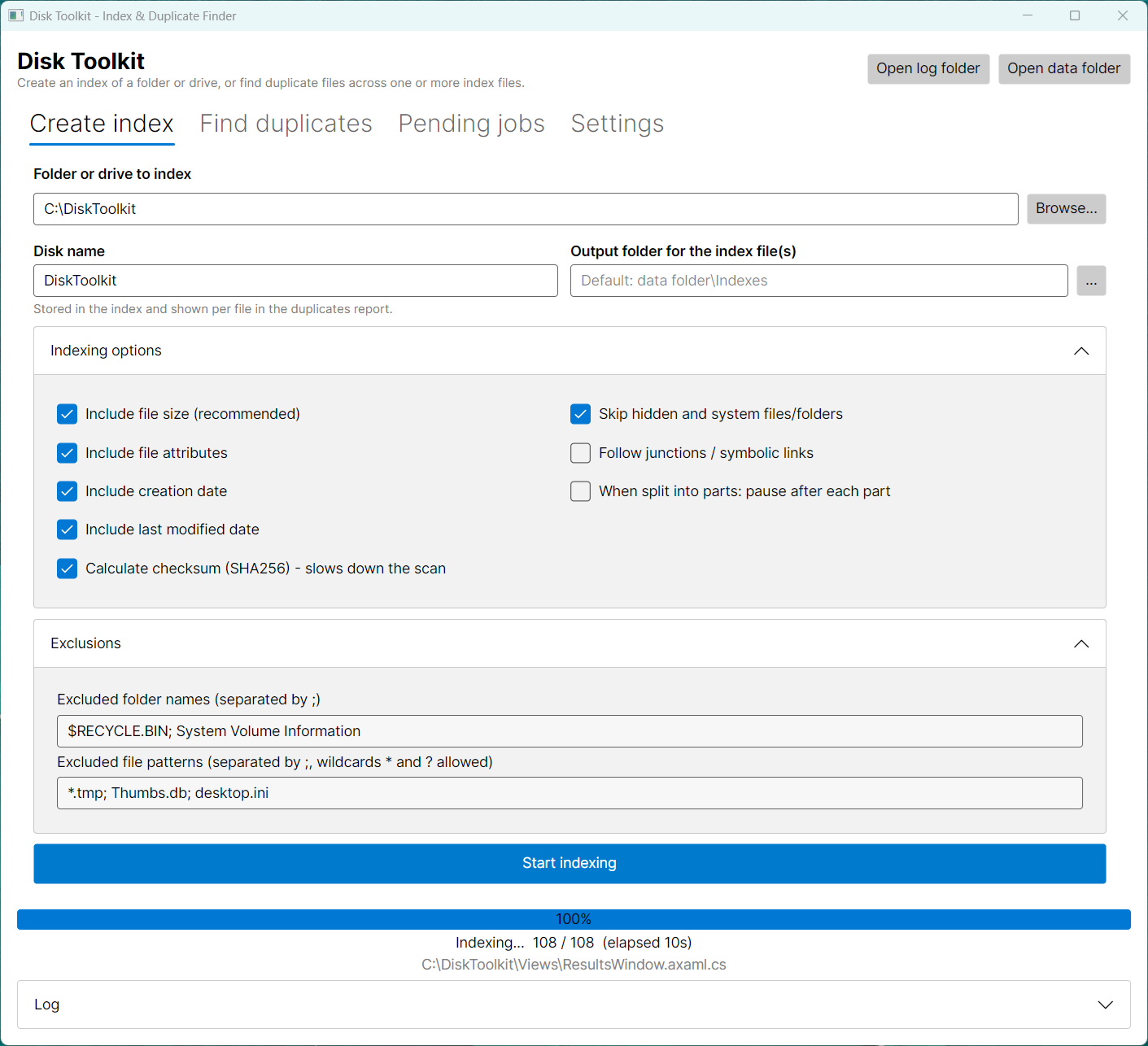
Scan a folder or drive with optional file size, attributes, dates and SHA-256 checksums. Exclude folders and file patterns (*.tmp; Thumbs.db), skip hidden and system files, and see the speed and time remaining.
🔍 Find duplicates
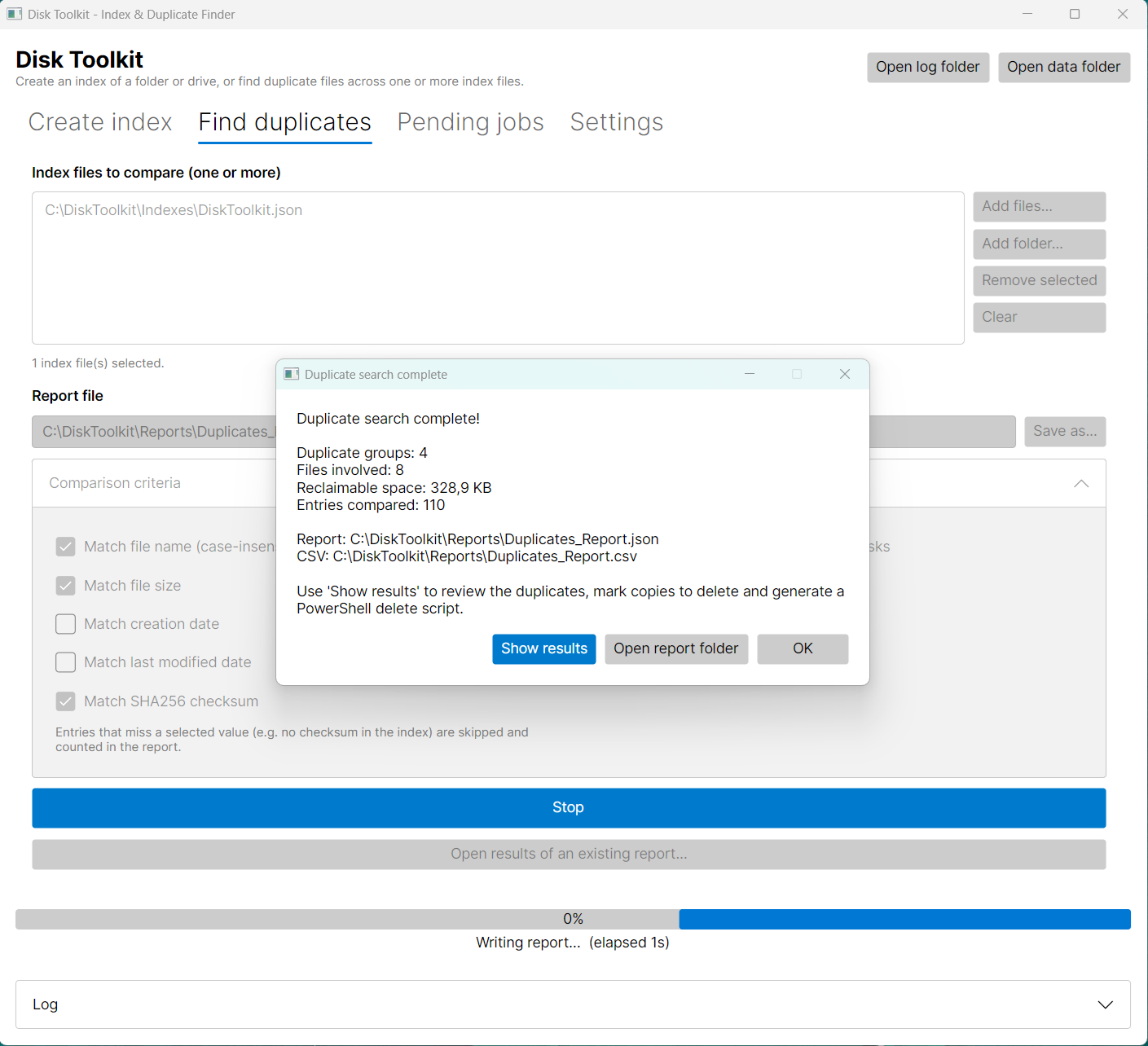
Match on name, size, dates and checksum, only across different disks if you like, and ignore small files. You get a JSON report, an optional CSV for Excel, and the space you can reclaim.
✅ Review and mark
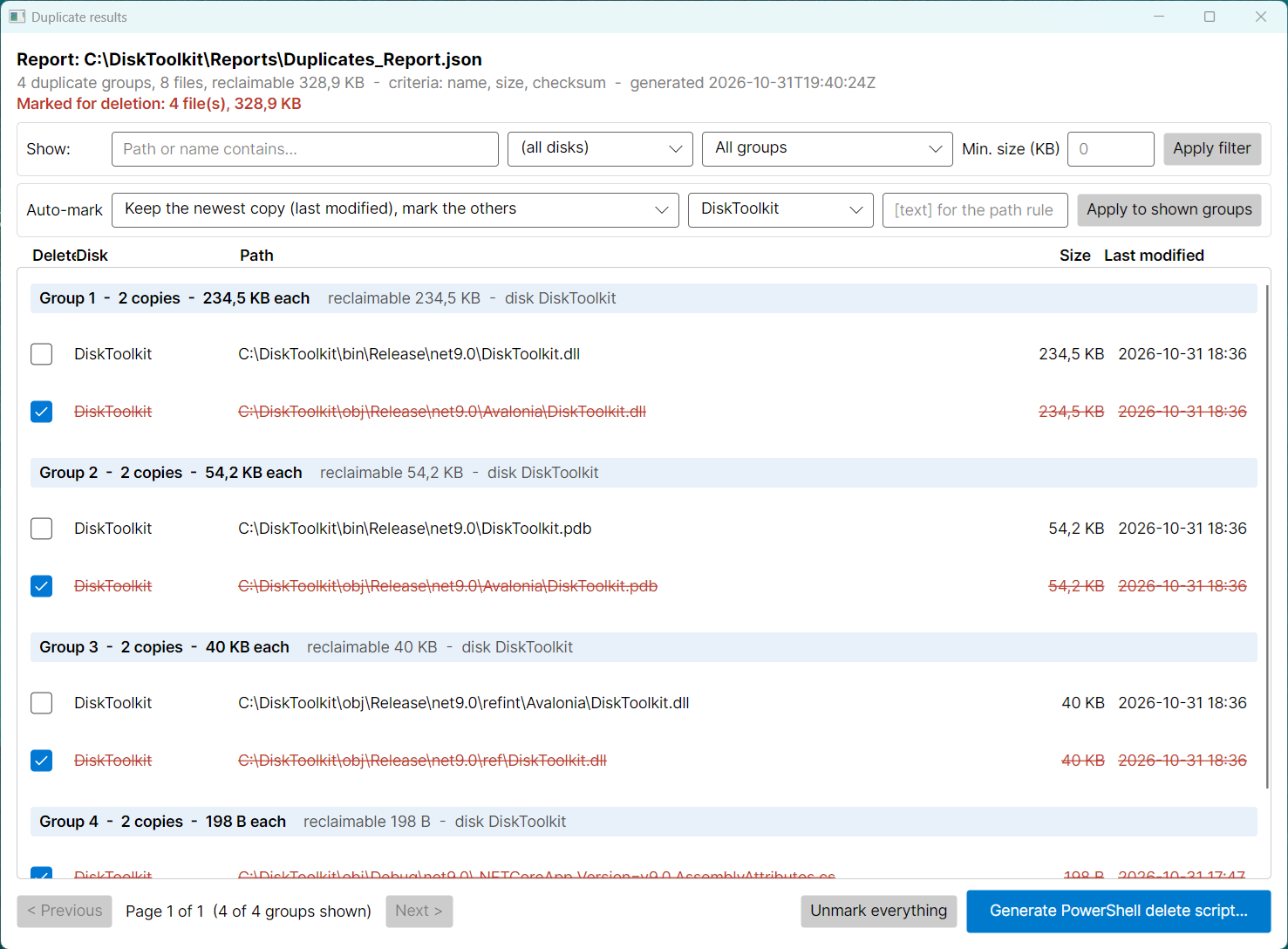
The results window shows every group with a Delete checkbox per copy. Filter by path, disk, size and status, and let Auto-mark keep the newest, oldest, first or shortest-path copy for you.
🛡️ Safe delete script
The generated PowerShell script checks that every file still exists, has the same size and the same checksum as in the index, and that the right disk is connected — and supports a dry run and the Recycle Bin.
Highlights
- Handles very large drives: above 500,000 files the index can be split into parts, and big comparisons can run in parts instead of in memory
- Pending jobs resume after a stop, a crash or a reboot; progress is saved after every part
- The same physical file in two overlapping indexes (for example C:\ and C:\Users) is counted only once
- Groups are sorted by reclaimable space, largest first; large reports are shown in pages
- A warning when all copies of a group are marked, with the choice to keep one
- Every log line is written to disk immediately, so a log survives even a crash or power loss
- Index files are written as *.partial first, so an interrupted run never leaves a broken file that looks valid
- Reads reports made by the older DiskIndexer / DiskCompare tools
Download
Disk Toolkit is a Windows application without an installer: you download a zip file, unpack it and start the program from that folder.
By downloading you agree to the Privacy Statement & Disclaimer. Use is entirely at your own risk.
certutil -hashfile DiskToolkit.zip SHA256. The result must match the SHA-256 value shown above.
What you need
- Windows 10 or 11 (64-bit).
- The .NET 9 Runtime (free, from Microsoft). Check with
dotnet --list-runtimes: a line starting withMicrosoft.NETCore.App 9.means you're ready. Otherwise download .NET Runtime 9.0.x › Windows x64 from dotnet.microsoft.com. You don't need the SDK. - For the delete script: Windows PowerShell 5.1 (built into Windows) or PowerShell 7.
How to install
- Unblock the zip (recommended): right-click DiskToolkit.zip › Properties. If there is an Unblock checkbox at the bottom, tick it and click OK.
- Right-click the zip › Extract All… and choose a folder you control, for example C:\Users\<you>\Apps\DiskToolkit. Avoid C:\Program Files. Don't start the program from inside the zip window.
- Open the extracted DiskToolkit folder and double-click DiskToolkit.exe. Keep all files together in this folder.
- The first time, Windows SmartScreen may say "Windows protected your PC", because the program isn't signed by a known publisher. Click More info › Run anyway. You only need to do this once.
- Optional: right-click DiskToolkit.exe › Send to › Desktop (create shortcut), or Pin to Start.
To update later, close the program and replace the folder's contents with the new version; your settings, indexes, reports and logs are kept in %LOCALAPPDATA%\DiskToolkit. To remove it, delete the folder (and that data folder if you no longer need your indexes and reports) — there is no uninstaller because nothing was installed.
Getting started
The application is in U.S. English. It has four tabs: Create index, Find duplicates, Pending jobs and Settings. Open log folder and Open data folder are at the top right.
1. Create an index
On Create index, choose a folder or drive with Browse… and give it a Disk name (for example Backup-2TB); that name is shown for every file in the duplicates report. Tick the options you need — Include file size is recommended, and Calculate checksum (SHA256) makes the comparison exact but the scan slower. Click Start indexing. Repeat this for every disk you want to compare.
When a folder holds more files than the limit in Settings (500,000 by default), you can choose Split into parts, Index in one file or Cancel.
2. Find duplicates
On Find duplicates, add one or more index files with Add files… or Add folder…, choose where to save the report, and pick the comparison criteria: file name, size, creation date, last modified date and SHA256 checksum. Optionally show only duplicates on different disks, ignore small files and write a CSV report too. Click Start duplicate search.
3. Review the results
Click Show results (or Open results of an existing report…). Every group lists its copies with a Delete checkbox; marked copies are shown in red and struck through. Use the filter bar, or choose an Auto-mark rule — such as Keep the newest copy, mark the others or keep the copies on disk X — and click Apply to shown groups.
4. Generate and run the delete script
Click Generate PowerShell delete script…. Run it as a dry run first, which deletes nothing and shows what would happen:
powershell -ExecutionPolicy Bypass -File .\Delete_Duplicates_20261031_1200.ps1 -WhatIfThen run it for real, preferably to the Recycle Bin. The script asks you to type YES first:
powershell -ExecutionPolicy Bypass -File .\Delete_Duplicates_20261031_1200.ps1 -UseRecycleBinOther options are -SkipChecksum, -RemoveEmptyFolders and -Force (no confirmation). If a disk now has another drive letter, change Current in the $Roots table at the top of the script.
5. Pending jobs
Indexes and comparisons that were split into parts and are not finished yet — because you stopped them, or after a crash or reboot — appear on Pending jobs and are announced at start-up. Select one and click Resume selected job.
- The file must still exist, and its size must match the index.
- When the index has a checksum, the SHA-256 must match too.
- When the index has the volume serial number, the right disk must be connected at that drive letter.
- Anything that doesn't match is skipped. Everything is logged in %LOCALAPPDATA%\DiskToolkit\Logs, with a summary at the end.
Good to know
- Where your data is stored: settings, logs, pending jobs and (by default) your index files and reports are in %LOCALAPPDATA%\DiskToolkit. Nothing is written to the program folder. Logs are kept for 30 days by default.
- Checksums take time. Without them, duplicates are matched on name, size and dates only. For deleting, an index with checksums is strongly recommended.
- Junctions and symbolic links are skipped by default, to avoid loops and counting the same files twice.
- Memory: comparing in memory uses about 1.1 KB per entry; above 1,000,000 entries (adjustable) Disk Toolkit offers to compare in parts, with exactly the same result.
- The program itself is cross-platform: with the .NET 9 Runtime for Linux or macOS,
dotnet DiskToolkit.dllstarts it there too. The delete script is for Windows.
Privacy & cost — in plain terms
- Nothing leaves your computer. Disk Toolkit has no network code at all: no analytics, telemetry, crash reports, updates or account.
- Your file lists stay yours. Index files, reports and logs contain file names and paths and are stored only where you save them and in your user profile.
- No cookies, no tracking. This website sets none either.
- No payment to us, ever. The program is completely free.
For the full statement, see Privacy & Disclaimer.
Responsible use & your responsibility
Disk Toolkit is a hobby and educational project. Deleting files can't always be undone. Always run the delete script with -WhatIf first, check which copies you marked, prefer -UseRecycleBin, and keep a backup of important data. Two files with the same name and size are not necessarily identical — use checksums when it matters.
The application is provided "as is", for learning and experimentation, without any warranty. Please read the full Privacy Statement & Disclaimer before use — by installing or using the application you accept those terms.
Images