 Android app
Light Editor
A light, fast text editor for notes, scripts, configuration files and Markdown. Syntax highlighting, search and replace, a Markdown preview and printing — with no permissions and no internet access. No ads, no accounts, no tracking.
What the app does
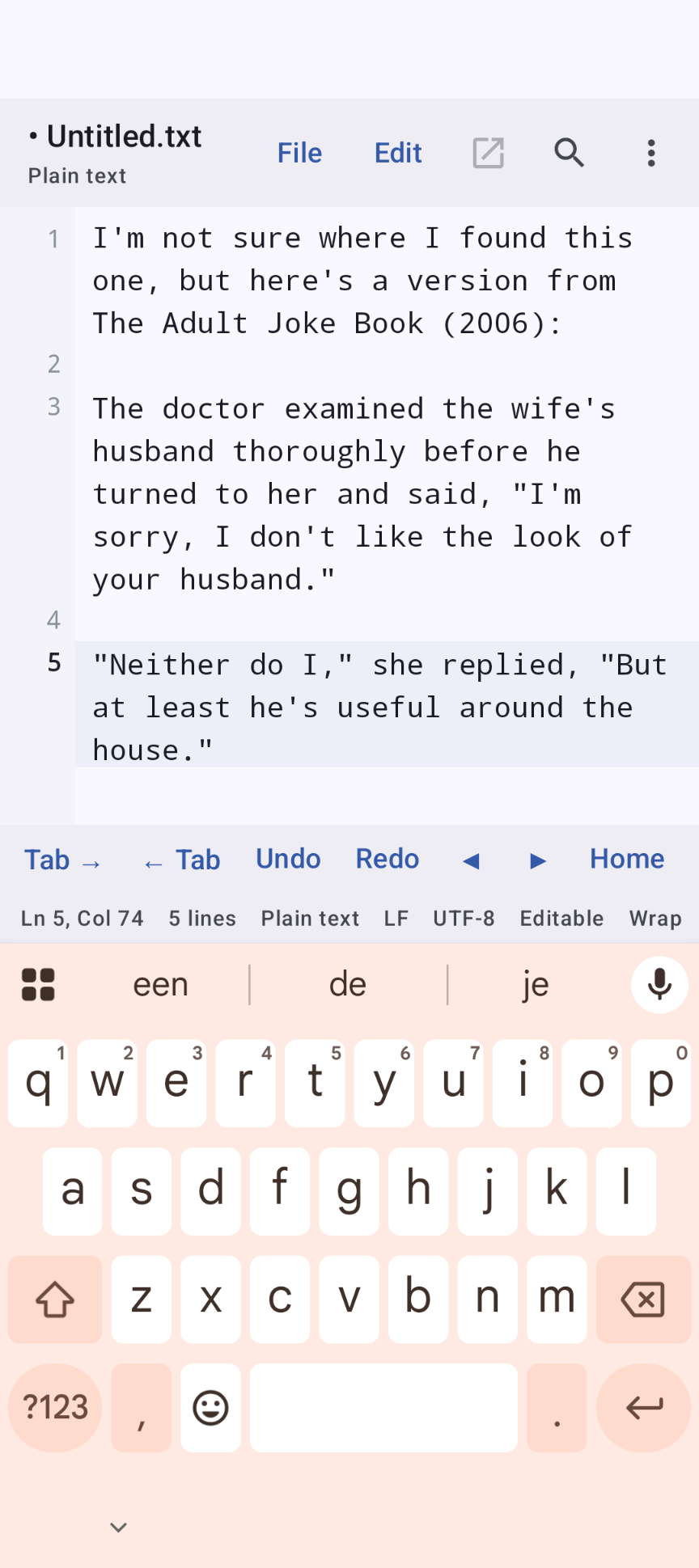
Light Editor is a plain text editor for your phone, tablet, foldable or Chromebook. Open any text file — a .txt note, a PowerShell or shell script, a JSON or YAML configuration file, a Markdown document — edit it with line numbers and syntax colors, and save it back where it came from.
It is built for small screens: an extra keys bar gives you Tab, Undo, Redo and the cursor keys above the keyboard, and the edit area always shrinks above the keyboard instead of disappearing behind it. On tablets and Chromebooks the Markdown preview sits side by side with the text, and a hardware keyboard gets the usual shortcuts.
At a glance
📝 Edit any text file
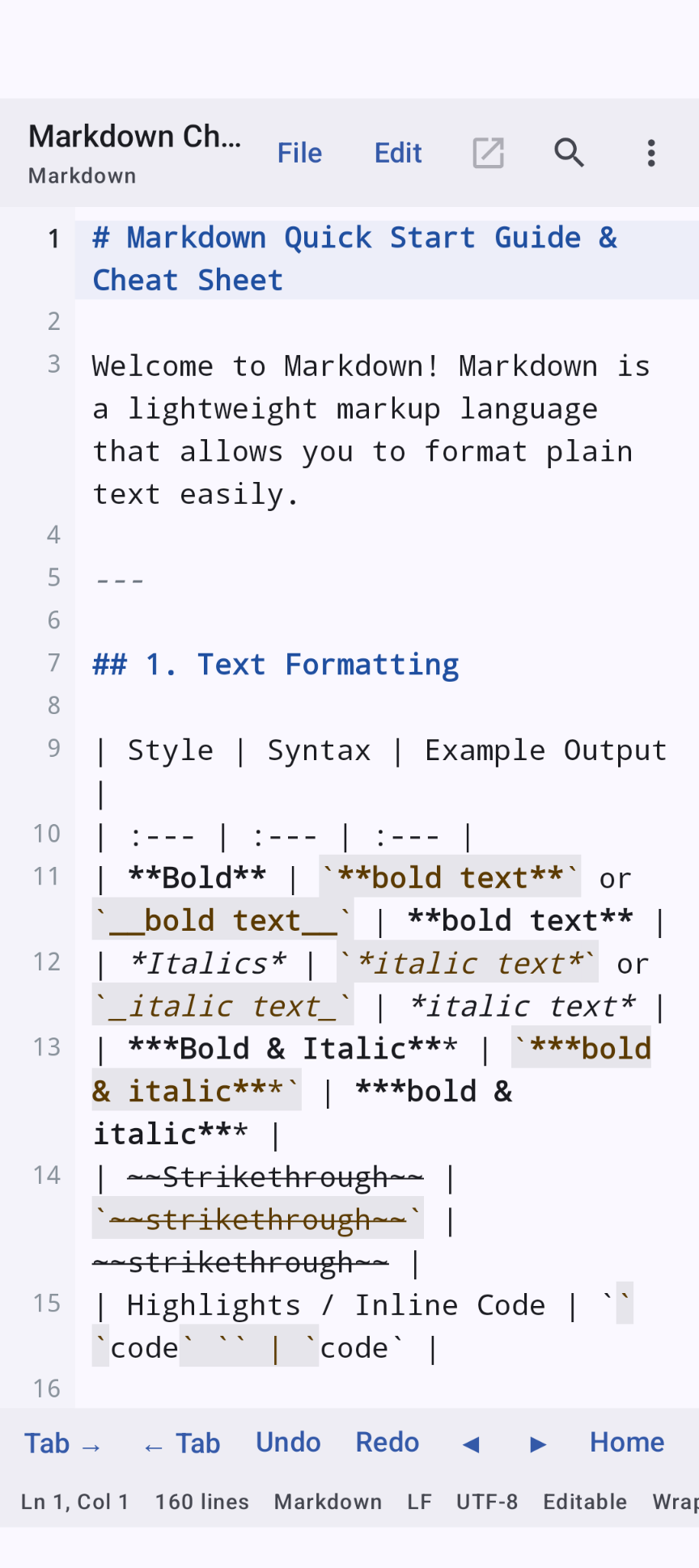
Line numbers, current-line highlight, auto indent, optional auto-closing of brackets and quotes, and Undo / Redo in word-sized steps. Syntax highlighting for Markdown, PowerShell, Shell, Batch, Python, Kotlin, Java, JavaScript, C/C++, C#, JSON, XML/HTML, CSS, SQL, YAML and INI.
🔍 Search & replace
Jumps to the first match as you type, shows "3 of 12", highlights every match, and supports Match case, Whole word and regular expressions — including $1 groups when you replace.
👁️ Markdown preview & printing
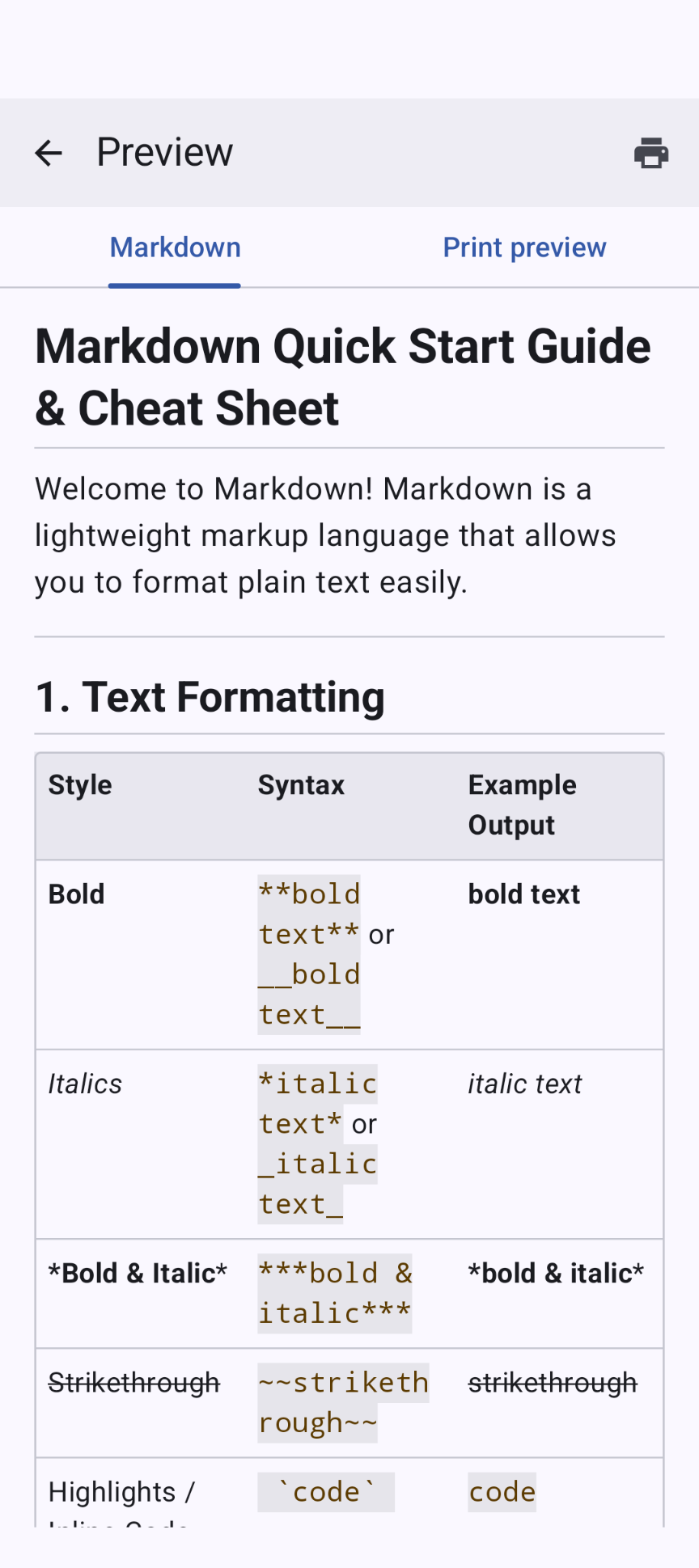
See your Markdown rendered with headings, lists, task lists, quotes, code and tables. A print preview shows the pages in the size you choose (Letter, A4 and more); print to a printer or save as PDF (depends on phone settings).
⚙️ Menus your way
Show, hide and reorder the items of every menu and bar: File, Edit, More, the top bar, the extra keys bar and the status bar. Each setting shows its default and has its own reset button.
Highlights
- Appears in Android's Open with / Edit with list for text files, scripts and configuration files, and accepts text shared from other apps
- Recent files, Save as, Refresh from storage, Share text and Share file
- Handy line tools: duplicate, delete, move up/down, toggle comment, sort A–Z, remove duplicate lines, trim trailing spaces, UPPERCASE / lowercase
- Go to line, open the link under the cursor in your browser, and Statistics (words, lines, characters, reading time)
- Line endings (LF, CRLF, CR) and encodings (UTF-8, UTF-8 with BOM, ISO-8859-1) are detected and kept, or changed with one tap in the status bar
- Drafts: unsaved changes are kept when you switch apps and come back at the next start
- Material 3 design with light and dark themes and, on Android 12+, your wallpaper colors
Download
Why Light Editor isn't on the Google Play Store
Google currently enforces highly demanding and complex requirements to publish new apps (such as mandatory closed testing phases with at least 20 people for 14 days, rigorous identity verification, and heavy administrative overhead). Because we build apps purely for our own enjoyment and want to keep it simple, we prefer to share the app with you directly.
How to Install the App
- Directly on your phone: Open the downloaded file. If prompted, allow your browser or file manager to "Install unknown apps" from outside the Google Play Store. Google started blocking this way of installing APK files.
- Via your computer: Connect your phone to your computer with a USB cable and install the app using Android Debug Bridge (ADB).
By downloading you agree to the Privacy Statement & Disclaimer. Use is entirely at your own risk.
How to install an APK directly on your phone
- Tap the download button above and wait for lighteditor.apk to finish downloading.
- Open the file (via your notification shade or the Files app).
- Android will ask permission to install unknown apps. Tap Settings and enable "Allow from this source" for your browser or file manager.
- Go back and tap Install.
- Open Light Editor when installation completes.
Installing apps from outside the Play Store is a normal Android feature. You can turn the "unknown sources" permission back off afterwards if you prefer.
How to install an APK via your computer
The cleanest, safest, and most secure way to install an APK file—without modifying your phone's mobile security settings or enabling "Unknown Sources"—is via ADB (Android Debug Bridge) from your computer. This is an official command-line utility supplied by Google for Android developers.
Step 1: Download ADB on your computer (The fastest way)
You do not need to install the massive Android Studio suite. Google provides a lightweight, standalone package called Platform-Tools.
- Windows: Download the official Android SDK Platform-Tools for Windows.
- Mac / Linux: Download the zip package above or install it instantly via your terminal line:
- Mac (via Homebrew): Run
brew install android-platform-tools - Linux (Ubuntu/Debian): Run
sudo apt install adb
- Mac (via Homebrew): Run
Note: If you downloaded the ZIP file (Windows/Mac), extract it into an easy-to-reach directory, such as C:\platform-tools or your Desktop.
Step 2: Prepare your Android phone
- Open the Settings app on your phone.
- Go to About phone (or System > About).
- Tap Build number 7 times rapidly until a notification pop-up says: "You are now a developer!".
- Return to the main Settings menu, open the new Developer options panel, and turn on USB debugging.
Step 3: Install the APK file
- Connect your phone to your computer using a USB cable.
- Look at your phone's screen: a prompt will ask "Allow USB debugging?". Check the option for “Always allow from this computer” and tap Allow.
- Move your downloaded APK file directly into the folder where you extracted the platform-tools files.
- Open Command Prompt (CMD) on Windows or Terminal on Mac/Linux, and change directories to that folder (e.g., on Windows, type:
cd C:\platform-tools). - Run this command to verify your computer properly detects your device:
(If you see a serial number followed by the word 'device', you are connected successfully!)adb devices - Run the installation script command:
adb install lighteditor.apk
When the terminal returns a Success message, the app is fully installed on your device and ready to launch!
User manual
The app is in U.S. English. The main menus are File, Edit and More (⋮); the status bar at the bottom shows the details of the current file.
1. Open and save files
Use File › Open to pick a file with Android's file picker, or File › Recent files to reopen one you used before. Save writes the file back to where it came from; Save as stores a copy somewhere else. Read-only files open in Read only mode — use Save as to keep your changes in a new file.
You can also open a file straight from another app: tap it in your file manager and choose Light Editor under Open with. Text shared from another app opens as a new document.
2. Type on a phone
The extra keys bar above the keyboard has Tab, Shift-Tab, Undo, Redo, the cursor keys, Home/End and symbols. Tab and Shift-Tab indent or un-indent the current line, or every selected line. A new line keeps the indent of the line above, and also indents after {, [, ( and a Python or YAML :.
The status bar shows line and column, the number of lines, the syntax, line endings, encoding, read-only and wrapping. Tap an item to change it.
3. Search and replace
Open Edit › Search (or the 🔍 button) and start typing. Use Next and Previous (Enter / Shift+Enter) to move between matches. Turn on Match case, Whole word or Regex as needed. Edit › Replace adds Replace and Replace all; in regex mode, $1 inserts the first group.
4. Syntax, preview and printing
The syntax is chosen automatically from the file extension; pick another one under Edit › Syntax. For Markdown files, Edit › Preview shows the rendered document. The Print preview tab shows the pages in the page size from Settings, with optional line numbers and header; pinch with two fingers to zoom. Print opens Android's print dialog, where you can also choose Save as PDF.
5. Settings and menus
Open ⋮ › Settings. Every setting shows its default and has a reset button; Reset all restores everything. Under Menus you can show, hide and move each item of every menu and bar. Settings always stays in the ⋮ menu, so you can never lock yourself out.
6. Drafts
When you leave the app with unsaved changes, the text is kept as a draft. The next time you start Light Editor it comes back: for a saved file the draft is applied on top, so the file shows as modified and Undo returns to the saved version. Choosing Save or Don't save when you exit removes the draft.
7. Keyboard shortcuts
With a hardware keyboard (tablet, Chromebook or a Bluetooth keyboard):
| Shortcut | Action | Shortcut | Action |
|---|---|---|---|
Ctrl+N | New | Ctrl+F / Ctrl+H | Search / Replace |
Ctrl+O | Open | F3 / Shift+F3 | Next / previous result |
Ctrl+S | Save | Ctrl+G | Go to line |
Ctrl+Shift+S | Save as | Ctrl+D | Duplicate line |
F5 | Refresh | Ctrl+Shift+K | Delete line |
Ctrl+P | Alt+Up / Alt+Down | Move line | |
Ctrl+Z / Ctrl+Y | Undo / Redo | Ctrl+/ | Toggle comment |
Tab / Shift+Tab | Indent / Undo indent | Ctrl+Shift+U / Ctrl+U | UPPERCASE / lowercase |
Alt+Z | Text wrapping | Ctrl+; | Insert date and time |
Ctrl+Enter | Open link in browser | Ctrl+, | Settings |
Ctrl++ / Ctrl+- / Ctrl+0 | Zoom |
Good to know
- Open with: Android reads the list of file types for Open with when the app is installed. The File extensions setting only changes which files the app's own Open dialog accepts without asking.
- Large and binary files: the app warns you before opening a very large file, and detects binary files (such as images or APKs) so you don't damage them by accident.
- Exit (and Back on the main screen) closes the app completely; nothing keeps running.
- Open link in browser hands the address to your default browser. Light Editor itself still has no internet access.
Permissions this app requests
We believe in being transparent about every permission. Light Editor requests no permissions at all.
Privacy & cost — in plain terms
- No internet access. The app has no internet permission, so Android blocks all network traffic — in the foreground and in the background. Printing uses an offline preview with network loading blocked.
- No usage data collected. No analytics, crash reports, telemetry or advertising.
- No personal data requested. There are no accounts, no sign-up, no login.
- No cookies, no tracking. This website sets none either.
- Nothing runs in the background. No services, jobs, alarms or start at boot.
- No payment, ever. The app is completely free, with no ads and no in-app purchases.
Your files stay where you keep them. The app only stores its settings, the list of recent files and, when you leave it with unsaved changes, one draft in its private storage on your device. Sharing a file puts a temporary copy in the app's private cache for the app you choose. Cloud backup and device transfer are disabled. For the full statement, see Privacy & Disclaimer.
Responsible use & your responsibility
Light Editor is a hobby and educational project. Save overwrites the original file, so keep a backup of important files — especially configuration files and scripts — before you change them.
The app is provided "as is", for learning and experimentation, without any warranty. Please read the full Privacy Statement & Disclaimer before use — by installing or using the app you accept those terms.
Images